
Key Takeaways
-
Random freezes typically stem from overloaded resources, overheating, outdated drivers, malware, or failing hardware like RAM or hard drives.
-
Start with simple fixes first: restart your machine, close heavy apps, run a malware scan, and update Windows along with all your drivers.
-
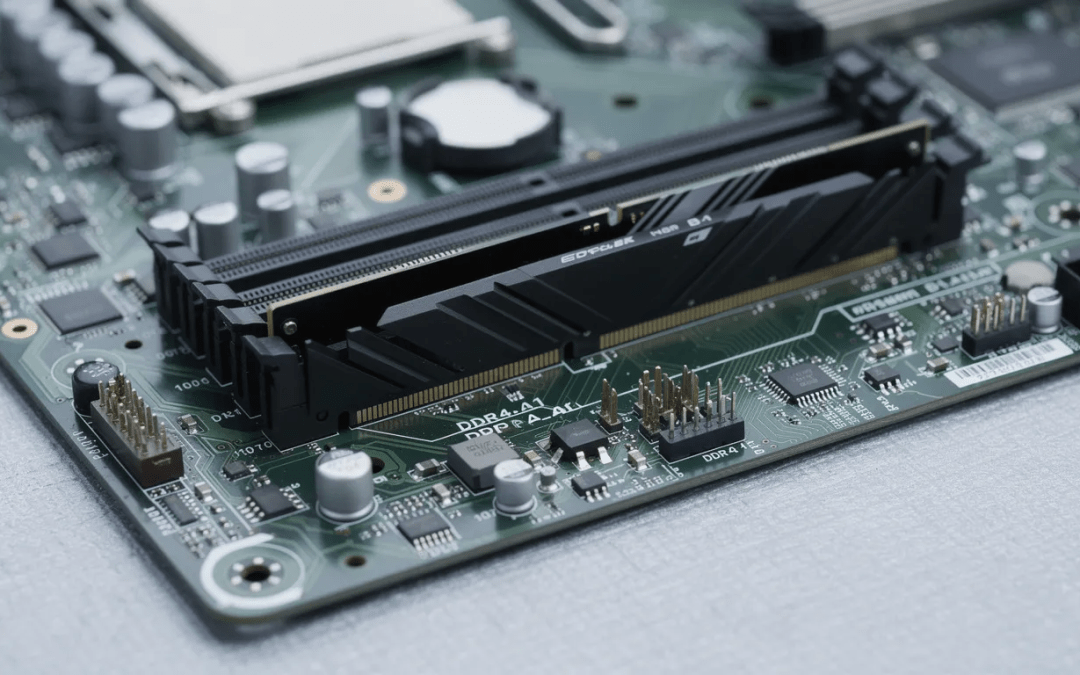
Frequent freezing on a fairly modern PC (purchased after 2020) often points to RAM or SSD/HDD problems that require proper diagnosis with tools like MemTest86 or manufacturer drive utilities.
-
Back up important files immediately to cloud storage or an external drive if freezes start happening several times a week—data loss becomes a real risk.
-
Stop attempting DIY fixes and contact a technician if you experience daily freezes, especially if they started after a specific event like a Windows update in January 2024 and haven’t improved despite your troubleshooting efforts.
What “Computer Freezes Randomly” Really Means
You’re in the middle of an important document, a video call, or an intense gaming session when suddenly everything stops. The screen is stuck. Your keyboard doesn’t respond. Your mouse cursor won’t budge. The audio might be looping the same half-second of sound. Yet the fans are spinning, the power light is on, and the system appears to be running—just completely unresponsive.
This is what most people mean when they say their computer freezes randomly.
It’s worth understanding the distinction between different types of freezing:
-
Full freeze: No input registers at all. The entire operating system becomes completely unresponsive, forcing you to hold the power button for a hard reboot.
-
Short hangs: The system locks up for a few seconds to maybe 30 seconds, then recovers on its own. Apps might show “Not Responding” temporarily.
-
Blue Screen of Death (BSOD): Windows crashes with a blue error screen displaying a stop code, then typically restarts automatically.
Random freezes affect Windows 10 and Windows 11 desktops and laptops across all major brands—Dell, HP, Lenovo, Asus, and others. The problem isn’t brand-specific; it’s about the underlying hardware and software conditions.
Why should you take this seriously? Every time your PC freezes and you’re forced into a hard reboot, unsaved work can be lost. Repeated hard resets increase the risk of corrupted system files. Worse, if the underlying cause is a failing hard drive or faulty RAM, the problem will worsen over weeks or months until you’re facing potential data loss or a completely non-functional machine.
If your freezes started suddenly after a specific change—like a Windows update, new software installation, or a new peripheral—that’s actually good news. Software-related causes are usually easier to fix than hardware failures.
Fast Checks to Try First (Before Deep Troubleshooting)
Before diving into advanced troubleshooting steps, run through this quick-win checklist. These simple actions solve a surprising number of freezing issues.
Try a soft reset first:
- Press Ctrl + Alt + Del
- If the screen changes and you see the security options, click the power icon in the bottom-right corner
- Select Restart
If the system is completely frozen:
- Hold the power button for 5–10 seconds until the machine shuts down completely
- Wait 10–15 seconds
- Press the power button to turn it back on
This hard reboot is safe as an emergency measure, though you want to minimize how often you need it.
After restarting, take these immediate steps:
-
Close resource-heavy applications like Chrome with dozens of tabs, 3D games, or video editors like Adobe Premiere Pro
-
Check your storage space: right-click your C: drive, select Properties, and verify you have at least 15–20% free space
-
If space is low, move large files like videos or game installers to an external drive
-
Run a quick Windows Security scan: open Windows Security > Virus & threat protection > Quick scan
Watch your system for 15–30 minutes of normal use. If the freeze returns, continue to the deeper troubleshooting tips below.
Common Causes of a Computer That Freezes Randomly
When your PC keeps freezing randomly, there’s usually an identifiable root cause—or sometimes a combination of factors working together. The challenge is narrowing down which one applies to your situation.
The sections below cover the most common culprits:
-
Too much multitasking and resource overload
-
Overheating of CPU or GPU
-
Bad, corrupted, or outdated drivers
-
Malware and unwanted background programs
-
Operating system glitches and software conflicts
-
Hardware problems with RAM, drives, or power
-
External devices and peripherals
Each subsection explains how the problem looks in real life, why it causes freezes, and when it typically appears. You don’t need to diagnose perfectly—just match your symptoms with the closest description to prioritize what to check first.
Too Much Multitasking and Resource Overload
Modern computing demands a lot from your hardware. Running multiple heavy applications simultaneously—Chrome with 30+ tabs, a 2023 AAA game, Discord for voice chat, and OBS for streaming—can max out your CPU, system memory, or disk bandwidth.
Typical symptoms:
-
Fans spin up loudly and stay at high speed
-
Mouse starts stuttering or jumping
-
Apps take several seconds to respond to clicks
-
The whole system locks up for extended periods
To check if resource overload is your problem, open Task Manager by pressing Ctrl + Shift + Esc. Look at the CPU, Memory, and Disk columns. If any of these sit at or near 100% during normal use, you’ve found a likely culprit.
Systems with only 4 GB or 8 GB of RAM running Windows 10 or Windows 11 are especially prone to computer freezing when multiple apps are open. Modern browsers alone can consume several gigabytes of memory.
Practical mitigations:
-
Close browser tabs you aren’t actively using
-
Limit background applications
-
Disable unnecessary startup apps via Task Manager > Startup tab
-
Consider upgrading RAM if your PC is from 2018 or earlier
Overheating of CPU or GPU
Dust buildup, blocked vents, dried thermal paste, and inadequate cooling solutions cause laptops and desktops—especially models from 2016–2020—to overheat under load. When temperatures exceed safe limits, your computer protects itself by throttling performance or freezing entirely.
Symptoms of overheating:
-
Laptop base feels very hot to the touch
-
Fans constantly run at full speed
-
System freezes or suddenly powers off during games, Zoom calls, or video rendering
-
Slowdowns that progressively worsen during extended use
You can check temperatures using free tools like HWMonitor or manufacturer utilities. If your CPU or GPU regularly exceeds 90°C under load, overheating is likely contributing to your freezes.
Fixes to try:
-
Clean vents and fans with compressed air (power off first)
-
Ensure your laptop sits on a hard, flat surface—not blankets or cushions that block airflow
-
Verify that desktop case fans are spinning properly
-
For older systems, replacing degraded thermal paste can significantly improve cooling
Repeated thermal throttling and emergency shutdowns over months can shorten the lifespan of your CPU and GPU. Don’t ignore persistent overheating.
Bad, Corrupted, or Outdated Drivers
Device drivers act as the bridge between your hardware and the operating system. Outdated drivers from years ago can conflict with current Windows 10/11 updates, causing random locks, black screens, and freezes.
Common scenarios:
-
Freezes when launching or closing games
-
System hangs when connecting a second monitor
-
Freezes when waking from sleep after a Windows cumulative update
-
Display driver crashes with error messages like “nvlddmkm stopped responding”
To fix driver issues, open Device Manager (right-click Start > Device Manager) and check for yellow warning icons. However, the more reliable approach is downloading drivers directly from manufacturer websites:
-
Graphics: NVIDIA, AMD, or Intel
-
Chipset and storage: Your laptop or motherboard manufacturer (Dell, HP, Lenovo, ASUS, etc.)
If freezes began immediately after a specific driver update, rolling back to the previous version through Device Manager may be necessary. Storage and SATA/NVMe drivers can also cause momentary system stalls that feel like random freezing when they malfunction.
Malware and Unwanted Background Programs
Modern malware often operates silently in the background. Crypto miners, browser hijackers, and other malicious software can consume significant CPU, memory, and disk bandwidth without obvious signs.
Clues that malware might be involved:
-
Unknown processes consuming high resources in Task Manager
-
Browsers opening strange tabs or redirecting searches
-
Sudden spikes in resource use even when the PC is idle
-
Frequent freezes during normal web browsing
A Windows Security quick scan isn’t always enough. Run a full scan (Virus & threat protection > Scan options > Full scan) and follow up with a reputable on-demand scanner to catch adware and potentially unwanted programs.
Check Task Manager > Startup for suspicious entries that appeared around the time your freezes began. Uninstall any toolbars, browser extensions, or utilities you don’t recognize.
If your system freezes within a minute or two of booting normally, run malware scans in safe mode instead.
Operating System Glitches and Software Conflicts
Corrupted system files, incomplete updates, and conflicting software suites can destabilize Windows and cause recurring hangs.
When this typically happens:
-
Right after a major Windows Feature Update (like 22H2 or 23H2)
-
After installing security suites, VPN clients, or other system-level software
-
Following a power outage that interrupted a Windows update
Windows includes built-in repair tools. Open Command Prompt as Administrator and run:
DISM /Online /Cleanup-Image /RestoreHealth
sfc /scannow
These commands scan for and repair corrupted system files.
If freezes started within a clear time window—the last 7–14 days—uninstalling recently installed apps or rolling back Windows updates may resolve the issue. You can check Windows Event Viewer or Reliability Monitor (search “View reliability history”) to spot patterns of app or driver crashes tied to your freezes.
Hardware Problems: RAM, Drive, and Power
Dust buildup, blocked vents, dried thermal paste, and inadequate cooling solutions cause laptops and desktops—especially models from 2016–2020—to overheat under load. When temperatures exceed safe limits, your computer protects itself by throttling performance or freezing entirely.
Symptoms of overheating:
-
Laptop base feels very hot to the touch
-
Fans constantly run at full speed
-
System freezes or suddenly powers off during games, Zoom calls, or video rendering
-
Slowdowns that progressively worsen during extended use
You can check temperatures using free tools like HWMonitor or manufacturer utilities. If your CPU or GPU regularly exceeds 90°C under load, overheating is likely contributing to your freezes.
Fixes to try:
-
Clean vents and fans with compressed air (power off first)
-
Ensure your laptop sits on a hard, flat surface—not blankets or cushions that block airflow
-
Verify that desktop case fans are spinning properly
-
For older systems, replacing degraded thermal paste can significantly improve cooling
Repeated thermal throttling and emergency shutdowns over months can shorten the lifespan of your CPU and GPU. Don’t ignore persistent overheating.
External Devices and Peripherals
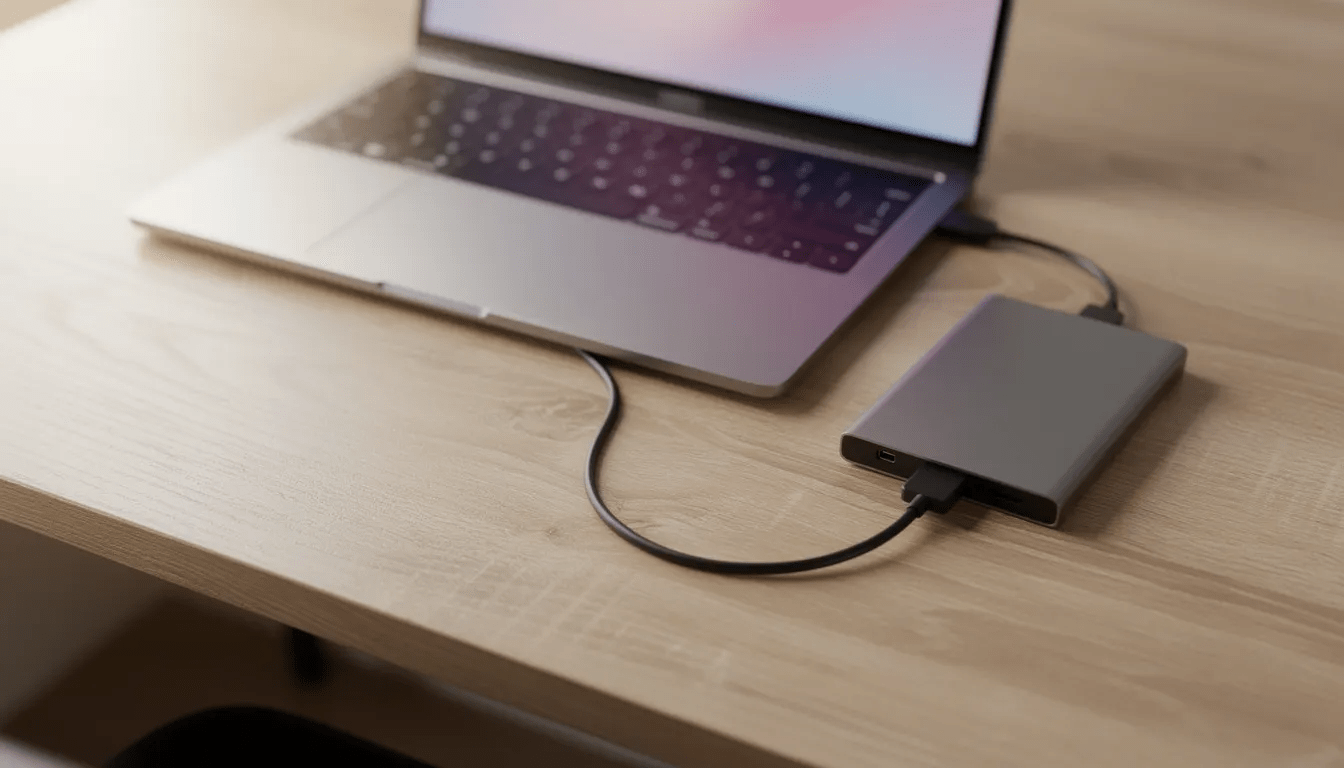
USB devices—external hard drives, docks, hubs, webcams, and even certain keyboards or mice—can lock up your system if their drivers misbehave or the devices themselves are faulty.
Telltale signs:
-
PC only freezes when a specific device is connected (like a USB-C dock purchased recently)
-
Freezes occur specifically when copying files to an external drive
-
System becomes unstable after plugging in a new peripheral
To test, disconnect all non-essential external devices—printers, webcams, extra drives, USB hubs—and use your computer normally for a day or two. If freezes stop, reconnect devices one at a time to identify the culprit.
Update or reinstall drivers for problem devices. Try the device on another computer to confirm whether the peripheral itself is faulty. Damaged USB ports or cables can also cause intermittent connection issues that look like system instability.
How to Stop a Randomly Freezing Computer (Step-by-Step Fixes)
This section provides a practical, ordered approach to resolving freezes. Work through these steps sequentially, testing your PC after each fix to identify which change made the difference.
These instructions focus on Windows 10 and Windows 11 and apply to most major PC brands released between 2017 and 2024.
Before attempting deeper system changes, back up critical files—documents, photos, work projects—to an external drive or cloud storage.
Restart, Then Boot into Safe Mode if Needed
Start with a normal restart and observe whether freezes return within 10–15 minutes of typical use.
If freezes persist, safe mode helps determine whether a third-party app or driver is responsible. Safe mode loads only essential drivers and services, reducing conflicts.
How to enter Safe Mode:
- Open Settings > System > Recovery
- Under Advanced startup, click Restart now
- After restart, choose Troubleshoot > Advanced options > Startup Settings > Restart
- Press 4 or F4 for Safe Mode, or 5/F5 for Safe Mode with Networking
Alternatively, if Windows won’t boot normally, interrupt the boot process three times (power on, then force power off during boot) to trigger Windows Recovery Environment.
What’s different in Safe Mode:
-
Lower screen resolution
-
Limited apps and services running
-
No third-party drivers loaded
-
Basic functionality only
If your PC runs smoothly in Safe Mode for 30–60 minutes, a third-party application or driver is likely causing your freezes.
Close Heavy Programs and Manage Startup Apps
Open Task Manager (Ctrl + Shift + Esc) and sort by CPU and Memory columns. End tasks that are consuming high percentages of resources—typically games, browsers, cloud sync tools, or video editing software.
To manage startup programs:
- In Task Manager, click the Startup tab
- Review the list of programs that launch automatically
- Right-click unnecessary items and select Disable
Good candidates for disabling include game launchers, chat apps, and update agents you don’t need running constantly. Don’t disable critical security software or system processes. If you’re unsure about an entry, search for it online before disabling.
Older PCs with traditional hard drives benefit significantly from minimizing startup apps, as this prevents long freeze periods right after boot. Test for a few days after reducing startups to see if random freezes become less frequent.
Run Malware and Virus Scans
A thorough malware scan can take an hour or more but is essential for ruling out infection.
Steps for a complete scan:
- Open Windows Security
- Go to Virus & threat protection
- Click Scan options
- Select Full scan and click Scan now
After the Windows scan completes, run an additional scan with a reputable on-demand scanner to catch threats that might be missed.
If scans detect malware installed around the time your freezes started—especially browser extensions or utilities—remove them immediately and reset browser settings.
Avoid pirated software and cracks. These are common sources of hidden malware that consumes resources and destabilizes systems. If scans freeze your system midway, run them in Safe Mode with Networking.
Adjust Power Settings and Disable Fast Startup
Aggressive power-saving settings can cause hard disks and USB devices to power down unexpectedly, leading to short freezes when they need to wake up.
To adjust power settings:
- Press Windows + R, type powercfg.cpl, and press Enter
- Select Balanced or High performance plan
- Click Change plan settings > Change advanced power settings
- Set “Turn off hard disk after” to 0 (Never) for plugged-in use
Fast Startup, a feature since Windows 8, can cause boot-time freezes on some systems.
To disable Fast Startup:
- In Power Options, click “Choose what the power buttons do”
- Click “Change settings that are currently unavailable”
- Uncheck “Turn on fast startup”
- Click Save changes
Test your system behavior after these changes, especially if freezes primarily occur during the first few minutes after startup.
Free Up Disk Space and Clean Temporary Files
When your system drive runs critically low on storage space, Windows struggles to manage virtual memory and temporary files, resulting in stuttering and freezes.
Check and free up space:
- Open File Explorer and right-click your C: drive
- Select Properties to see current free space
- Click Disk Cleanup and select file types to remove
- Check “Windows Update Cleanup” and “Temporary files” for significant savings
Aim for at least 15–20% free space on your system drive. Move large files like 4K videos, game installers, or ISO images to an external drive.
For older HDD-based systems, running the built-in defragmentation tool can reduce pauses when opening or saving files. Don’t defragment SSDs—Windows handles SSD optimization automatically.
Windows 10 systems upgraded from Windows 7 or 8 often accumulate years of clutter. Storage Sense (Settings > System > Storage) can automate cleanup going forward.
Update or Reinstall Device Drivers
Download drivers from your PC or motherboard manufacturer’s support page—not from random driver updater utilities, which can introduce instability.
Priority drivers to update:
-
Graphics drivers (NVIDIA, AMD, Intel)
-
Chipset drivers
-
Storage/Intel RST drivers
-
Network adapters
To check driver dates in Device Manager:
- Right-click Start > Device Manager
- Expand a category (e.g., Display adapters)
- Right-click the device > Properties > Driver tab
- Note the Driver Date
Compare your installed driver dates against current releases from late 2022, 2023, or 2024. If a driver update date lines up exactly with when freezes began, rolling back to the previous driver version may help.
Advanced Troubleshooting for Persistent Freezes
If your PC still freezes randomly after completing the basic software fixes, these more technical steps can help distinguish between software and hardware causes.
Ensure you have a recent backup before running memory tests, disk checks, or BIOS updates. These procedures can stress hardware or change low-level settings.
Test RAM and Check Virtual Memory Settings
Unstable or failing RAM is a common cause of random freezing, particularly on systems where users added extra memory sticks in the last few years.
Quick test with Windows Memory Diagnostic:
- Search for “Windows Memory Diagnostic”
- Select “Restart now and check for problems”
- The test runs automatically during restart
For thorough testing, download MemTest86 and create a bootable USB. Run at least 4–8 passes, which can take several hours.
If errors are reported, test RAM sticks one at a time in different slots to identify whether you have a bad module or a faulty memory slot.
Check virtual memory settings:
- Search for “Advanced system settings”
- Under Performance, click Settings > Advanced > Virtual Memory
- Ensure “Automatically manage paging file size” is checked
If you’ve overclocked your RAM with XMP profiles, try disabling XMP in BIOS and running RAM at default speeds as a stability test.
Check Your Hard Drive or SSD for Errors
HDDs and SSDs fail differently. Hard drives may produce clicking or grinding noises and slow reads. SSDs typically fail more suddenly, with freezes, I/O errors, or the drive disappearing from BIOS.
Run CHKDSK to check for disk errors:
- Open Command Prompt as Administrator
- Type chkdsk C: /f /r and press Enter
- Schedule the check for next restart if prompted
Use manufacturer tools to check SMART status:
-
Samsung Magician for Samsung SSDs
-
Western Digital Dashboard for WD drives
-
CrystalDiskInfo (free) works with most drives
Any SMART warnings, reallocated sectors, or pending sectors are red flags. Copy critical files off the drive immediately if you see these warnings.
Drives installed around 2016–2018 may start showing age-related issues, causing intermittent locking under heavy disk activity. Replacing a failing drive and reinstalling Windows is the long-term fix if diagnostics confirm problems.
Scan and Repair System Files (SFC and DISM)
Corrupted Windows system files can freeze the operating system at random points, especially after power outages or failed update attempts.
Run repairs in this order:
- Open Command Prompt as Administrator
- Run: DISM /Online /Cleanup-Image /RestoreHealth
- Wait for completion (may take 15–30 minutes)
- Run: sfc /scannow
- Wait for the scan to complete
The system might appear slow during scanning—let the processes complete without interruption. Restart afterward and monitor whether freezes decrease over the next few days.
Repeated SFC failures could indicate deeper OS or disk issues, in which case a repair install or clean install of Windows may be necessary.
Use Reliability Monitor and Event Viewer to Spot Patterns
Reliability Monitor provides a graphical timeline showing when crashes and errors occurred relative to your freezes.
To access Reliability Monitor:
- Search “View reliability history”
- Look for red X icons or warning triangles on days when you experienced freezes
- Click individual days to see details about failing apps or drivers
Reliability Monitor often reveals patterns—a specific game, antivirus software, or driver module crashing repeatedly before freezes occur.
For more technical investigation, Event Viewer (search “Event Viewer”) contains detailed logs of critical errors and warnings. Filter for Critical and Error level events in the Windows Logs > System section around the times of your freezes.
Look for patterns like “Display driver nvlddmkm stopped responding” or “The computer has rebooted from a bugcheck.” These messages point toward specific causes.
Reset BIOS/UEFI Settings and Apply Updates Carefully
Aggressive BIOS tweaks, memory overclocks, or outdated firmware can contribute to random freezes, especially on custom-built PCs.
To enter BIOS/UEFI:
- Restart your computer
- Press the appropriate key repeatedly during startup (Del, F2, or F12 depending on manufacturer)
- Look for “Load Optimized Defaults” or similar option
- Save and exit
Disabling overclocking options—including XMP memory profiles—serves as a useful stability test. If freezes stop, gradually reintroduce overclocks to find the unstable setting.
BIOS updates from 2022–2024 may contain stability fixes. However, apply them carefully:
-
Download only from your manufacturer’s official support site
-
Follow instructions exactly
-
Don’t interrupt the update process
-
Ensure stable power (use a UPS if possible, or ensure your laptop has sufficient battery)
A failed BIOS update can render your system unbootable. Only update BIOS when necessary, such as when troubleshooting persistent stability issues or adding newer hardware.
Consider a Repair Install or Clean Install of Windows
If freezes continue despite clean hardware diagnostics, a damaged or heavily cluttered Windows installation may be the root cause.
Repair install (in-place upgrade):
-
Downloads fresh Windows files while keeping your apps and personal data
-
Refreshes system components without full reinstallation
-
Download the Windows Media Creation Tool and run it from within Windows
Clean install:
-
Completely wipes the system drive and installs a fresh copy of Windows
-
Recommended after years of accumulated upgrades or persistent issues since a major update
-
Requires reinstalling all applications
Before either approach:
-
Back up all personal files to external storage
-
Note down installed programs and their license keys
-
Download network and graphics drivers in advance
After a clean install, install drivers first, then test stability with minimal apps. Add other applications gradually while monitoring for freezes to identify if a specific program causes problems.
Preventing Future Freezes and Knowing When to Replace Hardware
Once you’ve resolved your current freezing problem, regular maintenance helps prevent recurrence.
Recommended maintenance habits:
|
Task |
Frequency |
|---|---|
|
Windows and driver updates |
Monthly |
|
Full malware scan |
Monthly |
|
Disk cleanup |
Monthly |
|
Hardware cleaning (dust removal) |
Every 6–12 months |
|
Temperature monitoring |
During heavy use |
Keep backups on an external drive or cloud service. If freezes reappear or hardware fails, your data remains safe.
When to consider replacing your PC:
-
Frequent freezes under light use despite repairs
-
Multiple failing components (RAM, disk, power supply)
-
Components no longer supported by current Windows versions
-
PC is older than 7–8 years
-
Cost of repairs approaches 50% or more of a new system’s price
Older pre-2016 models may continue to freeze despite fixes simply because the hardware can’t keep pace with modern software demands. Sometimes replacement is more economical than endless troubleshooting.
FAQ
Is forcing my PC off with the power button bad when it freezes?
Holding the power button to shut down is safe as an emergency measure, but doing it repeatedly risks data loss or file corruption. Open files that weren’t saved will be lost, and interrupted disk operations can corrupt data. An occasional hard power-off due to a freeze is typically fine—Windows includes recovery mechanisms for exactly this situation. However, if you’re doing this daily, prioritize finding and fixing the root cause rather than continuing to force shutdowns. Save your work frequently and always try Ctrl + Alt + Del first before resorting to the power cable.
How long should I run memory and disk tests when my PC freezes randomly?
A thorough MemTest86 run requires at least 4–8 passes to reliably detect intermittent memory errors, which can take several hours on systems with 16 GB or more RAM. Extended disk tests from drive manufacturers—often labeled “extended” or “long”—may also take one or more hours depending on drive capacity. Plan to run these tests overnight when you don’t need your computer. Avoid using the PC during testing to ensure accurate results. Quick tests may miss subtle issues, so patience pays off when diagnosing hardware problems.
Will adding more RAM stop my computer from freezing?
Upgrading from 4 GB to 8 GB, or from 8 GB to 16 GB, often eliminates freezes caused by running out of memory—a common software issue on Windows 10/11 systems running modern browsers and applications. However, more RAM won’t fix freezes caused by malware, bad drivers, a failing hard drive, or overheating. Before purchasing RAM, check current memory usage in Task Manager during typical use. If memory consistently sits at 90–100% during normal activities, an upgrade will likely help. If usage is moderate during freezes, the cause lies elsewhere.
Should I replace my HDD with an SSD if my PC keeps freezing?
Upgrading from an old mechanical hard drive to a solid-state drive usually eliminates short “not responding” hangs and dramatically improves system responsiveness. This upgrade helps most when freezes are linked to disk activity—slow boot times, delays when opening files, or an aging HDD with bad sectors showing in diagnostics. If CHKDSK reports errors or SMART warnings appear, replacing the drive promptly prevents potential data loss. An SSD won’t fix freezes caused by insufficient RAM or driver conflicts, but it’s often the single most impactful upgrade for older systems.
When is it better to buy a new PC instead of trying to fix freezes?
If your computer is more than 7–8 years old, constantly freezes even after multiple repair attempts, and struggles with basic tasks, replacement is usually more economical than continued repairs. Systems with multiple failing components—RAM, disk, power supply—can cost more in parts and technician time than a modern budget desktop or laptop. Compare the total cost of remaining upgrades and potential repairs against current PC prices. A new machine handles current Windows versions more smoothly, comes with warranty protection, and eliminates the frustration of ongoing troubleshooting. For further assistance beyond this guide, local computer repair shops or manufacturer support can provide hands-on diagnosis.