
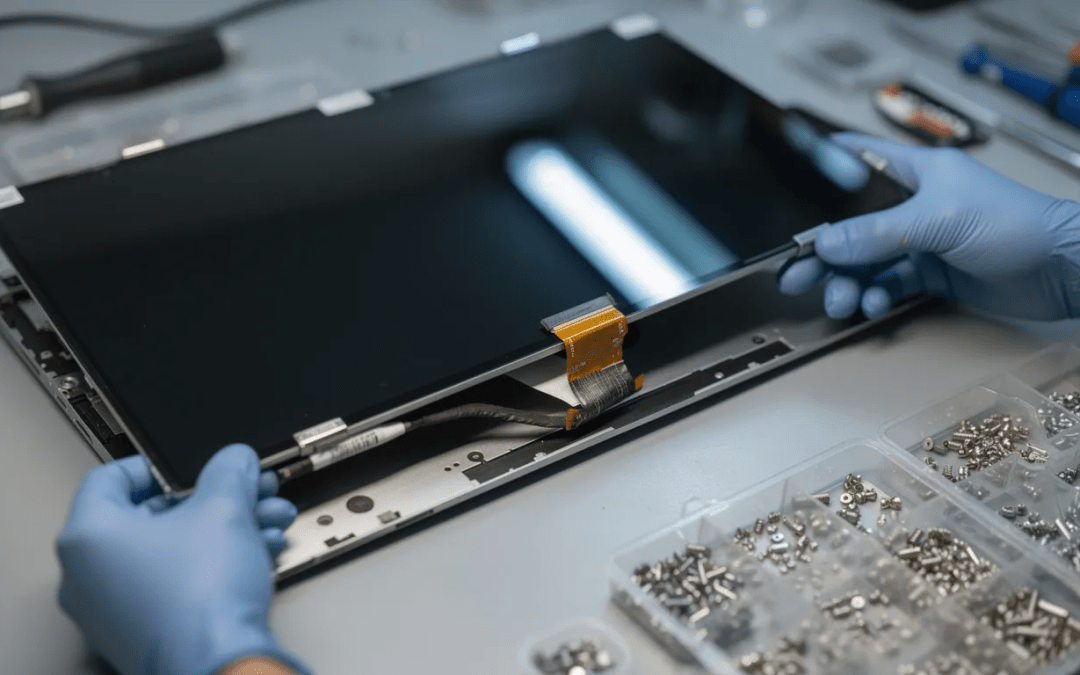
Introduction to Computer Repair
Computer repairs are a vital part of keeping your devices running smoothly, whether you’re a home user or managing a business. As technology becomes more integrated into daily life, the need for reliable repair services has only grown. The average computer repair costs can vary widely, influenced by the complexity of the issue, the type of device, and the repair service you choose. Understanding what drives these repair costs—such as labor, replacement parts, and the nature of the problem—can help you make cost effective decisions and avoid unnecessary expenses.
This guide is designed to demystify the world of computer repairs. We’ll break down the most common issues, explain the factors that affect the final price, and share practical tips for saving money on services. Whether you’re facing a sudden system failure or just want to be prepared for future repairs,
Key Takeaways
-
The national average for a typical computer repair job in 2026 ranges from $110 to $175, with simple software fixes starting under $100 and complex hardware repairs exceeding $300.
-
Software-only services like virus removal and system tune-ups usually cost between $70 and $140, while major hardware replacements (screens, SSDs, motherboards) can run $150 to $600 or more.
-
Mac repairs typically cost 15-40% more than equivalent Windows PC repairs due to proprietary parts and tighter designs.
-
According to the 50% rule, repair generally makes financial sense when the total cost stays below 50% of what you’d pay for a comparable new computer; if repair costs exceed this threshold, replacement is often more cost-effective.
-
This guide covers concrete 2026 price examples, breaks down all the various factors that influence your final price, and provides practical tips for saving money and selecting the right repair service.
Average Computer Repair Costs in 2026
These are realistic 2026 US price ranges based on data from independent repair shops and national chains—not vague estimates. While prices vary depending on your location and the specific issue, these figures give you a solid baseline for budgeting any computer repair cost you might face.
The national average computer repair prices range from $119 to $169.
The national average for a typical computer repair job falls between $110 and $175. Simple tasks like basic software troubleshooting may come in under $100, while complex repairs involving multiple components or specialized parts can exceed $300.
In 2026, computer repair costs range from $50 to $500 depending on the component.
Here’s how repair costs generally break down by complexity:
-
Budget fixes (under $100): Simple software issues, basic tune-ups, driver updates, and minor operating system errors
-
Mid-range repairs ($100–$250): Most standard repairs including virus removal, SSD upgrades, battery swaps, and common hardware problems
-
Premium repairs ($250–$600+): Laptop screen replacements, motherboard replacements, GPU repairs, and severe physical damage (for example, a damaged computer screen can be one of the more expensive hardware repairs)
Some quick examples of common jobs and their 2026 prices:
-
Virus removal: around $90–$140
-
Basic system tune-up: $70–$120 (optimizing a slow computer through tune-ups typically costs between $70 and $150)
-
SSD upgrade with OS reinstall: $150–$260 (the install process for SSDs can impact the total cost)
-
RAM upgrade with installation: $80–$140 (install labor is included in this price)
-
Software fixes: total repairs average between $50 and $150, often using a diagnostic or repair program
Technicians charge an average of $65 per hour for labor, and computer repair costs generally range from $50 to $150 per hour. The diagnosis fee for computer repairs typically ranges from $50 to $100.
The main reasons the same job can fall at the low or high end of these ranges come down to local labor rates and whether you’re using OEM replacement parts versus third-party alternatives.
Computer Repair Price List by Repair Type
This section serves as a quick reference for typical 2026 prices across the most common computer problems. Keep in mind that diagnostics may be rolled into these totals if you approve the repair, but can be a separate charge when you decline the work.
-
Laptop screen replacement: $150–$400+ depending on size, type (IPS, OLED, high-refresh), and whether it’s a standard or high-end computer screen. Standard laptop screens range from $150 to $250, while high-end screens can exceed $400. A cracked screen on a budget 15-inch laptop sits at the lower end, while gaming laptops with 144Hz displays push toward the top.
-
Virus and malware removal: $90–$150 including cleanup, security updates, and ensuring no malware remains. More severe infections with rootkits or ransomware can push costs higher.
-
Hard drive to SSD upgrade: $120–$260 including parts and data transfer when possible. The exact cost depends on SSD capacity—a 500GB drive costs less than a 2TB model.
-
Data recovery from failed drives: $100–$400+ depending on the severity of damage. Simple logical failures cost less than drives with physical damage requiring clean-room recovery.
-
Keyboard replacement on laptops: $90–$220, with higher prices for premium ultrabooks and MacBooks where disassembly is more complex.
-
Battery replacement: $80–$200 depending on brand, battery type, and whether it’s user-replaceable or requires professional services.
-
Power supply (desktop PSU) replacement: $120–$230 including hardware and labor. Higher-wattage units for gaming PCs cost more.
-
Motherboard replacements: $200–$500+ including parts and the 2-3 hours of labor typically required for installation and testing.
-
Operating system reinstall: $70–$130 for a clean Windows installation, including driver setup and basic configuration.
-
Fan cleaning and thermal paste replacement: $60–$120 to address overheating issues and restore proper cooling.
Note that the use of specialized parts for premium brands like Apple can double repair costs compared to budget brands.
Geek Squad pricing varies by repair type, location, and warranty coverage, and may differ from local shops. Always ask for an itemized estimate before approving any work.
Note that rare or high-end parts—like dedicated GPUs, high-capacity SSDs, or 4K touch displays—can push repair costs significantly above these baselines. Always ask for an itemized estimate before approving any work.
Common Issues
Computers can develop a range of problems over time, and knowing the most common issues can help you spot trouble early. Hardware failures are a frequent culprit, with symptoms like broken screens, malfunctioning keyboards, or hard drives that suddenly stop working. These hardware problems can lead to costly repairs if not addressed quickly.
Software issues are another major source of frustration. Operating system errors, persistent software glitches, and virus infections can slow down your system or even make it unusable. Sometimes, these problems are caused by outdated programs or incompatible software, while other times, malware or viruses are to blame.
Data loss is a particularly stressful issue, often resulting from hardware failures, software corruption, or accidental deletion. Losing important data can disrupt your workflow or cause personal distress, making it crucial to address the underlying cause and seek professional help when needed.
By understanding these common issues—whether they stem from the operating system, software, or hardware—you can take steps to prevent them and know when it’s time to call in a professional.
PC vs. Mac Repair Pricing
The operating system and brand of your device strongly influence both parts and labor costs. If you’re wondering whether that MacBook repair will cost more than fixing a Windows laptop with similar damage, the answer is almost always yes.
Mac repairs in 2026 typically run 15-40% higher than equivalent PC repairs. This premium exists because Apple uses proprietary components, designs their machines with tighter tolerances, and offers fewer aftermarket parts options compared to the Windows ecosystem.
Here are some concrete comparisons:
-
Screen replacement: MacBook displays often cost $230–$450 versus $160–$320 for many comparable Windows laptops
-
Battery replacement: MacBook battery swaps run $140–$250 versus $80–$160 for typical PC laptops
-
SSD upgrades: Older MacBooks with replaceable storage cost more for proprietary drives; newer models with soldered storage can’t be upgraded at all
-
Keyboard repairs: Mac keyboards average $100–$120 just for parts, with labor-intensive disassembly adding significant time
Interestingly, older Macs from 2015–2017 are often cheaper to repair than the latest models. Apple Silicon devices can be more expensive due to limited third-party parts availability and integrated designs where components can’t be individually replaced.
Desktop computers—whether Windows towers, custom PCs, Mac minis, or even iMacs—are generally easier and cheaper to service than thin-and-light laptops and sealed ultrabooks.
How Much Does It Cost to Fix a Laptop?
Laptop repairs in 2026 average around $130–$220 per job, though this varies significantly based on the portability-focused design and compact components involved. The same repair that costs $80 on a desktop can easily double on a laptop due to the additional labor required to access cramped internals.
Common laptop-specific issues and their approximate 2026 cost ranges:
- Broken displays: $160–$350 for standard screens; $300–$500+ for OLED or high-refresh gaming panels
- Worn-out batteries: $80–$200 depending on whether the battery is easily accessible or requires significant disassembly
- Damaged DC power jacks: $70–$150, higher if the jack is soldered directly to the motherboard
- Fan and overheating repairs: $60–$140 for cleaning, thermal paste, and fan replacement
- Liquid damage assessment and cleaning: $120–$260, not including any major board or keyboard replacements that may be needed
- Trackpad or keyboard failures: $90–$220 depending on the laptop model and parts availability
Here are some price examples for context:
- Typical mid-range Windows laptop tune-up: $90–$150
- Complete virus removal with system optimization: $100–$160
- SSD upgrade on a business laptop: $140–$240
Gaming laptops and creator laptops with dedicated GPUs and high-refresh or 4K screens cost significantly more to repair than basic office or student laptops. The specialized components simply carry higher price tags, and the complexity adds labor time.
There’s also a notable difference between ultrabooks (thin, often glued or riveted together) and more repair-friendly business models. Ultrabooks may require two to three times the labor to access the same component, directly impacting your final cost.
Computer Repair Price Factors
The same type of repair can cost quite differently depending on various factors that are predictable once you understand them. Here’s what drives the variation in repair costs.
Complexity and severity of the issue
A simple software fix takes far less time than a multi-component board-level repair. When a computer repair technician needs to perform extensive diagnostics—testing various components to isolate the problem—that time adds up. Hardware failures that affect multiple systems simultaneously require more investigation and testing.
Parts cost
OEM parts from the original manufacturer cost more than third-party replacements, though they often come with better compatibility guarantees. Refurbished or used parts offer savings but may have shorter lifespans. The price difference between budget and premium brands for the same component type can be substantial—a basic 500GB SSD might cost $50 while a high-performance model costs $120.
Labor structure
Shops use either flat rate pricing for common repairs or hourly billing for unpredictable jobs. Typical 2026 hourly rates range from $75 to $150 per hour for consumer work, with many shops charging minimum fees of $50–$75 regardless of how quickly a job is completed. Labor rates typically account for 30-50% of the total bill. Shops in different regions show significant variation—small-town rates might be $60–$80 per hour while major metropolitan areas charge $100–$150.
Location and service type
Big-city pricing typically exceeds small-town rates by 20-40%. On site service—where a technician comes to your home or office—adds a travel fee of $30–$60 or more. In-home repairs typically include a call-out fee of $50 to $150. Remote repairs tend to be more affordable than in-person repairs. Emergency or same-day service often carries a premium surcharge of 25-50%, and typically costs more than scheduled appointments.
Warranty status
Manufacturer warranties, extended protection plans, and business support contracts can shift costs from you to the provider. If your device is still under warranty, even an expensive repair might cost nothing out of pocket. Some service plans cover common issues like hardware failures or even accidental damage.
Signs You Should Hire a Computer Technician
Recognizing when DIY troubleshooting becomes risky can prevent both data loss and higher repair bills down the road. Some problems are clearly beyond casual fixes.
Hardware warning signs:
-
Persistent blue screens or kernel panics that repeat after restarts
-
Grinding, clicking, or whirring noises from your hard drive
-
Burning smells or visible smoke from any component
-
Visible liquid damage or corrosion on ports
-
Computer won’t power on at all, or powers off randomly
-
Broken screens, damaged hinges, or cracked cases
Software-related symptoms:
-
Constant pop-ups despite running antivirus software
-
Unexplained slowdowns with few applications running
-
Random restarts during normal use
-
Failed system updates that leave Windows or macOS in unstable states
-
Programs crashing repeatedly without clear cause
-
Signs of malware that basic virus removal tools can’t eliminate
Situations where professional help is strongly recommended:
-
Suspected hard drive failure with important data at risk
-
Data recovery needs after accidental deletion, formatting, or lost files
-
Motherboard or GPU faults showing artifacts or complete failure
-
Power delivery problems where the computer won’t charge or stay powered
-
Any repair on a computer that’s critical to your business operations
If your computer contains critical business files, client data, or irreplaceable family photos, involving a technician early is almost always the safer and more cost effective choice than attempting fixes that might make recovery harder.
How to Save Money on Computer Repairs
Before and during the repair process, several tactics can help keep your costs under control without sacrificing quality.
Prepare your computer before drop-off:
-
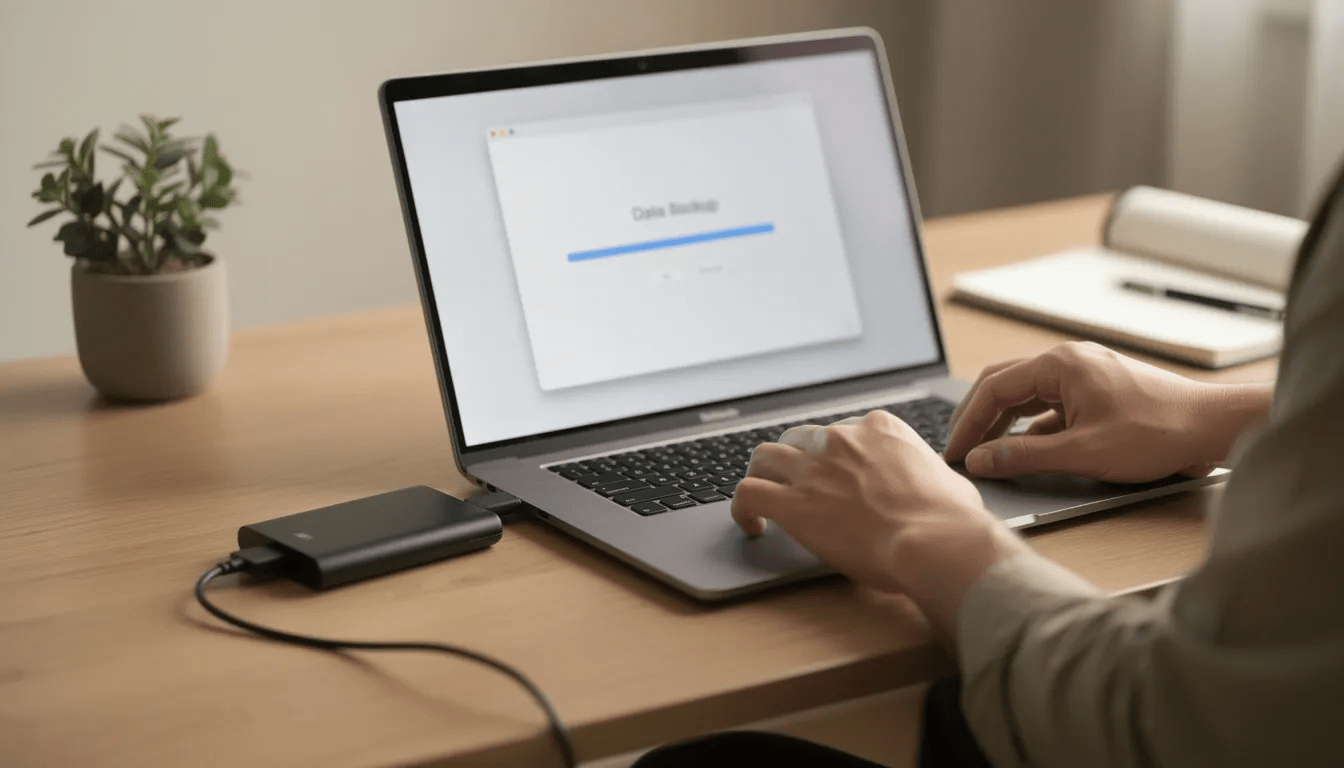
Back up your important data to an external drive or cloud storage when the system is still functional
-
Write down any error messages, beep codes, or specific behaviors you’ve observed
-
Clean visible dust from vents and ports—this small step can reduce the technician’s diagnostic time
-
Note your passwords if you’re comfortable sharing them, or be prepared to temporarily change them
Get clear pricing upfront:
-
Ask for a written estimate before any work begins
-
Request an approval threshold (for example, “call me if repairs will exceed $200”)
-
Ask whether the diagnostic fee gets applied toward the repair if you approve the work
-
Get parts and labor costs separated so you understand what you’re paying for
Compare your options:
-
Get 2–3 quotes from local pros before committing
-
Ask whether flat rate pricing is available for common issues like virus removal or tune-ups
-
Check if bundled packages (cleanup + antivirus + optimization) offer savings over individual services
-
Consider whether in store drop-off is cheaper than on site service for non-urgent issues
Consider strategic DIY:
-
Sourcing some non-critical parts like RAM or storage independently can save money
-
Always confirm compatibility with the technician before purchasing anything yourself
-
Simple upgrades like adding RAM often have good online guides if you’re comfortable opening your device
Invest in prevention:
-
Regular software updates reduce operating system errors and security vulnerabilities
-
Good antivirus software prevents costly malware removal visits
-
Surge protectors and UPS units protect against power-related hardware failures
-
Periodic professional tune-ups can catch small issues before they become expensive problems
How to Choose a Computer Repair Service
The right shop can mean better workmanship, clearer communication, and fairer pricing. Here’s how to evaluate your options before handing over your device.
Research reputation:
-
Check online reviews on Google, Yelp, and industry-specific sites
-
Look for patterns in feedback—consistent complaints about hidden fees or slow turnaround are red flags
-
Ask friends, family, or coworkers for local recommendations
-
Check if the business has been operating for several years with consistent positive feedback
-
Consider national providers like Geek Squad, which is affiliated with Best Buy. Compare their reputation and service quality to local independent shops, as many customers weigh the pros and cons of Geek Squad versus smaller repair businesses.
Verify qualifications:
-
Look for certifications like CompTIA A+ or vendor-specific training (Apple Certified, Microsoft Certified)
-
Ask how many similar repairs the shop performs each month
-
For complex repairs like data recovery or board-level work, ask about their success rate
Evaluate pricing transparency:
-
Reputable shops post price lists or provide clear estimates readily
-
The diagnostic fee should be clearly stated upfront
-
Written estimates should separate parts from labor costs
-
Ask if there’s a free diagnostic option or if the fee is waived when you approve repairs
-
When comparing costs, note that Geek Squad’s pricing is often contrasted with local shops, and labor rates can vary widely depending on the provider.
Understand warranty policies:
-
Most repairs come with 30–90 days of warranty on both parts and labor
-
Ask specifically what’s covered if the same issue returns
-
Get warranty terms in writing before approving any repair
Clarify service options:
-
Understand whether they offer in-shop, remote support, or on site service
-
Get a realistic turnaround estimate before authorizing work
-
Ask about rush service availability and associated costs
-
Confirm how they’ll communicate progress and approval requests
Shops that resist providing written estimates or seem vague about their diagnostic process may not be the best choice, even if their prices seem competitive.
Repair vs. Replacement: When Is It Worth Fixing?
Sometimes putting money into repairs makes perfect sense. Other times, that same amount would be better spent toward a new computer that offers better performance, security, and reliability for years to come.
The 40-50% rule:
A widely used guideline suggests that if a repair costs more than 40–50% of what you’d pay for a comparable new system, replacement often makes more financial sense. That expensive repair only restores your old machine—it doesn’t give you the improved performance, battery life, or warranty of a new device.
Age-based guidelines:
-
Under 3 years old: Almost always worth repairing unless damage is catastrophic
-
3–5 years old: Worth repairing for most issues; evaluate carefully for major components
-
5–7 years old: Depends heavily on the original quality and your specific needs
-
8–10+ years old: Generally lean toward replacement unless the repair is very inexpensive
Practical examples:
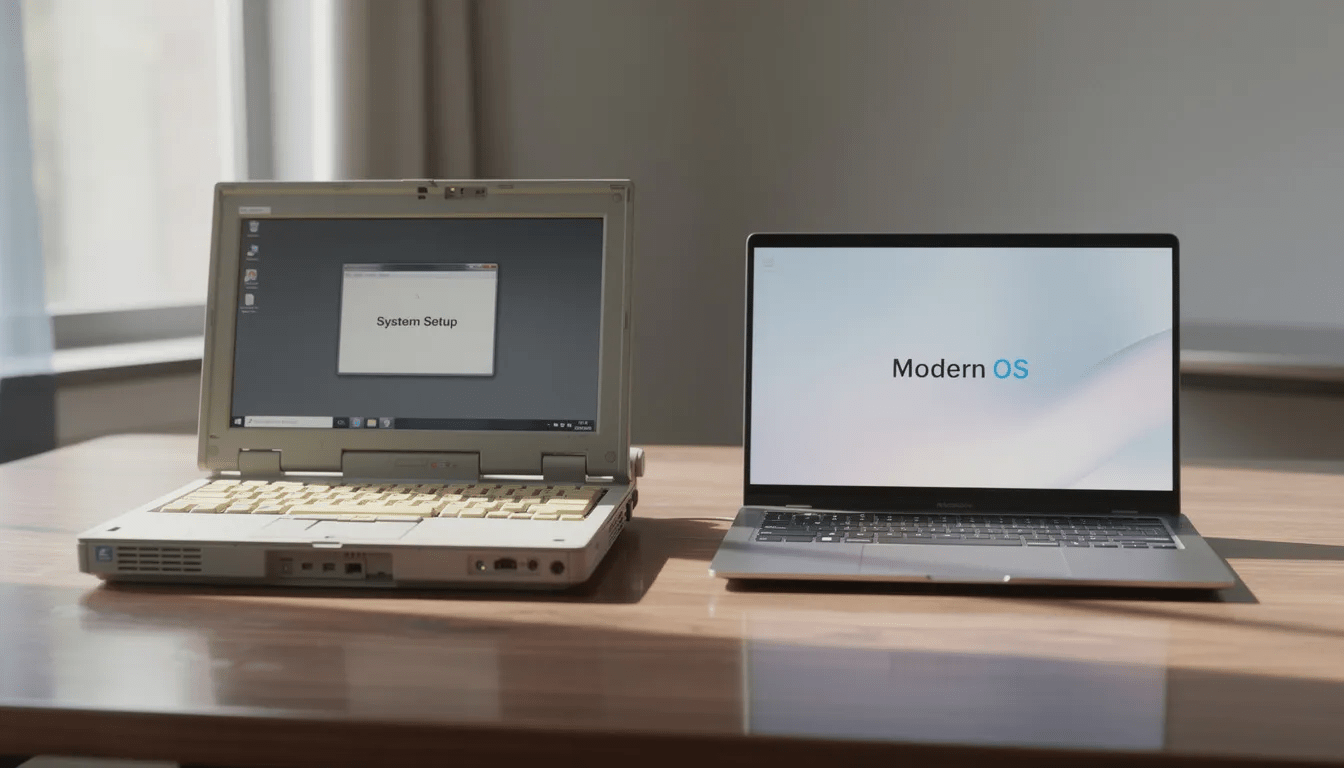
Consider a 2017 laptop needing a $300 motherboard replacement. For that same $300, you could make a significant down payment on a 2026 model with vastly better performance, modern security features, and a fresh warranty. The math usually favors the new machine.
However, a $90 battery replacement on a 5-year-old high-end laptop that otherwise runs perfectly might be an excellent investment, extending useful life by another 2-3 years.
Non-cost factors to consider:
-
How critical is this computer to your daily work or business operations?
-
Are there software compatibility requirements that older or newer systems can’t meet?
-
What’s the value of keeping your existing customized setup versus the time cost of migrating?
-
Does your current machine have special features (ports, form factor, specific components) that new models lack?
Preventing Future Issues
The best way to avoid costly computer repairs is through regular maintenance and proactive care. Start by keeping your software and operating system up to date, as updates often fix security vulnerabilities and reduce the risk of software glitches. Running frequent virus scans with reputable antivirus software can help catch threats before they cause serious problems.
Backing up your important data is essential to prevent data loss. Use external drives or cloud storage to ensure your files are safe, even if your computer experiences hardware failures or software issues. Protect your device from physical damage by using sturdy cases, screen protectors, and keeping liquids away from your workspace.
By following these preventive measures, you can minimize the risk of hardware failures, software glitches, and data loss. Regular upkeep not only extends the life of your computer but also saves you money on repairs and helps your system run efficiently for years to come.
FAQ
How long do most computer repairs take in 2026?
Simple in-shop software jobs like virus removal and tune-ups typically complete within a few hours to one business day, depending on the shop’s current workload and the severity of software glitches involved.
Hardware repairs that require replacement parts—screens, SSDs, power supplies—generally take 1–3 business days if parts are in stock. When parts must be ordered, expect 3–7 days for common components, potentially longer for specialized or Mac-specific parts.
Complex repairs like data recovery from severely damaged drives or board-level motherboard work can stretch to 1–2 weeks, especially when multiple recovery attempts or micro-soldering are needed.
Always ask for both an estimated completion date and whether rush service is available. Many shops offer expedited service for an additional 25-50% surcharge when timing is critical.
Do I have to pay if the technician can’t fix my computer?
Many shops charge a non-refundable diagnostic fee—typically $50–$100—to cover the time spent testing and evaluating your system, even if the repair is declined or proves impossible.
Some businesses waive this fee or apply it toward the final bill if you proceed with the recommended repair. This policy varies significantly between shops and should be clarified upfront.
Before dropping off your computer, ask explicitly whether any “no-fix, no-fee” policy applies and what exceptions exist. For example, if diagnostics reveal a dead motherboard and you decide the repair isn’t worth the cost, you’d typically still owe the diagnostic fee for the technician’s time.
Will I lose my files during computer repair?
Reputable technicians make every effort to preserve your data, but certain repairs—like operating system reinstalls, drive replacements, or repairs to severely damaged hardware—carry inherent data loss risk.
Whenever your system is still functional enough to access files, back up your important data to an external drive or cloud storage before bringing the device in. This single step protects you regardless of what happens during repair.
Professional data backup or migration can often be added as a line item on your repair order, typically costing an extra $50–$150 depending on the volume of data involved.
When dropping off your computer, clearly communicate which folders, applications, or files matter most. This helps the technician prioritize protecting or copying those items before attempting any risky procedures.
Are computer repair costs tax-deductible for businesses or freelancers?
In many jurisdictions, computer repairs for business-use machines qualify as deductible business expenses, while repairs on personal-use computers typically don’t qualify for deductions.
If you’re a business owner, freelancer, or remote worker using your own equipment for work, keep detailed invoices showing repair dates, descriptions of work performed, and costs. This documentation supports any deduction claims during tax filing.
For computers used for both personal and business purposes, you may need to allocate only a percentage of the repair cost as a business expense, proportional to business use.
Tax rules vary by region and change periodically, so consulting with a tax professional or accountant ensures you’re applying 2026 regulations correctly to your specific situation.
Can I repair my computer myself to avoid labor costs?
Many users can safely handle basic tasks like reinstalling software, adding RAM to desktops, swapping a desktop hard drive, or applying thermal paste—especially when following reputable video guides and tutorials.
However, opening laptops or attempting board-level repairs without proper training can cause additional damage, void manufacturer warranties, and potentially create safety hazards with batteries or power systems.
Start with low-risk tasks if you’re interested in DIY. Desktop RAM upgrades and storage swaps are good entry points. For anything involving soldering, liquid damage cleanup, or critical business data, professional services are almost always the better choice.
Even experienced DIYers sometimes benefit from paying for a professional diagnostic before deciding whether to proceed on their own. That $50–$100 investment can prevent costly mistakes and help you understand exactly what’s wrong before you start ordering parts.