
Key Takeaways
-
You can reinstall Windows 10 either as an in-place repair (keeping files and apps) or as a clean install (wiping everything and starting fresh).
-
Always back up your data to an external drive or cloud storage like OneDrive or Google Drive before starting any reinstall process.
-
Official Microsoft tools like the Media Creation Tool and Reset this PC are the safest, supported ways to reinstall Windows 10 in 2024.
-
Activation usually happens automatically if Windows 10 was already activated on your device, though major hardware changes like a new motherboard may require troubleshooting.
-
This guide covers reinstallation both from within Windows (if it boots) and from bootable USB media (if it doesn’t).
Introduction: When and Why to Reinstall Windows 10
There comes a point in every Windows PC’s life when something goes wrong that simple fixes can’t resolve. Maybe your system takes five minutes to boot, random errors plague your daily work, or a stubborn malware infection refuses to leave despite your best efforts. In 2024, these remain the most common reasons users search for how to completely reinstall Windows to restore their machines to working order.
Reinstalling your operating system might also be necessary when you’re replacing your system SSD with a faster model, recovering from a failed Windows update, or preparing your PC after major hardware changes. Users who perform a clean install often report 20-50% faster boot times compared to their bloated previous installations, making this process worthwhile for aging systems.
Before diving in, it’s important to understand the two main approaches:
|
Approach |
What It Does |
Best For |
|---|---|---|
|
In-place reinstall/repair |
Reinstalls Windows 10 while keeping personal files, settings, and apps intact |
Software corruption, random errors, failed updates |
|
Clean install |
Wipes the system drive completely and starts fresh |
Severe malware, new SSD installation, absolute fresh start |
This guide is written for supported Windows 10 versions (21H2, 22H2) on modern UEFI systems, though the steps also work on older BIOS systems with notes where needed. Expect the entire process to take 1-3 hours including updates, and you’ll need a stable network connection for downloads. The instructions assume basic technical comfort, but every step is explained clearly.
Before You Start: Check Alternatives and Prepare Your PC
Think of this section as your pre-flight checklist. Complete these steps before attempting any reinstall to save yourself potential headaches.
Try Built-in Repair Options First
Sometimes you can fix things without a full reinstall. Before committing to the nuclear option, try these built-in Windows tools:
-
Reset this PC (Settings > Update & Security > Recovery) — can fix many issues while keeping your files
-
System Restore — rolls back to a previous working state if you have restore points
-
DISM and SFC commands — repair corrupted system files without reinstalling
-
Windows Recovery Environment — offers startup repair and advanced options
These alternatives resolve many common problems and take far less time than a complete Windows installation.
Free Up Disk Space
If your system drive (usually C:) has less than 15-20 GB of free disk space, installation may fail or performance issues may persist. Delete temporary files, empty the Recycle Bin, and uninstall programs you no longer need before proceeding.
Disconnect Unnecessary Hardware
Before starting any reinstall:
-
Disconnect external hard drives (except your Windows USB installer)
-
Unplug USB peripherals beyond keyboard and mouse
-
Power off network-attached storage devices
This prevents accidentally installing Windows to the wrong disk or encountering driver conflicts during setup.
Gather Essential Information
Collect this information before you begin:
-
Microsoft account email and password
-
Wi-Fi network name and password
-
Product keys for paid applications (Office 2019, Adobe products, etc.)
-
Backup of browser bookmarks and saved passwords
-
List of installed applications you’ll need to reinstall
Back Up Your Files and Settings Safely
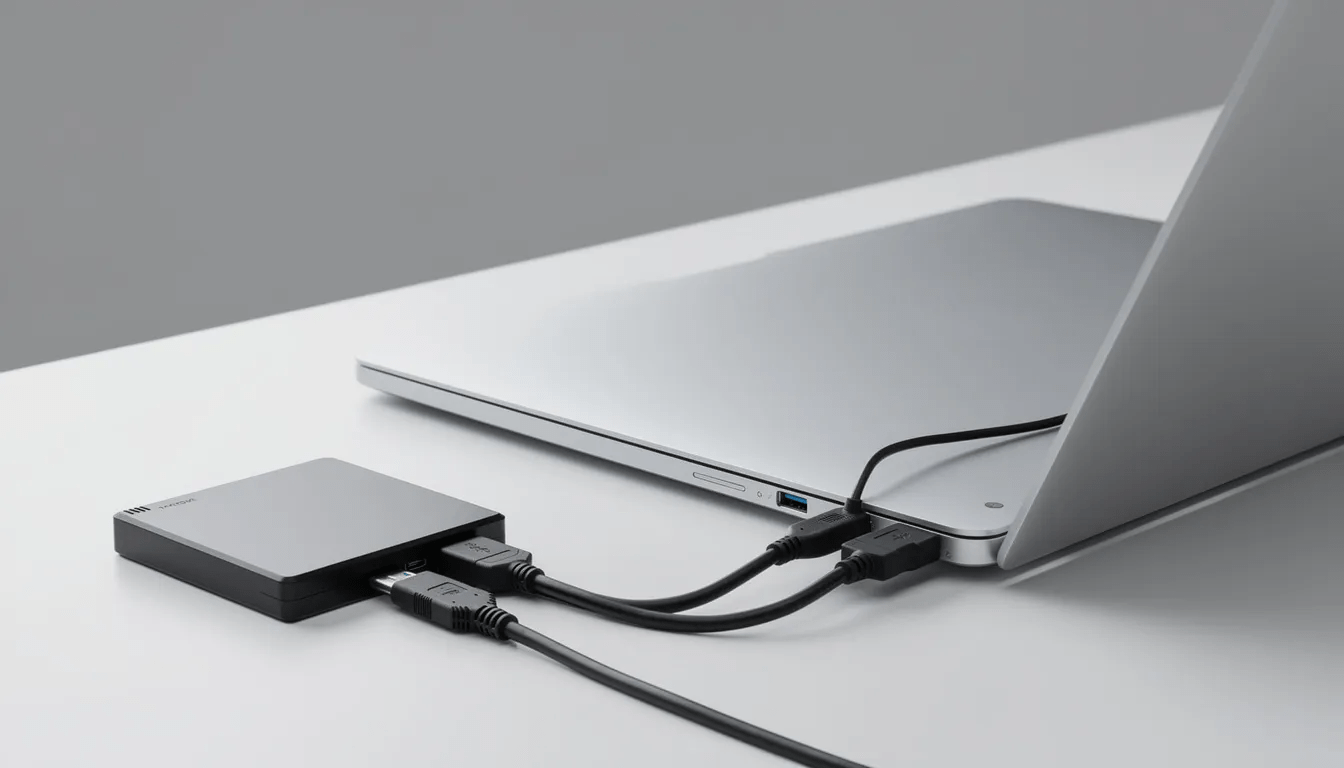
This is the most important step. Even in-place reinstalls can fail unexpectedly, and a complete backup protects you from permanent data loss.
Choose Your Backup Destination
|
Backup Target |
Pros |
Cons |
|---|---|---|
|
External HDD/SSD (USB 3.0) |
Fast, large capacity, no internet needed |
Requires purchase if you don’t own one |
|
Cloud storage (OneDrive, Google Drive, Dropbox) |
Accessible anywhere, automatic sync |
Slower for large files, storage limits |
|
Network-attached storage (NAS) |
High capacity, local network speeds |
More expensive, requires setup |
For most users, a 1TB external USB drive combined with cloud backup for important files provides the best protection.
What to Back Up
Make sure to save these items to your backup destination:
User Folders:
-
Documents
-
Desktop
-
Pictures
-
Downloads
-
Videos
-
Music
Application Data:
-
Browser bookmarks (export from Chrome, Edge, or Firefox)
-
Email files if using local clients like Outlook (.pst files)
-
Game saves (often in Documents or AppData folders)
-
Project files and work documents
-
Configuration files for specialized software
Pro tip: Take a screenshot of Settings > Apps > Installed apps to create a reference list of your installed applications for later reinstallation.
Optional Advanced Backups
For users who want extra protection:
-
Create a full system image backup using the built-in “Backup and Restore (Windows 7)” feature or third-party imaging tools
-
Export device drivers using Device Manager or a driver backup utility, especially useful if your PC uses uncommon hardware that requires specific drivers
Choosing the Right Reinstall Method
With your backup complete, it’s time to decide which reinstall method fits your situation. Here’s a quick decision guide:
When to Use an In-Place Reinstall
Choose this method if:
-
Windows still boots to the desktop normally
-
Problems are mostly software corruption, random errors, or failed updates
-
You want to keep your apps and files intact
-
You’d rather not spend time reinstalling everything
This repair install approach is the least disruptive option.
When to Use Reset this PC
Choose this method if:
-
Windows boots but is severely cluttered or sluggish
-
You suspect malware infection but the system still runs
-
You’re willing to reinstall apps but want to keep personal files
-
You don’t have a USB drive available for installation media
When to Use a Clean Install from USB
Choose this method if:
-
Windows won’t boot reliably or at all
-
You’ve installed a new SSD or hard drive
-
Malware infection is severe and you want absolute certainty it’s gone
-
You want a truly fresh start with no remnants of previous installations
Edition and Architecture Selection
When creating installation media or selecting install options:
-
Most consumer PCs use Windows 10 Home or Windows 10 Pro
-
Nearly all modern PCs should use 64-bit architecture
-
Matching your existing edition is crucial for automatic activation via your digital license
If you’re unsure which edition you have, check Settings > System > About before starting.
Method 1: In‑Place Repair Reinstall from Within Windows 10
This method reinstalls Windows 10 over itself while trying to keep personal files, settings, and apps intact. It’s the best option when Windows boots normally but you’re experiencing persistent issues that other fixes haven’t resolved.
Prerequisites
Before starting, confirm:
-
Windows boots to the desktop successfully
-
At least 20 GB of free space on your system drive
-
Laptop is connected to AC power
-
Stable internet connection available
-
All work is saved and important files are backed up
Step-by-Step Instructions
1. Download the Media Creation Tool
Visit Microsoft’s official Windows 10 download page and click “Download tool now” to get the Windows Media Creation Tool. Save it to your Downloads folder.
2. Run the Tool
Double-click the downloaded file to launch it. Accept the license terms when prompted.
3. Choose Upgrade Option
Select “Upgrade this PC now” and click Next. The tool will download all the necessary files for your Windows installation.
4. Wait for Download
The download may take 30 minutes to several hours depending on your network connection. The tool downloads approximately 4-5 GB of Windows installation files.
5. Accept License Terms Again
Once the download completes and the installer prepares, you’ll see the license terms. Click Accept to continue.
6. Choose What to Keep
This is the critical step. Click “Change what to keep” and select from:
| Option | What It Does |
|---|---|
| Keep personal files and apps | Closest to a repair install — preserves everything possible |
| Keep personal files only | Keeps Documents, Pictures, etc. but removes all installed applications |
| Nothing | Wipes everything like a clean installation |
For a repair install, choose “Keep personal files and apps” and click Next.
7. Start the Installation
Click Install to begin. Your PC will restart multiple times during the installation process — this is normal. The entire process takes approximately 30-90 minutes on SSD-based systems.
8. Do Not Interrupt
After clicking Install, don’t touch anything. Your screen may go black several times. The PC will automatically restart as needed. You won’t need to provide any input until the process completes.
Post-Install Verification Checklist
Once Windows boots to your desktop:
-
✓ Verify your files are present in Documents, Pictures, and other user folders
-
✓ Launch your most important apps to confirm they work
-
✓ Run Windows Update (Settings > Update & Security > Windows Update)
-
✓ Check activation status (Settings > Update & Security > Activation)
Method 2: Using “Reset This PC” for a Fresh Start
Reset this PC is a built-in Windows 10 feature that doesn’t require a separate USB drive or ISO file. It’s ideal for users who want a near-factory reset without the complexity of creating installation media.
How to Access Reset This PC
- Open Settings (press Windows + I)
- Navigate to Update & Security
- Click Recovery in the left sidebar
- Under “Reset this PC,” click Get started
Understanding Your Options
Keep my files vs. Remove everything:
|
Option |
Personal Files |
Apps |
Settings |
Best For |
|---|---|---|---|---|
|
Keep my files |
Preserved |
Removed |
Reset to defaults |
Fixing software issues while keeping data |
|
Remove everything |
Deleted |
Removed |
Reset to defaults |
Selling PC, severe malware, complete fresh start |
Cloud download vs. Local reinstall:
-
Cloud download option — Downloads the latest Windows image from Microsoft servers (uses several GB of data). Best when you suspect your local system files are corrupted.
-
Local reinstall — Uses existing recovery files stored on your PC. Faster but may reinstall an older build of Windows.
Important Warnings
If you choose “Remove everything”:
-
All personal files on your C drive will be permanently deleted
-
This includes Documents, Desktop, Downloads, Pictures, and other files
-
Your complete backup from earlier is essential before proceeding
If BitLocker is enabled:
-
You may be prompted for your BitLocker recovery key
-
Find this key at account.microsoft.com/devices/recoverykey
-
Without this key, the reset operation may fail
Expected Duration
The reset process timing varies:
-
Keep my files + Local reinstall: 30-60 minutes
-
Remove everything + Local reinstall: 45-90 minutes
-
Cloud download options: 1-2 hours depending on internet speed
Older hard drives (as opposed to SSDs) can extend these times to 2-3 hours.
Post-Reset Checklist
After the reset completes:
- Open Device Manager and check for devices with yellow exclamation marks
- Run Windows Update multiple times until no updates remain
- Reinstall your applications from your saved list
- Restore personal files from your backup
- Configure your settings and preferences
Method 3: Clean Install Windows 10 from USB or DVD
This is the most thorough method for starting fresh. It’s recommended when Windows won’t boot, you’ve installed a new SSD, or you want absolute certainty that no trace of previous installations remains.
Prerequisites
-
Another working PC to create installation media (if your current PC won’t boot)
-
A USB flash drive with at least 8 GB capacity
-
Your Windows product key (only if the device was never activated with Windows 10)
Creating the Bootable USB Drive
1. Download the Media Creation Tool
On a working Windows PC, download the Windows Media Creation Tool from Microsoft’s official site.
2. Run the Tool and Select Create Installation Media
Choose “Create installation media (USB flash drive, DVD, or ISO file) for another PC” and click Next.
3. Select Language, Edition, and Architecture
-
Language: Your preferred language
-
Edition: Windows 10 (includes both Home and Pro)
-
Architecture: 64-bit (x64) for most modern systems
4. Choose USB Flash Drive
Select USB flash drive and click Next. Choose your USB drive from the list (all data on it will be erased).
5. Wait for Completion
The tool downloads Windows and creates your bootable USB drive. This takes 15-30 minutes depending on your connection.
Booting from the USB Drive
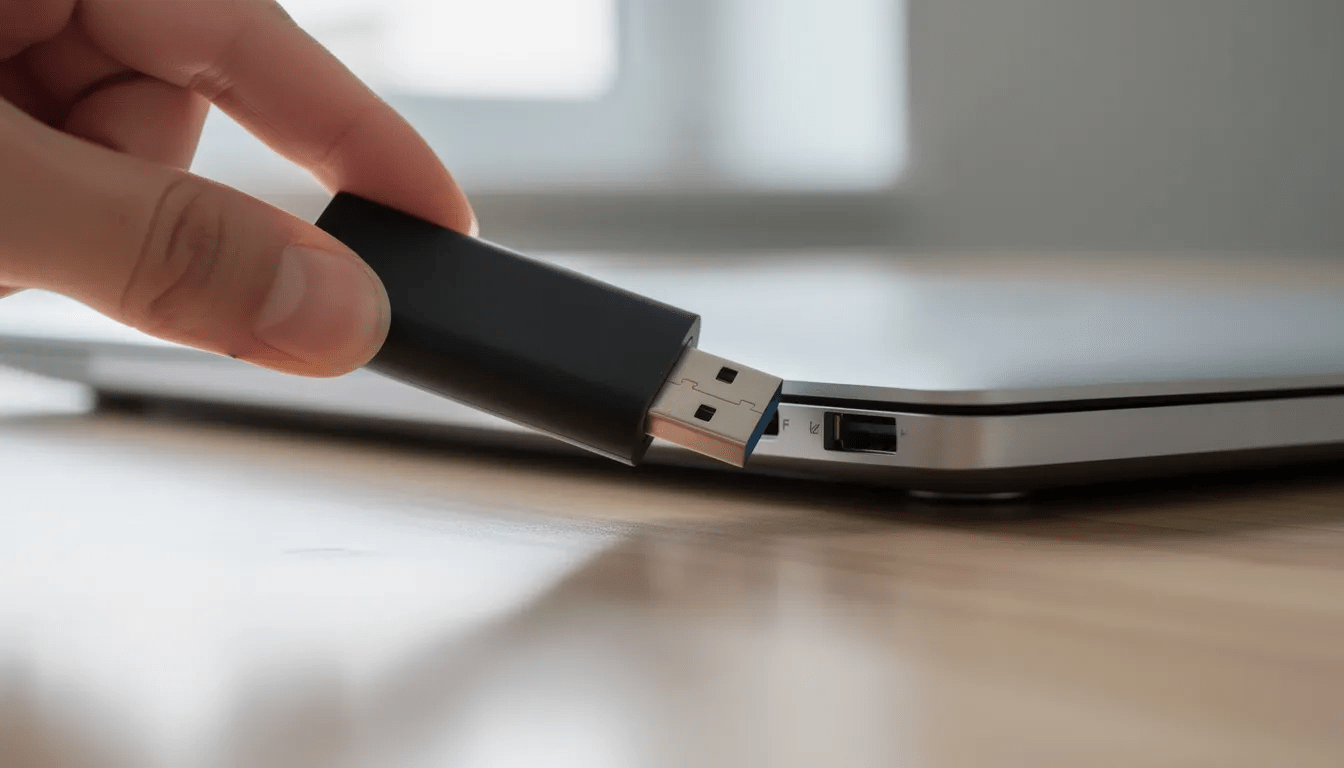
1. Insert the USB drive into the target PC.
2. Access the boot menu by pressing the appropriate key during startup:
|
Manufacturer |
Boot Menu Key |
|---|---|
|
Dell |
F12 |
|
HP |
F9 or Esc |
|
Lenovo |
F12 |
|
ASUS |
F8 or Esc |
|
Acer |
F12 |
3. Select your USB drive from the boot menu.
4. If using UEFI (most modern systems), select the UEFI option for your USB drive if multiple options appear.
Windows Setup Process
1. Select language, time, and keyboard layout on the first setup screen, then click Next.
2. Click “Install now” to begin.
3. Enter your product key or click “I don’t have a product key” if your device has a digital license tied to its hardware.
4. Select your Windows edition (Home or Pro) — this must match your original license for automatic activation.
5. Accept the license terms and click Next.
6. Choose “Custom: Install Windows only (advanced)” for a clean installation.
Disk Partitioning
This step is where you’ll select install location and optionally wipe everything:
For a truly clean install on a single-drive system:
- Select each partition on Disk 0 (your target drive)
- Click Delete for each partition until only “Unallocated space” remains
- Select the unallocated space
- Click Next — Windows will create new partition structures automatically
⚠️ Critical Warning: Deleting partitions permanently erases all data on that drive. Triple-check you’re working with the correct disk if you have multiple drives installed.
Completing the Installation
After clicking Next:
- Windows copies files and installs (15-30 minutes on SSD)
- The PC restarts multiple times — remove the USB drive after the first restart
- The out-of-box experience (OOBE) screens appear for initial setup
Connect to the internet during OOBE if possible so Windows 10 can activate and fetch drivers automatically.
Initial Setup After a Clean Reinstall
With Windows successfully installed, follow this checklist to ensure your new installation is secure, activated, and ready for daily use.
First-Run Setup
During the OOBE screens:
- Select your region and keyboard layout
- Connect to Wi-Fi or Ethernet when prompted
- Sign in with your Microsoft account or create an offline local account (click “Offline account” or “Domain join instead” if available)
- Set up a PIN for quick sign-in
- Configure privacy options according to your preferences
Verify Activation
Check that Windows recognizes your license:
- Open Settings > Update & Security > Activation
- You should see “Windows is activated with a digital license”
- If not activated, ensure you’re connected to the internet and using the same version of Windows you had before
For devices with a digital license tied to hardware, activation happens automatically when online. No Windows product key entry is needed.
Essential Post-Install Tasks
Run Windows Update:
- Go to Settings > Update & Security > Windows Update
- Click “Check for updates”
- Install all available updates
- Restart and repeat until no more updates appear
This may take several rounds — Windows 10 often has cumulative updates that only appear after earlier ones install.
Check Device Manager:
- Right-click the Start button and select Device Manager
- Look for any devices with yellow exclamation marks
- For missing drivers, visit your PC or motherboard manufacturer’s website
- Download and install the latest drivers (dated 2022-2024 when possible)
Reinstall Essential Applications:
Prioritize installing in this order:
- Web browser (if not using Edge)
- Security software or configure Windows Security
- Office suite or productivity apps
- Backup software
- Other applications from your saved list
Configure Security and Backup
-
Enable Windows Security real-time protection or install your preferred third party antivirus
-
Set up a fresh backup plan now that your system is clean
-
Consider enabling File History for automatic file backups
Troubleshooting Common Reinstall and Activation Problems
Even with careful preparation, issues sometimes occur. Here’s how to handle the most common problems.
Installer Boot Loops
Problem: PC keeps booting back into the installer instead of completing Windows setup.
Solution:
- Remove the USB drive immediately after the first restart
- If the loop continues, enter BIOS/UEFI and change boot order to prioritize your internal SSD/HDD
- Disable Fast Boot temporarily if available
Windows Won’t Activate
Problem: Windows shows “Windows is not activated” after reinstall.
Troubleshooting steps:
- Confirm you installed the correct edition (Home vs Pro)
- Verify your network connection is working
- Go to Settings > Update & Security > Activation
- Click Troubleshoot and follow the prompts
- Wait 24 hours and try again — sometimes activation servers are slow
Hardware Changes and Activation
If you replaced your motherboard, your digital license may not automatically transfer.
Solution:
- Sign in with the same Microsoft account used previously
- Go to Activation settings and click Troubleshoot
- Select “I changed hardware on this device recently”
- Follow the prompts to reactivate
Common Installation Errors
For errors like 0x8007000d or 0xC1900101:
-
Disconnect all non-essential USB devices
-
Update BIOS/UEFI firmware to the latest stable version
-
Run Windows Memory Diagnostic to check RAM health
-
Test your SSD/HDD with manufacturer diagnostic tools
-
Try creating fresh installation media on a different USB drive
Keep Your Installer USB
Once your system is stable, don’t format that USB drive just yet. It can serve as an emergency recovery tool for:
-
Startup Repair via Windows Recovery Environment
-
Command prompt window access for advanced troubleshooting
-
Future reinstalls without re-downloading
FAQ
Will I lose my files if I reinstall Windows 10?
It depends on which method you choose. An in-place repair install and Reset this PC with “Keep my files” are designed to preserve personal files in your user folders, but there’s always some risk of data loss during the process. A clean install or the “Remove everything” option will erase all data on the target drive, including Documents, Desktop, Pictures, and all installed applications.
The safest approach is to treat any reinstall as if all data on your C drive could be lost. Create an image backup or copy all important files to an external drive before starting, regardless of which method you plan to use.
Do I need to buy a new Windows 10 license to reinstall?
In most cases, no. If Windows 10 was already activated on your device, your digital license is stored on Microsoft’s servers and tied to your hardware. Simply reinstalling the same edition (Home or Pro) and connecting to the internet should trigger automatic reactivation, even if you skip entering a product key during the setup screen.
A new license is typically only required for brand-new custom builds that never had a valid Windows license, or when attempting to install Windows on a device that previously ran a non-genuine copy.
How long does a Windows 10 reinstall usually take?
Realistic time estimates vary by method and hardware:
|
Method |
SSD-Based System |
HDD-Based System |
|---|---|---|
|
In-place repair install |
30-90 minutes |
1-2 hours |
|
Reset this PC |
30 minutes – 2 hours |
1-3 hours |
|
Clean install + updates + apps |
1-3 hours |
2-4+ hours |
Older CPUs, slower storage, and large Windows Update downloads significantly increase total time. Start the process when your PC can remain unused, such as during an evening or over a weekend.
Can I downgrade from Windows 11 back to Windows 10 with a reinstall?
Yes, you can perform a clean install of Windows 10 on a device currently running Windows 11, provided your hardware meets Windows 10 requirements and Windows 10 remains supported. However, this requires a full reinstall with complete data loss on the system drive.
To downgrade:
- Back up all files from your current Windows 11 installation
- Create installation media using the Windows 10 Media Creation Tool
- Boot from the USB and choose Custom installation
- Delete existing Windows 11 partitions on the system disk
- Install Windows 10 fresh to the unallocated space
What if I don’t have another PC to create a USB installer?
If Windows 10 still boots on your PC, you have options that don’t require a separate computer:
-
Reset this PC works without any external media — choose either Local reinstall or Cloud download
-
Run setup from a mounted ISO — download the Windows ISO file directly, mount it by double-clicking, and run setup.exe
-
OEM recovery partition — many Dell, HP, Lenovo, and ASUS systems include a factory recovery partition accessible by pressing a specific key (like F11) during boot
If your system won’t boot and you truly have no access to another computer, consider borrowing a friend’s or family member’s PC, using a work computer (if permitted), or briefly visiting a library to download the Media Creation Tool and prepare your USB installer.