
Key Takeaways
-
Clicking, grinding, or beeping noises from your hard drive signal mechanical problems—power down immediately if you hear them repeatedly.
-
Frequent crashes, blue screen errors, and corrupted files appearing together mean you should back up all the data right now and avoid heavy use of the drive.
-
Windows Command Prompt and macOS Disk Utility can confirm HDD health within minutes using built-in S.M.A.R.T. monitoring tools.
-
Early detection often means easier data recovery and cheaper replacement options compared to waiting for total drive failure.
-
Set up regular, automated backups using File History, Time Machine, or cloud storage so HDD failure never results in complete data loss.
What Is a Failing Hard Drive?
A failing hard drive is a storage device that has begun showing symptoms of wear, damage, or malfunction—often before it completely stops working. Unlike sudden crashes, most hard disk drives fail gradually, giving you warning signs and a window to act before you lose everything.
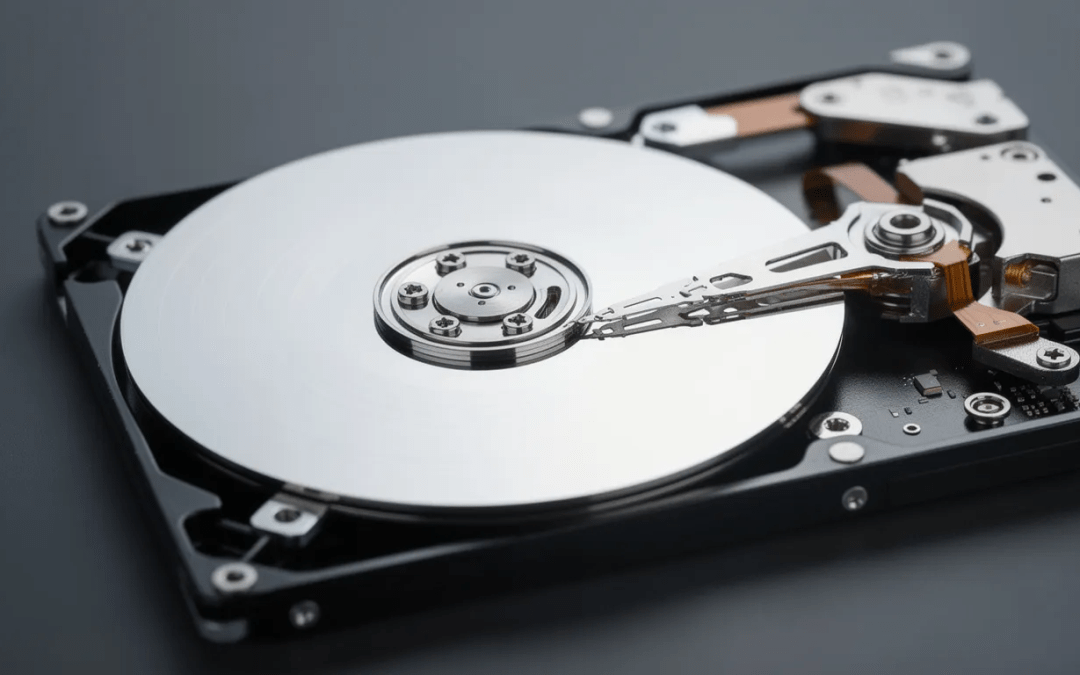
Physical failure happens when the mechanical parts inside your hard disk wear out or suffer damage. HDDs contain spinning platters, a spindle motor, and delicate read/write heads that float just microns above the magnetic surface. Drops, overheating, or simple age can cause these components to malfunction, producing unusual noises, boot issues, and eventually making data stored on the drive inaccessible.
Logical failure involves damage to the file system, partition tables, or drive firmware rather than the hardware itself. You might experience corrupted files, missing folders, and frequent error messages even when the drive runs quietly. The operating system struggles to read or write data correctly, leading to strange behavior that can mimic software problems or malware.
In 2024–2025, most consumer hard disk drives—whether installed in desktops, laptops, or used as an external drive via USB—include self monitoring, analysis, and reporting technology (S.M.A.R.T.) specifically designed to flag early failure trends before catastrophe strikes.
Here’s the important part: a drive can “partially fail” for weeks or months before becoming completely unreadable. Bad sectors accumulate, slow performance creeps in, and the drive’s internal defect management system tries to compensate until it runs out of spare sectors. This gives you a crucial window to save your important data—if you recognize the hard drive failure symptoms in time.
Top Warning Signs Your HDD Is Failing
These are the most common, practical symptoms that home and office users notice on Windows 10/11 and macOS Ventura/Sonoma. Recognizing these warning signs early can mean the difference between a simple backup-and-replace situation and expensive professional data recovery.
The major signs of a failing hdd include:
|
Warning Sign |
What It Looks Like |
Severity |
|---|---|---|
|
Strange noises |
Clicking, grinding, beeping during operation |
Critical |
|
Frequent crashes |
BSODs, freezes, unexpected restarts |
High |
|
Corrupted files |
Documents won’t open, photos partially missing |
High |
|
Slow performance |
Long boot times, lagging file operations |
Medium-High |
|
Overheating |
Drive hot to touch, burning smell |
Critical |
|
Boot problems |
“No boot device” errors, intermittent detection |
High |
One sign alone doesn’t always confirm imminent failure. Your drive might click once at startup and run fine for years. But multiple signs appearing within the same week—noise plus a blue screen plus corrupted data—is a strong red flag that demands immediate attention.
Once two or more of these symptoms appear, stop non-essential tasks like gaming, video editing, or large downloads. Start a full backup instead. Ignoring these symptoms often leads to total data loss where even professional data recovery becomes harder and far more expensive.
1. Unusual Clicking, Grinding, or Beeping Noises
The “click of death” is perhaps the most infamous hard drive problem. This repetitive clicking happens when the read/write heads repeatedly try to find their calibration tracks but fail, creating a rapid cyclical pattern. You might also hear grinding, whirring, screeching, or faint beeps from stuck heads or a failing spindle motor.
These unusual noises originate from mechanical failure—physical trauma where heads crash into the platter surface, spindle bearings wearing out, or the actuator arm struggling to position correctly. Once you hear these strange noises during regular use (not just a brief chatter at startup), your drive is likely experiencing physical damage.
A one-time soft sound at boot can be normal. Recurring, loud, or increasing noises during file copies or game loads are a serious warning.
Here’s what to do if you hear these sounds:
- Power down the machine immediately
- Don’t attempt repeated reboots
- Connect the drive to another system only to copy your most critical files
- Avoid running any diagnostic tools that stress the drive
Continued use of a noisy drive can cause further damage to the platter surface. The friction generates heat, components can literally fry, and the magnetic coating that holds your data gets scratched away permanently. Once that happens, even professional data recovery labs operating in cleanrooms may struggle to recover data.
2. Frequent Crashes, Freezes, and Blue Screens
Recurring system crashes, sudden reboots, and Windows Blue Screen of Death (BSOD) errors are common hard drive failure symptoms that many users initially blame on software. But when your hard drive is failing, it can’t reliably read or write data to system files, causing the operating system to panic.
Windows users may see specific stop codes like:
-
UNEXPECTED_STORE_EXCEPTION
-
CRITICAL_PROCESS_DIED
-
KERNEL_DATA_INPAGE_ERROR
-
INACCESSIBLE_BOOT_DEVICE
On macOS, early signs include spinning beach balls that won’t stop, frozen Finder windows, and sudden restarts during large file operations or Time Machine backups.
The key pattern to watch for: crashes happening especially when opening large files, loading games, or copying data from one folder to another. If your system runs fine during light web browsing but crashes the moment you access heavy files, that strongly suggests the drive—not software—is at fault.
Log the timing and frequency of crashes. Several per day over a week, especially tied to storage-related BSODs, means it’s time to run diagnostics and back up data immediately.
3. Corrupted, Inaccessible, or Disappearing Files
File corruption symptoms are unmistakable once you know what to look for:
-
Documents that won’t open or display “file is damaged” errors
-
Photos with half-missing images or strange color blocks
-
Videos that stop playing mid-way or show artifacts
-
Archives reporting CRC errors when you try to extract them
For example, that Microsoft Word document you saved to your hard drive last month now refuses to open. Or a .zip file you downloaded reports checksum mismatches during extraction. These aren’t random software glitches—they’re signs of bad sectors on the HDD surface causing repeated read failures.
When bad sectors proliferate, the file system itself can become damaged. Folders suddenly appear empty. Files change size to 0 KB. Desktop shortcuts point to “missing” files that you know were there yesterday. This corrupted data indicates your hard disk is losing its ability to reliably store information.
Once you notice recurring corruption—more than one or two affected files in the same week—immediately copy important files to a different physical drive or cloud storage. Don’t wait to see if it “gets better.” It won’t.
4. Slow Performance and Long Load Times
A failing hard drive often makes everyday tasks feel progressively slower. Windows 11 boot times stretch from seconds to minutes. Simple folder browsing lags. Opening applications feels like you’re working on a decade-old machine.
This slow performance happens because the drive’s internal error correction repeatedly retries reads from marginal sectors. Each retry takes time, and when you have thousands of failing sectors, those delays add up dramatically. You might hear the drive constantly seeking even when no large program is open.
|
Normal HDD Behavior |
Failing HDD Behavior |
|---|---|
|
30-60 second boot time |
3-5+ minute boot time |
|
Quick folder access |
“Not Responding” windows |
|
Smooth file copies |
Copy operations stalling |
|
Quiet operation |
Constant seeking sounds |
The distinction matters: general system slowness from too many background apps is different from HDD-related sluggishness that appears suddenly in a previously fast system and comes with noises or errors.
Sudden, persistent poor performance combined with occasional “Not Responding” windows or spinning cursors should prompt you to check S.M.A.R.T. status and back up data before running any intensive HDD test.
5. Overheating and Burning Smells
Hard disk drives running unusually hot—over roughly 50-55°C—or emitting any electrical or burnt plastic smell may be close to physical failure. This is one of the most urgent warning signs because heat accelerates all other failure modes.
Real-world scenarios where this happens:
-
A tightly packed desktop case with dust-clogged fans after years of use
-
An external drive enclosed behind TV cabinets with no ventilation
-
Laptops used on soft surfaces like beds that block air intake
-
Running heavy file transfers for hours without breaks
Excessive heat warps internal components, accelerates wear on spindle bearings, and increases the rate of read/write errors. The drive has to work harder, which generates more heat, creating a destructive cycle.
If you notice any burning smell from your drive’s area, treat it as an emergency:
- Shut down the computer immediately
- Disconnect from power
- Do not restart until the drive has been inspected
- Consider this hardware failure that requires replacement
To ensure proper ventilation going forward, clean intake and exhaust fans regularly, avoid enclosing drives in tight spaces, and monitor temperatures using diagnostic tools.
6. Boot Problems and “No Boot Device” Errors
When your computer gets stuck on the manufacturer logo, displays “No bootable device found,” or repeatedly fails to repair Windows, your boot drive may be failing.
Watch for these patterns:
-
BIOS/UEFI sometimes sees the HDD, sometimes doesn’t
-
Drive appears and disappears from the boot device list
-
“Automatic Repair couldn’t repair your PC” loops on Windows
-
Mac users forced into macOS Recovery because volumes won’t mount
Intermittent boot success is particularly concerning—working on Monday, failing on Tuesday, then working again after several restarts. This erratic behavior often precedes complete disk failure by days or weeks.
Once your machine successfully boots, don’t waste that opportunity. Immediately create a full backup or disk clone.
Windows users seeing file explorer errors or being unable to access their drive letter during the rare successful boots should prioritize backing up over troubleshooting. For such cases where boot works occasionally, that’s your last chance to save all the data.
How to Confirm HDD Failure on Windows
Windows 10 and Windows 11 include quick command-line tools to get a health snapshot of your hard drive. These built-in monitoring tools can reveal whether the drive itself is reporting problems via S.M.A.R.T. or has accumulated file system errors.
These checks are safe to run and won’t harm a healthy drive. Close other programs, run the diagnostic tools, and immediately back up if any warnings or bad sectors appear.
Important caveat: If your drive is making loud mechanical problems, minimize testing and focus on copying important data instead of stressing the disk. Treat these as first-level diagnostics rather than a substitute for professional evaluation when data is irreplaceable.
Checking Basic S.M.A.R.T. Status with Command Prompt
Here’s how to check your drive’s self monitoring status on Windows 10/11:
- Press the Start button
- Type “cmd”
- Right-click “Command Prompt”
- Choose “Run as administrator”
Then click command prompt to open it and type the following command:
wmic diskdrive get statusPress Enter. The system returns simple statuses for each installed drive:
| Status | Meaning | Action Required |
|---|---|---|
| OK | No S.M.A.R.T.-reported issues | Continue monitoring |
| Pred Fail | Drive predicts likely failure | Back up immediately, replace drive |
| Unknown | Status unavailable | Use third-party tools |
If any internal or external drive shows “Pred Fail,” back up or clone the disk as soon as possible and plan a replacement. This is not a drill—the drive’s own monitoring system is telling you it expects to fail.
WMIC is deprecated in newer Windows releases but still typically works. For more detailed metrics, consider PowerShell cmdlets or third-party diagnostic tools like CrystalDiskInfo.
Running CHKDSK to Find Bad Sectors and File System Errors
Windows CHKDSK (Check Disk) scans both the file system and drive surface for logical errors and bad sectors. It can also attempt repairs, though it cannot fix physical damage.
To run CHKDSK:
- Open Command Prompt as administrator
- Type the following command (replace C: with your drive letter if different):
chkdsk C: /f /r- If prompted that the volume is in use, type Y to schedule the scan at next reboot
- Restart your computer and let the scan complete
What the switches mean:
- /f fixes logical file system errors
- /r locates bad sectors and attempts to recover readable information
On large HDDs (2 TB or more), this HDD test can take several hours. Run it overnight and ensure laptops stay connected to power.
If CHKDSK reports a growing number of bad clusters or repeatedly finds new errors over several runs, your drive is actively deteriorating. Back up immediately and plan replacement—no amount of windows chkdsk repairs can reverse physical degradation.
How to Check HDD Health on a Mac
macOS includes Disk Utility to view S.M.A.R.T. status and run basic checks on your hard disk. These steps work on macOS Monterey through Sonoma and later versions.
While many recent MacBooks use SSDs, older models (pre-2016 MacBook Pros, many iMacs, Mac Minis) and external backup drives often still rely on HDDs that show the same failure symptoms. External USB and Thunderbolt drives connected to Apple Silicon Macs can also be checked.
Pay attention to “Failing” S.M.A.R.T. status or repeated “macOS can’t repair the disk” messages—these are serious warnings that your drive fails to maintain data integrity.
Using Disk Utility to View S.M.A.R.T. Status
To access Disk Utility:
- Open Finder
- Navigate to Applications > Utilities > Disk Utility
- Or use Spotlight (Cmd + Space) and search “Disk Utility”
In Disk Utility:
- Select the top-level physical disk in the left sidebar (not individual APFS volumes or partitions)
- Look at the bottom of the window for “S.M.A.R.T. Status”
|
Status |
Meaning |
|---|---|
|
Verified |
Drive is healthy |
|
Failing |
Imminent failure predicted—back up immediately |
|
Not Supported |
S.M.A.R.T. unavailable (common with USB enclosures) |
If Disk Utility shows “Failing” or reports repeated input/output errors, avoid running heavy tests. Focus on copying essential files off the drive to a safe location.
When S.M.A.R.T. is unavailable for an external drive, watch for indirect signs: repeated mount errors, unusually slow access, visible noise, and excessive heat.
Running First Aid to Detect File System Problems
Disk Utility’s First Aid feature checks and repairs file system metadata on HFS+ or APFS volumes, similar to running CHKDSK on Windows.
To run First Aid:
- In Disk Utility, select your volume (e.g., “Macintosh HD – Data” or an external drive name)
- Click “First Aid” in the toolbar
- Confirm by clicking “Run”
Possible outcomes:
-
“The volume appears to be OK” — No issues found
-
Catalog file issues or invalid node structures — File system damage detected
-
“First Aid found corruption that must be repaired” — Significant problems requiring fixes
If First Aid cannot complete or must be run repeatedly to keep the drive mountable, the underlying HDD may be failing even if S.M.A.R.T. appears normal. After any serious First Aid warning, create a Time Machine backup to a different, known-good drive and plan to retire the suspect hard drive.
Using Free HDD Testing Tools for Deeper Diagnostics
Third-party diagnostic tools provide more detailed information than basic S.M.A.R.T. status checks, making them valuable for power users and IT administrators tracking drive health over time.
Popular free monitoring tools include:
|
Tool |
Platform |
Key Features |
|---|---|---|
|
CrystalDiskInfo |
Windows |
Extended S.M.A.R.T. attributes, temperature, health rating |
|
GSmartControl |
Windows/Mac/Linux |
Detailed S.M.A.R.T. data, surface tests |
|
HDDScan |
Windows |
Surface tests, temperature monitoring |
|
DiskCheckup |
Windows |
Threshold warnings, history tracking |
These programs can monitor internal SATA drives, USB external HDDs, and some NAS-connected disks. They expose extended S.M.A.R.T. attributes like Reallocated Sector Count, Uncorrectable Sector Count, and temperature history.
Extended surface tests can stress an already failing drive. If your HDD is noisy or badly degraded, prioritize backing up important data before running long scans.
Save or screenshot test reports with dates. This lets you track whether specific attributes (like reallocated sectors) are increasing over days or weeks—clear evidence of progressive failure that justifies replacement even before catastrophic symptoms appear.
What to Do If You Suspect Your HDD Is Failing
Once signs of hdd failure appear, your priority shifts from troubleshooting to protecting data. The drive may limp along for days or weeks, or it could die tomorrow. Assume the worst and act accordingly.
Simple action plan:
- Back up data immediately
- Reduce drive usage
- Confirm the problem with diagnostics
- Replace the HDD
Repeatedly rebooting a failing drive or running stress tests without a backup can push a marginal disk into complete failure. The bad news is that once it crosses that threshold, even professional recovery may fail.
Avoid running defragmentation, full antivirus scans, or large downloads onto a drive already showing clear signs of damage. For business-critical or irreplaceable data—family photos spanning decades, legal documents, client files—it may be worth consulting a professional data recovery lab before attempting risky DIY fixes.
Step 1: Back Up Your Data Immediately
Start with the most important folders:
-
Documents and Desktop
-
Photos and Videos
-
Project directories and work files
-
Finance, tax, or legal records from recent years
-
Any files that can’t be redownloaded or recreated
Copy this data to:
-
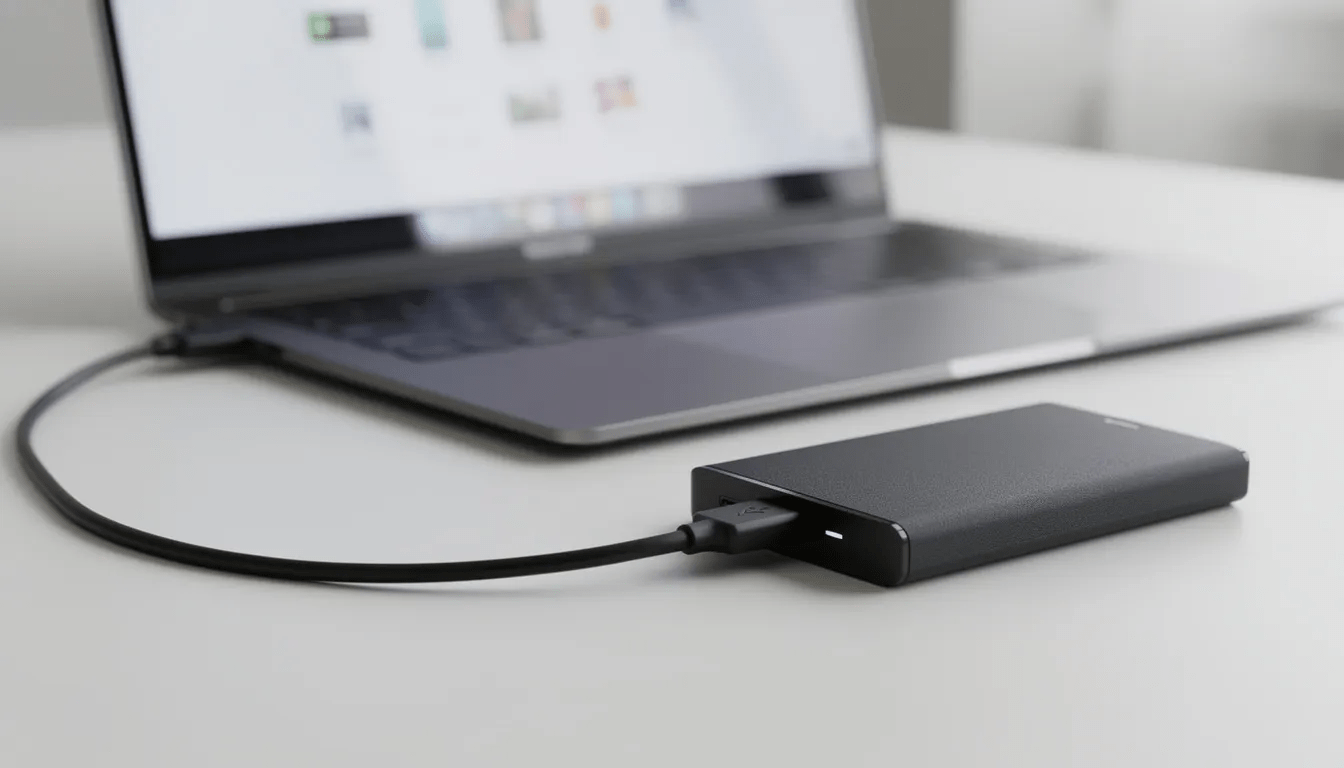
An external USB hard drive or solid state drive
-
Network-attached storage (NAS)
-
Cloud storage services like Dropbox, Google Drive, or OneDrive
Prioritize irreplaceable files over easily redownloaded content. Games from Steam, movies from streaming services, and ISO images can be recovered. Your family photos and business records cannot.
If the drive is unstable, incremental copying works better than trying to clone everything at once. Copy small groups of files, verify they open correctly, then continue. This protects against mid-copy crashes corrupting your backup.
Critical: Verify backup copies actually work. Test a few PDFs, photos, and spreadsheets. Don’t assume the backup is complete until you’ve confirmed key files are accessible.
Step 2: Reduce Stress on the Failing Drive
Failing HDDs often deteriorate faster under heavy workloads or high temperatures. Every read/write operation risks further damage to the platter surface or head assembly.
Stop doing these things:
-
Installing new applications
-
Downloading large files to the drive
-
Running video rendering or disk-intensive tasks
-
Operating virtual machines from the suspect drive
-
Gaming with games installed on that drive
Do these things instead:
-
Keep the computer in a cool, well-ventilated area
-
Clean dust from intake and exhaust fans on desktops
-
Use laptops on hard surfaces, not beds or couches
-
Pause file copying if the drive makes louder noises
If you maintain proper ventilation and reduce workload, a failing drive may survive long enough to complete your backup. Push it too hard, and you’ll regret it.
Step 3: Replace or Retire the HDD
Once data is safely backed up and diagnostics confirm problems—bad sectors, S.M.A.R.T. “Pred Fail” status, repeated file system errors—the failing hard drive must be replaced.
Replacement options:
|
Drive Type |
Best For |
Notes |
|---|---|---|
|
3.5” SATA HDD |
Desktop secondary drive, bulk storage |
Affordable, high capacity |
|
3.5” SATA SSD |
Desktop system drive |
Much faster, more reliable |
|
2.5” SATA SSD |
Laptop upgrade |
Direct replacement for 2.5” laptop HDDs |
|
NVMe SSD |
Modern desktops/laptops |
Fastest option, requires compatible slot |
Keep the old failing drive only as a “last resort” data source—never as primary storage. Store it safely in case you later discover a file you forgot to back up.
Check warranty status. Systems purchased in 2022–2024 may still be covered, and HDDs often have separate multi-year warranties through manufacturers like Western Digital or Seagate.
Before disposing of truly dead drives, securely wipe them (if possible) or physically destroy them. Even failing drives may contain recoverable fragments of sensitive data stored over years of use.
How to Prevent HDD Failure and Data Loss
No HDD lasts forever. These mechanical devices have moving parts that wear out, surfaces that degrade, and electronics that can fail without warning. But smart habits dramatically reduce your risk of catastrophic, surprise failures.
Basic maintenance routine:
-
Regular automated backups
-
Occasional health checks (every few months)
-
Proper cooling and dust management
-
Careful physical handling
-
Surge protector use
Avoid sudden power cuts by using UPS devices for desktops. Always shut down systems cleanly before moving them, especially laptops. Physical shocks—even minor ones—can cause head crashes that destroy data instantly.
Most consumer hard disk drives last 4-8 years under moderate home use. Industry data from companies like Backblaze shows annual failure rates around 1-2% for enterprise drives, rising significantly after 4 years. Consider proactive replacement for any drive older than 5 years that stores critical data.
For operating systems and frequently accessed files, consider SSDs. Use HDDs as a secondary drive for bulk storage and backups where raw performance isn’t critical.
Set Up Regular, Automated Backups
Windows users should configure backup to run automatically using File History:
- Connect an external drive
- Go to Settings > System > Storage > Advanced storage settings > Backup options
- Select your backup drive
- Enable automatic backups (hourly or daily)
macOS users should enable Time Machine:
- Connect an external HDD
- Go to System Settings > General > Time Machine
- Add your backup disk
- Let the system handle hourly snapshots automatically
The 3-2-1 backup rule:
-
3 copies of important data
-
2 different media types (e.g., local drive + cloud)
-
1 copy offsite (cloud storage or physically separate location)
Back up data regularly and test occasionally—restore a few sample files to verify the process works. Nothing is worse than discovering your “backups” are corrupted when you actually need them.
For small offices, network-attached storage devices with RAID configurations can protect against both individual drive fails and accidental deletions while keeping files safe and accessible.
Monitor HDD Health Periodically
Schedule simple S.M.A.R.T. checks every few months using OS tools or third-party utilities. Make it a habit like running periodic antivirus scans.
Key attributes to watch:
-
Power-On Hours (total operating time)
-
Reallocated Sector Count (bad sectors remapped)
-
Current Pending Sector Count (sectors awaiting remapping)
-
Temperature readings
Many monitoring tools offer alerts when thresholds are exceeded. Set these up to email or notify you if sudden changes occur—rising reallocated sectors, for example, even without other symptoms.
Noticing early increases in error counts allows you to plan a new hard drive purchase and data migration before obvious symptoms appear. Proactive replacement is always cheaper than emergency data recovery.
For external backup drives that sit in a drawer most of the time, plug them in every few months to check their health and refresh backups. Drives can develop issues even while powered off, especially in humid or temperature-variable storage conditions.

FAQ
Can I fix a failing hard drive, or do I always need to replace it?
Software tools like CHKDSK can repair file system errors and map out some bad sectors, but they cannot reverse physical wear, motor issues, or head crashes. If S.M.A.R.T. attributes show rising reallocated sectors, or the drive produces mechanical problems and overheating, replacement is the only reliable long-term solution.
Software “repairs” might temporarily stabilize a borderline drive long enough to copy data off, but continuing to use that disk as primary storage invites disaster. And attempting DIY physical repairs—opening the drive casing, swapping platters—almost always destroys remaining data and should never be attempted outside a professional cleanroom. Professional labs charge $500-$3,000 depending on damage severity, capacity, and urgency.
How long do hard drives usually last before failing? Many consumer HDDs last between 4 and 8 years under normal home or
Many consumer HDDs last between 4 and 8 years under normal home or office use. However, lifespan varies widely based on usage patterns and environmental factors.
Factors that shorten HDD life:
-
24/7 operation without rest periods
-
High ambient temperatures
-
Frequent power interruptions
-
Heavy read/write workloads
-
Physical shocks and vibration
Drives older than about 5 years that store critical or unique data should be watched closely using S.M.A.R.T. monitoring tools. Checking total power-on hours helps gauge remaining life—drives exceeding 30,000-40,000 hours are nearing end-of-life territory regardless of apparent health.
What’s the difference between HDD and SSD failure symptoms?
HDDs often give audible warnings—the clicking, grinding, and strange noises discussed throughout this article—along with gradual slowdowns as bad sectors accumulate. You typically get warning before total failure.
SSDs fail differently. They lack moving parts, so they’re silent. SSD issues tend to appear as sudden read-only modes (where the drive accepts no new data), system errors, or disappearing partitions. Some SSDs fail abruptly without warning symptoms.
Both drive types report S.M.A.R.T. data, but SSD attributes focus on write endurance (how many program/erase cycles remain) and flash block health rather than mechanical errors. The android phone or tablet crowd should note similar principles apply to flash storage in mobile devices.
Regardless of drive type, taking preventive measures through backups and occasional health checks remains essential since any storage device can fail unexpectedly.
Is it safe to keep using my PC if I see one or two warning signs?
Occasional glitches—one crash in several months with no other issues—may not indicate impending failure. Computers have many components that can cause problems, and isolated incidents happen.
However, when multiple symptoms cluster together—noise plus data corruption plus S.M.A.R.T. warnings plus crashes—it becomes unsafe to rely on the drive for critical work. This combination suggests progressive hardware failure rather than random computer issues.
Even with a single warning sign, make sure your backups are current, then run diagnostics to rule out developing problems. It’s always safer to assume the worst and protect important files early rather than waiting for the drive to prove it’s failing through a total crash. Nobody ever regretted backing up too soon.
Can I recover data after my hard drive completely stops working?
If a drive is no longer detected by BIOS/UEFI, doesn’t appear in Disk Management or file explorer, or makes severe grinding noises when powered on, only specialized data recovery services may help.
Professional labs can sometimes recover data by:
-
Moving platters into cleanroom environments
-
Using dedicated hardware to read damaged surfaces
-
Repairing or bypassing failed electronics
Success isn’t guaranteed—recovery rates drop below 50% for severe media damage. Costs range from several hundred to thousands of dollars depending on damage, capacity, and urgency.
The bottom line: backing up as soon as early warning signs appear is far cheaper and more reliable than depending on data recovery after total mechanical failure. Prevention always beats cure when it comes to accessing files you cannot afford to lose.