
Key Takeaways
- This error message occurs when your graphics card doesn’t support DirectX 11 feature level 11.0 shader model 5.0 requirements that modern games and applications need
- Popular games like Fortnite (since Season 10), Valorant through the epic games launcher, and Unreal Engine applications commonly trigger this d3d11 compatible gpu error
- The issue can often be resolved through updating gpu driver software, installing the latest directx version, or configuring your computer to use your dedicated gpu instead of integrated graphics card
- Windows update automatically includes directx runtime libraries updates, making them essential for fixing corrupted directx files and maintaining up to date system compatibility
- Old gpus from before 2009 may require hardware replacement, but most modern integrated gpu and dedicated graphics cards support the d3d11 compatible gpu feature level
Understanding the D3D11 Compatible GPU Error
When you encounter the error message “a d3d11 compatible gpu is required to run the engine,” your system is telling you that the affected game or application cannot access the necessary DirectX 11 capabilities. This directx error stems from Microsoft’s Direct3D 11 graphics API, which was introduced alongside Windows Vista and directx version 11 in 2009.
The core issue revolves around feature level 11.0 requirements, which include advanced graphics capabilities like hardware tessellation, compute shaders, and comprehensive shader model 5.0 support. Modern game engines rely heavily on these features to render complex graphics efficiently, making them non-negotiable requirements rather than optional enhancements.
Games commonly affected by this compatibility issue include Fortnite (particularly since Season 10), when you play valorant, Apex Legends, and any applications built with Unreal Engine 4 or 5. The epic games launcher window often displays this error when launching these demanding titles, as does the steam client software when attempting to run valorant or other DirectX 11-dependent games.
The distinction between hardware compatibility and software configuration issues is crucial. Your graphics card might physically support DirectX 11, but corrupted directx files, outdated drivers, or incorrect system settings can still trigger this error. Understanding this difference helps determine whether you need a software fix or hardware upgrade.
Hardware Requirements and Compatibility Check
For NVIDIA users, compatible graphics cards include the GeForce GTX 400 series and newer models such as the GTX 460, GTX 470, GTX 480, and all subsequent generations. AMD users need Radeon HD 5000 series or newer cards, including the HD 5770, HD 5850, HD 5870, and later models. Intel integrated graphics support begins with HD Graphics 2000/3000 and continues through all modern integrated gpu solutions.
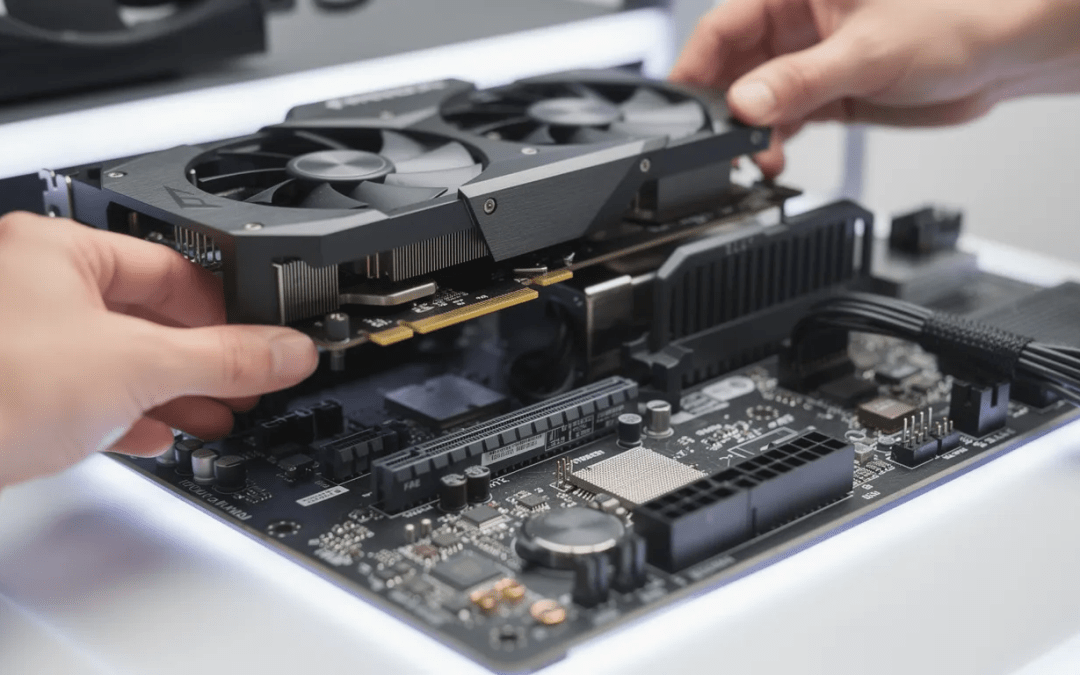
To check your current gpu feature level 11.0 compatibility, open device manager by right-clicking the windows pc start button and selecting the device manager option. Navigate to display adapters and expand options to view your graphics card model. Note whether you have an integrated graphics card, dedicated gpu, or both installed.
For a more detailed analysis, run command “type dxdiag” in the Windows search box and follow the on screen instructions. This diagnostic tool shows your current directx version, feature level 11.0 shader model support, and identifies any compatibility issues with your operating system and graphics hardware.
Step-by-Step Solutions to Fix D3D11 Error
Start with the simplest fixes and progress through each method systematically. Many users find success with the first few solutions, while others may need to combine multiple approaches for complete resolution.
Solution 1: Install Windows Updates and DirectX
Navigate to your settings menu option by clicking the windows pc start button, then select “Update & Security” or “Windows Update” depending on your windows version. Click “Check for updates” and allow the system to automatically download and install all available windows updates. This process often resolves corrupted directx files and ensures compatibility with the affected game’s requirements. Installing the latest version of DirectX runtime libraries and related software components, such as the Visual C++ Redistributable, is crucial for resolving compatibility issues and ensuring your system is up-to-date.
After installation completes, restart your computer and run the “type dxdiag” command again to verify your directx version has updated. Look for feature level 11.0 shader model 5.0 support in the diagnostic results, which indicates successful DirectX integration.
Don’t forget to install optional updates and driver packages that Windows Update might offer separately. These often include critical graphics drivers that work alongside DirectX to provide full d3d11 compatible gpu functionality.
Solution 2: Update Graphics Card Drivers
For NVIDIA graphics cards, download and install GeForce Experience, which automatically detects your hardware and provides access to the latest drivers. AMD users should download the Adrenalin software suite for similar automatic driver management. Both applications ensure you receive correct drivers optimized for your specific graphics card model. If you manually download a driver from the manufacturer’s website, double click the downloaded file to begin the installation process.
Alternatively, update drivers through device manager by right-clicking your graphics card under the drivers section in display adapters and selecting “Update driver.” Choose “Search automatically for drivers” to let Windows find and install the most recent compatible drivers from your gpu manufacturer.
For persistent issues, consider performing a clean installation using Display Driver Uninstaller (DDU) to completely remove existing drivers before installing fresh ones. This process eliminates any corrupted or conflicting driver files that might interfere with DirectX 11 functionality.
Solution 3: Install DirectX End-User Runtime
Visit microsoft’s download webpage for the DirectX End-User Runtime and download the official installer. This package includes legacy DirectX components that many games still require, even when running on newer DirectX versions.
Run the downloaded exe file as an administrator and follow the installation wizard’s on screen instructions. The installer automatically detects missing or corrupted directx files and replaces them with functional versions. After installation, restart your computer to ensure all changes take effect properly.
This solution particularly helps with older games or applications that were built using specific DirectX runtime versions not included in modern Windows installations.
Solution 4: Configure Games to Use Dedicated Graphics
Open settings through the windows pc start menu and navigate to “System” > “Display” > “Graphics settings” or search for “Graphics settings” directly. Add the affected game’s exe file to the application list and set it to “High performance” mode, which forces the system to use your dedicated gpu.
For NVIDIA graphics cards, open the NVIDIA Control Panel and navigate to “Manage 3D Settings.” Select the game’s settings screen under “Program Settings,” then change the “Preferred graphics processor” to your high-performance NVIDIA processor. In addition, you can also adjust graphics API options in the game’s settings screen to ensure DirectX 11 is selected, which may resolve compatibility issues. Apply these changes and restart the game to test the fix.
AMD users can access similar settings through AMD Radeon Settings by navigating to “Gaming” > “Global Settings” and configuring per-application graphics preferences. Set the affected game’s title to use the dedicated graphics card rather than integrated graphics.
Solution 5: Force DirectX 11 Mode in Games
For games launched through the epic games launcher, select library and locate the affected game. Click the settings icon next to the launch button and look for additional command line arguments or launch option text box. Add “-d3d11” or “-DX11” as a command line argument to force DirectX 11 mode.
Steam client software users can right-click the affected game in their library, select properties, and find the launch option text box under the general tab. Enter the same DirectX 11 command line argument and close the properties window.
Some games also include DirectX version selection within their game’s settings screen or configuration files. Check the affected game’s graphics or advanced settings for options to select between DirectX 11 and DirectX 12 rendering modes.
Advanced Troubleshooting Methods
Run the System File Checker (SFC) scan to identify and repair corrupted system files that might affect DirectX operation. Open Command Prompt as an administrator and run command “sfc /scannow” to begin the diagnostic process. This tool automatically fixes many system-level issues that can interfere with graphics API functionality.
Install the latest Microsoft Visual C++ Redistributable packages (2015-2022) from microsoft’s download center. Many games and DirectX components depend on these runtime libraries, and missing or outdated versions can cause compatibility errors. Download and install both x86 and x64 versions to ensure complete compatibility.
Consider increasing your system’s virtual memory (page file) if you’re experiencing memory-related graphics errors. Navigate to “System Properties” > “Advanced” > “Performance Settings” > “Advanced” > “Virtual Memory” and increase the page file size for your primary drive. This change helps systems with limited RAM handle graphics-intensive applications more effectively.
Check Windows Event Viewer for detailed error information by searching for “Event Viewer” in the start menu. Look for critical errors or warnings related to DirectX, graphics drivers, or the specific application causing issues. These logs often provide specific error codes that can guide further troubleshooting efforts.
Epic Games and GPU Compatibility
Starting with Fortnite Season 10, Epic Games made it mandatory for players to use a graphics card that supports these advanced DirectX features. This ensures that the game engine can utilize modern rendering techniques and deliver the visual quality and performance expected from today’s games. If your GPU lacks the required feature level or shader model, you’ll encounter the d3d11 compatible gpu error and won’t be able to launch the game.
To avoid this error, always check that your graphics card is listed as a compatible GPU for Epic Games titles and supports at least Feature Level 11.0 with Shader Model 5.0. Upgrading to a modern, d3d11 compatible graphics card not only resolves the error but also unlocks the full potential of the engine and enhances your overall gaming experience on the Epic Games platform.
When Hardware Upgrade is Necessary
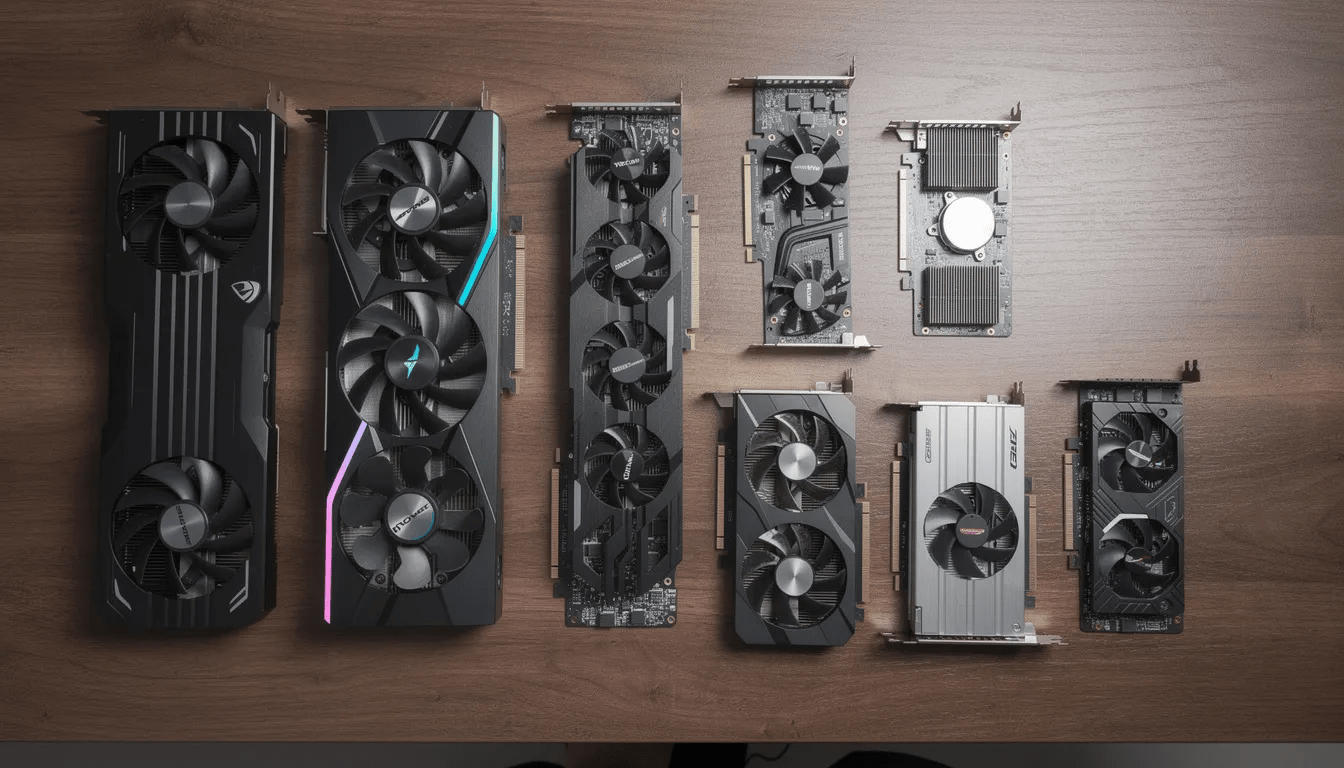
Budget-friendly GPU options that fully support DirectX 11 include the NVIDIA GTX 1050, GTX 1650, AMD RX 560, and RX 570. These cards provide excellent d3d11 compatible gpu functionality at reasonable prices and represent significant performance improvements over integrated graphics solutions.
Laptop users face unique challenges since most laptops have soldered graphics chips that cannot be upgraded. External GPU (eGPU) solutions offer an alternative for laptops with Thunderbolt 3 or USB-C connections, allowing you to connect a full desktop graphics card through an external enclosure.
Before purchasing new hardware, conduct a cost-benefit analysis comparing upgrade costs against alternative entertainment options. Sometimes switching to less demanding games or applications proves more economical than hardware replacement, especially for casual users.
Prevention and Maintenance Tips
Configure automatic graphics driver updates through your GPU manufacturer’s software suite. Both NVIDIA GeForce Experience and AMD Adrenalin offer automatic driver update features that keep your graphics drivers current with the latest game optimizations and compatibility fixes.
Perform regular system maintenance to prevent directx file corruption. Use built-in Windows tools like Disk Cleanup and Defragmentation to maintain optimal system performance. Consider running periodic SFC scans to catch and repair system file issues before they cause compatibility problems.
Always check game system requirements before purchasing new titles. Verify that your graphics card appears on the compatible gpu list and meets or exceeds the minimum specifications. This simple step prevents compatibility disappointment and ensures smooth gaming experiences.