
Introduction to Mac Crashing
For every Mac user, there’s nothing more jarring than seeing your MacBook freeze, restart unexpectedly, or simply refuse to respond—especially when you’re in the middle of important work or creative projects. The Apple logo, usually a reassuring sign of reliability, can sometimes be the last thing you see before a crash interrupts your flow. While Macs are known for their stability, they’re not immune to crashing issues, and even the most seasoned users can find themselves facing a sudden system crash.
Why do MacBook crashes happen? The most common reasons range from having too many apps running at once, not enough free space on your startup disk, or a hardware problem lurking beneath the surface. Sometimes, it’s a software conflict or a recent update that didn’t go as planned. Other times, devices connected to your Mac—like external drives or hubs—can trigger unexpected behavior.
Understanding what’s behind these crashes is the first step toward a fix. Tools like Disk Utility can help repair your startup disk, while Apple Diagnostics can check for hardware issues. If problems persist, solutions might include updating macOS, managing apps running in the background, or even considering a factory reset or reinstalling macOS to start fresh.
No matter your level of experience, troubleshooting Mac crashes doesn’t have to be overwhelming. With the right approach—checking for software updates, monitoring free space, and using built-in utilities—you can get to the root of most crashing issues and restore your Mac to smooth, reliable performance. This guide will walk you through the most common reasons Macs crash and show you how to reset, repair, and recover, so you can get back to what matters most.
Key Takeaways
-
Start with fast fixes first: restart your Mac, update macOS and apps, and check for one problematic app installed just before the crashes began.
-
Most repeated crashes on Macs from 2015–2024 are caused by software conflicts, low disk space, corrupted system files, or overheating, not by failed hardware.
-
You can learn a lot from macOS crash reports and logs, but you don’t need to fully understand them to narrow down which app or process keeps crashing your Mac.
-
If your Mac still crashes in Safe Mode, during a clean macOS Sonoma or Ventura install, or right after boot, it’s likely a hardware issue that needs diagnostics.
-
Apple Diagnostics, Disk Utility First Aid, and sensible storage and heat management together provide a “semi-permanent” solution that prevents most random Mac crashes.
Every Mac user has experienced it at least once: you’re deep into a project, multiple apps running, and suddenly your screen freezes, goes black, or your machine reboots without warning. When your MacBook keeps crashing repeatedly, it stops being an annoyance and becomes a genuine problem that affects your work, your data, and your trust in the computer sitting in front of you.
The good news is that most mac crashes have identifiable causes and practical fixes. Whether you’re dealing with a spinning beachball that locks up your system, an unexpected restart with the dreaded “Your computer was restarted because of a problem” message, or a complete system crash during video editing, this guide will walk you through everything from quick fixes to deep troubleshooting.
We’ll cover how to read crash reports without needing a computer science degree, when to suspect software versus hardware problems, and exactly when it makes sense to reinstall macOS or take your machine to an Apple Store. Let’s get your Mac stable again.
Why Your Mac Keeps Crashing
A one-off crash is rarely cause for alarm. Macs occasionally hiccup due to temporary memory issues, a misbehaving background process, or a momentary conflict between apps. But when your MacBook crashes repeatedly—multiple times per week or even daily—you’re dealing with something deeper that won’t fix itself.
Repeated crashes on macOS Ventura, Sonoma, or Sequoia typically signal one of these underlying problems:
The most common reasons for persistent Mac crashes include:
|
Cause |
What It Looks Like |
|---|---|
|
Buggy or outdated apps |
Crashes after opening specific software, especially older Adobe plug-ins or apps not updated for your macOS version |
|
Incompatible kernel extensions |
Kernel panics or restarts tied to VPNs, antivirus tools, or audio/video drivers |
|
Low free disk space |
System becomes sluggish, apps freeze, or swap file operations fail (less than 10–15% free on startup disk) |
|
Conflicting background processes |
Menu bar tools, cleaners, or multiple security apps fighting over system resources |
|
Too many apps running simultaneously |
Memory pressure spikes, spinning beachball appears during app launch |
Signs that point to software issues:
-
Crashes occur after logging into your user account, not before
-
The “Your computer was restarted because of a problem” message appears after a restart
-
You see a spinning beachball during app launch or when switching between apps
-
Kernel panics reference specific third-party software in the crash log
When hardware is more likely at fault:
-
Crashes happen under heavy load (4K video editing, 3D games, graphic editors)
-
Your Mac restarts even when running in Safe Mode with no third-party software loaded
-
The fan runs at maximum constantly, even during light tasks
-
Apple Diagnostics tests reveal errors or reference codes
Third-party peripherals deserve special mention here. USB hubs, docks, external NVMe SSDs, display adapters, and even some Thunderbolt devices connected to your Mac can trigger kernel panics and random reboots if their drivers conflict with macOS or if the hardware itself is failing.
How to Recognize Different Types of Mac Crashes
Not all crashes are created equal. Understanding what type you’re experiencing helps narrow down the cause:
- Soft crash (app-level): A single app freezes or quits unexpectedly, but macOS stays responsive. You can still move your mouse, click on other windows, and use the Apple menu to force quit the frozen app.
- Hard crash (system-level): The entire screen goes black, gray, or displays a kernel panic message. Your Mac reboots itself without any input from you, and you may see the “Your computer was restarted because of a problem” dialog after logging back in.
- Classic kernel panic: On older Macs, you might see a multilingual gray screen instructing you to restart. On newer systems, the Mac simply reboots and shows a brief notification afterward.
- Sudden shutdown without dialog: The Mac turns off instantly with no warning or error message. This often points to power, battery, or thermal issues—particularly common on MacBook Air and MacBook Pro models from 2016–2021.
Pro tip: Note exactly what you were doing when the crash happened. Which apps were running? Were any devices connected? Was an external display attached? This information becomes invaluable during troubleshooting.
How to Read and Use Mac Crash Reports
You don’t need to be a developer to get useful information from macOS crash reports. This section gives you just enough guidance to identify patterns without drowning in technical details.
Where crash reports appear:
-
Immediately after a restart, macOS may show a dialog with “Report…” and “Ignore” buttons—click “Report” to view the crash log
-
Later, open the Console app from your utilities folder and navigate to Crash Reports or System Reports
-
Look for files ending in .ips or .crash in the sidebar
Key fields to look at in any crash report:
|
Field |
What It Tells You |
|---|---|
|
Process |
The name of the app or process that crashed |
|
Date/Time |
When the crash occurred (helps identify patterns) |
|
System Version |
Which macOS version was running |
|
Exception Type |
Technical error code like EXC_BAD_ACCESS or KERN_INVALID_ADDRESS |
|
Crashed Thread |
Which part of the process failed |
Look for repeating patterns:
-
Same app name appearing across multiple crash reports
-
Same kernel extension or driver name in the crashed thread
-
Crashes always occurring at the same time of day (might indicate a scheduled task)
-
References to recently added software installed just before problems began
Most of the stack trace (the long list of memory addresses and function names) is for developers. But you can still copy the first 10–15 lines of a crash report when contacting Apple Support or reaching out to an app developer—it gives them enough context to help you.
When Crash Logs Point to Third-Party Hardware or Drivers
If your crash logs contain references to third-party software or hardware drivers, you’ve likely found your culprit.
Suspicious entries to watch for:
-
Third-party storage drivers (often from external SSD enclosure manufacturers)
-
VPN kernel extensions (common with corporate VPNs or security software)
-
Audio interface drivers (especially from older USB audio devices)
-
GPU-related drivers or display adapters
Troubleshooting steps:
-
Temporarily disconnect external USB-C and Thunderbolt devices connected to your Mac
-
Boot without your dock or hub attached
-
Test with only your keyboard and mouse connected
If crashes stop after disconnecting certain devices, you’ve isolated the problem. Check the manufacturer’s website for updated macOS Sonoma or Ventura drivers, or contact their support with your Mac model, macos version, and the time crashes typically occur.
Quick Fixes: What to Try Immediately When Your Mac Keeps Crashing
These are the fastest steps to attempt, in order, suitable for any MacBook or desktop Mac from 2015–2024. Work through these before diving into deeper troubleshooting.
-
Restart your Mac using the Apple menu and select restart rather than forcing shutdown with the power button. A clean restart clears temporary memory and kills stuck background processes.
-
Check for macOS updates in System Settings > General > Software Update. Point releases like macOS Sonoma 14.7 often contain specific fixes for kernel panics and crashing issues that affected earlier builds.
-
Update all apps through the App Store and within third-party apps. Microsoft 365, Adobe Creative Cloud, and browser apps all need updates to stay compatible with current macos updates.
-
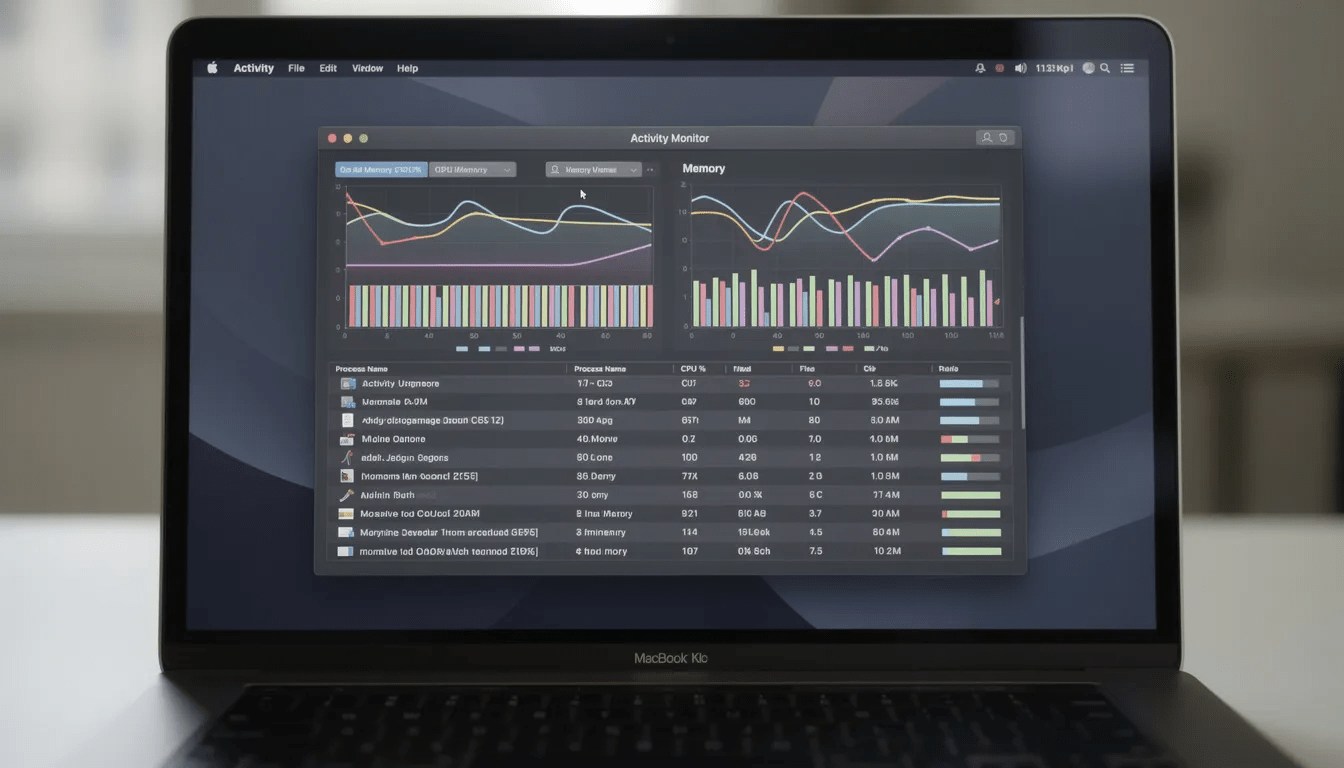
Force-quit frozen apps via the Apple menu > Force Quit (or press Option + Command + Escape). Check Activity Monitor—apps consuming over 90–100% CPU can make the whole system appear crashed even when it’s just one runaway process.
-
Disconnect non-essential accessories including USB hubs, external drives, printers, docks, and any external display adapters. Test if crashes still occur when using only built-in hardware.
Free Up Memory and Storage Quickly
Low memory and insufficient free space on your startup disk are among the most common reasons for freezing and apparent crashes.
-
Close memory-heavy apps like Chrome with dozens of tabs open, virtual machines, or 3D games. Each browser tab consumes RAM, and when memory runs out, macOS starts aggressive paging that can freeze the entire system.
-
Check your free space in System Settings > General > Storage. Aim for at least 20–25 GB free, especially before running macos updates or using disk-intensive applications.
-
Delete large files quickly: open your Downloads folder and remove old disk images (.dmg files), installers, and anything you no longer need. Check the Movies folder for large video files that might be eating up your hard drive.
-
For a more thorough cleanup later, remove old iOS backups, unused language files, or oversized Xcode/Photos libraries—but only after you have a solid backup in place.
Deep Troubleshooting: Software Steps to Stop Repeated Crashes
If quick fixes didn’t solve the problem, these more advanced (but still user-friendly) steps will help isolate the cause. Work through them systematically.
-
Boot into Safe Mode to start your Mac with minimal software loaded:
-
Apple silicon Macs: Shut down completely, then hold the power button until you see “Loading startup options.” Select your startup disk, then hold Shift and click “Continue in Safe Mode.”
-
Intel Macs: Shut down, power on, and immediately hold the Shift key until you see the login window.
-
-
Test in Safe Mode: If your Mac runs stably without crashes, the problem is almost certainly a third-party app, extension, or login item. The following steps will help you find it.
-
Review Login Items in System Settings > General > Login Items. Disable non-essential items one by one—cleaners, menu bar utilities, and unknown tools are common culprits. Restart normally after each change to test.
-
Remove or reinstall recently added apps, especially system tools like VPNs, antivirus software, and performance “boosters.” If crashes started after installing a specific app, that app is your prime suspect.
-
Run First Aid in Disk Utility on your startup disk. Open Disk Utility from the utilities folder (or search via Spotlight), select your internal drive, and click First Aid. This repairs file system problems that can cause boot loops and random reboots.
Resetting NVRAM, PRAM, and SMC on Intel Macs
This subsection applies only to Intel-based Macs made before late 2020. Apple silicon Macs handle these settings differently and don’t require manual resets.
What NVRAM/PRAM stores:
NVRAM (Non-Volatile RAM) keeps track of startup disk selection, display resolution, sound volume, and time zone settings. Corrupted NVRAM values can cause odd crashes, display problems, or boot issues.
How to reset NVRAM:
- Shut down your Mac completely
- Power on and immediately hold Option + Command + P + R
- Keep holding for about 20 seconds (on older models, you’ll hear the startup sound twice)
- Release and let the Mac boot normally
When to reset SMC:
The System Management Controller handles power, battery, thermal management, and fan behavior. Reset it if you’re experiencing:
-
Fans stuck at high speed regardless of load
-
Battery not charging properly or percentage jumping erratically
-
Unexpected shutdowns even with battery charge remaining
-
Mac not responding to the power button
SMC reset instructions differ for removable-battery MacBooks, built-in battery MacBooks, and desktops. Check Apple’s official support article for exact steps matching your model year (for example, a 2017 MacBook Pro uses a different method than a 2019 iMac).
Handling macOS Upgrades and Downgrades When Crashes Start After an Update
Some users find their Mac starts crashing immediately after moving from macOS Monterey to Ventura, or from Ventura to Sonoma or Sequoia. If this matches your situation:
-
First, try updating to the latest patch version of your current macOS (for example, Sonoma 14.7 instead of 14.0). Also update all third-party apps and check for driver updates before considering a downgrade. Many early-release bugs get fixed within weeks.
-
Downgrade only as a last resort. The cleanest method is restoring a Time Machine backup taken while running the older macOS version. Boot into macOS Recovery and choose “Restore from Time Machine Backup.”
-
No backup? You can still downgrade by erasing your disk and installing an earlier macOS version (if your Mac supports it), but you’ll need to manually reinstall apps and restore data from wherever you saved it.
-
Always back up before any erase-and-install. Connect an external drive, run Time Machine, and verify the backup completed successfully. Data loss during troubleshooting is preventable.
Checking Hardware: Diagnostics, Overheating, and Storage Issues
If software steps haven’t stopped the crashes, or if your Mac crashes specifically during heavy tasks like 4K video editing, 3D rendering, or gaming with resource-intensive graphic editors, it’s time to check hardware.
Running Apple Diagnostics:
|
Mac Type |
How to Start Diagnostics |
|---|---|
|
Apple silicon |
Shut down, hold the power button until startup options appear, then press Command + D |
|
Intel Mac |
Shut down, power on, and immediately hold the D key |
Apple Diagnostics scans for hardware problems and displays reference codes with basic explanations. You might see codes referencing memory, logic board, or storage issues. Photograph or write down any codes—they’re useful when contacting Apple Support.
Overheating indicators:
-
Repeated crashes accompanied by high fan noise
-
The chassis feels very hot to the touch, especially near the hinge or vents
-
Crashes occur only during CPU-intensive tasks on other tasks like video export
If overheating seems likely, ensure your Mac’s vents are clear. Avoid using your MacBook on soft surfaces like beds or couches that block airflow. Consider a laptop stand that elevates the machine for better ventilation.
Battery health check:
Go to System Settings > Battery > Battery Health, especially on MacBook Pro and MacBook Air models from 2016–2020. If you see “Service recommended,” battery degradation could correlate with unexpected shutdown and crash behavior under load.
Storage testing:
-
Run First Aid on any external drives in Disk Utility
-
Disconnect failing HDDs or third-party NVMe SSD enclosures
-
Check if kernel panics referencing storage drivers disappear after removal
Special Case: NVMe SSD and Hibernation-Related Crashes
Some Macs using third-party NVMe SSDs—either internally upgraded or in external enclosures—crash or freeze specifically when entering deep sleep or hibernation.
-
Adjusting power settings via Terminal commands can help (for example, modifying hibernation or standby modes). Enter the following command in Terminal to modify these settings, but be sure to use the correct command for your Mac and consult official documentation. Using Terminal commands can disable deep-sleep functions, which may stop crashes related to NVMe SSDs in some MacBooks. Consult vendor documentation or Apple-approved guidance rather than copying commands from forums.
-
Trade-offs: Disabling deep sleep modes can slightly increase battery drain—typically 1–2% per hour when the lid is closed overnight. Weigh stability against battery life based on your usage.
-
Contact manufacturer support if crashes persist. Provide your macOS version, Mac model, and the typical time of day when crashes occur. Many enclosure manufacturers have firmware updates that fix these issues.
When to Reinstall macOS or Seek Professional Repair
These are the last-resort steps when crashes persist after all previous software and hardware checks. Before proceeding, ensure you have a complete backup.
-
Non-destructive macOS reinstall: Boot into Recovery (Command + R on Intel, or hold the power button and choose Options on Apple silicon). Select “Reinstall macOS” without erasing your disk. This replaces system files while keeping your documents, apps, and most settings intact.
-
Full erase and clean install: Only if the non-destructive reinstall fails. Use Disk Utility in Recovery to erase your internal drive, then reinstall macos from scratch. This eliminates any possibility of corrupted files or conflicting software installed previously.
-
If crashes continue after clean install: With no third-party apps installed and fresh system files, any remaining crashes point to hardware failure—RAM, SSD, logic board, or GPU. Software has been ruled out.
-
Contact Apple Support or visit an Apple Store Genius Bar. If your Mac is covered under AppleCare+ or falls within a known repair program (like the 2018 MacBook Pro keyboard or display programs), repairs may be free or reduced cost.
-
In-store diagnostics can identify issues invisible to Apple Diagnostics run at home: swollen batteries in older MacBook Pros, failing SSDs in 2018–2019 models, or defective RAM modules causing recurring kernel panics.
How to Prepare Your Mac and Data Before Repair
Before handing your machine to anyone for service:
-
Make at least one verified backup using Time Machine or by cloning to an external drive. If possible, keep an additional off-site or cloud backup for critical work files.
-
Sign out of iCloud, iMessage, and Find My (in System Settings > Apple ID) before leaving the Mac for repair. This prevents Activation Lock complications when technicians need to test or reformat.
-
If your Mac will leave your physical control and contains sensitive data, enable FileVault encryption in System Settings > Privacy & Security. This ensures your files remain protected even if the drive is accessed.
-
Bring crash logs, diagnostic codes, and a brief written timeline of events to your repair appointment. Explaining “crashes started Tuesday after installing X software, happen twice daily, and show reference code PPT001” saves significant diagnostic time.
FAQ: Mac Crashes and Freezes
Is there a permanent fix for my Mac crashing, or will it always be unstable?
For most users, once you identify and address the root cause—whether that’s a buggy app, failing SSD, overheating chassis, or critically low disk space—your Mac becomes as stable as the day you bought it. Random crashes should be rare events, not weekly occurrences. Keep macOS and your apps updated, maintain at least 20 GB of free space, avoid untrusted system utilities, and keep Time Machine backups current. With this foundation, you shouldn’t need to think about crashes again.
My Mac only crashes when using a browser like Chrome or Edge. What should I check?
Start by updating the browser to its latest version, then disable extensions one by one—ad blockers, VPN plug-ins, and download managers are common culprits. Test the same websites in Safari to see if the problem follows. Open Activity Monitor and watch for memory pressure spikes or CPU usage climbing above 100% when the crash happens. If crashes persist across multiple browsers with all extensions disabled, the issue is likely system-wide (GPU, RAM, or graphics drivers) rather than the browser alone.
Can a nearly full iCloud Drive or external drive cause my Mac to crash?
A full iCloud Drive won’t directly crash macOS, but it can make Finder and syncing appear slow, unresponsive, or “frozen.” A failing or nearly full external drive, however, can trigger hangs, spinning beachballs, and sometimes kernel panics—especially if the system constantly tries to access damaged files. Try disconnecting suspect external drives for a day or two to see if crashes stop.
My Mac crashes more often on battery than when plugged in. Why?
Weak or degraded batteries sometimes can’t deliver enough power under peak load, causing sudden shutdowns or crashes. This is especially common on older MacBook models where battery capacity has dropped significantly. Different power profiles also apply when on battery—thermal limits are more aggressive, which can expose marginal hardware issues. Check Battery Health in System Settings; if it shows reduced capacity or “Service recommended,” try the same tasks while plugged in. If stability improves dramatically, a battery service may be needed.
Should I use “cleaner” or “optimizer” utilities to prevent Mac crashes?
Approach these tools with caution. Aggressive cleaners that remove system files, run constant background scans, or promise dramatic “speed boosts” can actually cause instability and kernel panics rather than prevent them. Some of the most common crashing issues we see come from well-intentioned users who installed cleanup software that interfered with macOS. Stick to built-in tools like Storage Management (click the apple logo, then About This Mac > Storage), Disk Utility First Aid, and Time Machine. Only use third-party utilities from well-known, reputable developers when you have a specific need.
Wrapping Up
Mac crashes aren’t something you have to live with. Whether your problem turned out to be a misbehaving app, a cramped startup disk, an overheating chassis, or a hardware component ready for replacement, there’s a fix available once you identify the cause.
Start with the quick fixes—restart, update, and disconnect peripherals. If crashing issues persist, work through Safe Mode testing, Login Items review, and Disk Utility First Aid. For stubborn problems, Apple Diagnostics and a potential macOS reinstall help separate software problems from genuine hardware failure.
The most important step you can take right now? Back up your Mac. Whether you fix the problem yourself or end up needing a factory reset or professional repair, having a current Time Machine backup means you won’t lose anything important along the way.