
Key Takeaways
-
Start by identifying your exact Dell model using the Service Tag on the bottom of laptops or back of desktops, then look up compatible parts on Dell’s Support & Parts pages.
-
Use Dell’s official store for OEM parts (batteries, keyboards, chargers) and well-known vendors like iFixit, Crucial, and Parts-People for tested third-party components.
-
Common Dell replacement parts in 2024 include batteries for XPS 13 (models 9360, 9343, 9350), Inspiron and Latitude series, as well as SSDs, RAM, keyboards, and cooling components.
-
Always verify voltage, Wh (Watt-hours), connector style, and supported part numbers when buying Dell batteries or power supplies to avoid damage or poor performance.
-
Follow model-specific service manuals from Dell and independent repair guides for safe DIY upgrades, and expect that some warranty policies may be affected by third-party hardware changes.
If you’ve ever tried to fix or upgrade a Dell computer, you know the frustration of staring at a parts catalog wondering which battery, keyboard, or storage drive actually fits your specific device. The good news? Finding the right dell computer parts doesn’t require a computer science degree—it just requires a systematic approach.
This guide walks you through the entire process: from identifying your exact Dell model using the service tag, to navigating the dell website and third-party vendors, to swapping out components yourself. Whether you’re dealing with a sluggish hard drive, a battery that won’t hold a charge, or simply want to boost your RAM, you’ll find everything you need to make informed decisions and avoid costly mistakes.
Let’s get started.
How to Identify the Correct Dell Computer Parts for Your System
Accurate model identification is the first and most crucial step before buying any Dell part or accessory. Skip this step, and you risk ordering components that don’t fit, don’t connect, or worse—damage your system.
Finding Your Service Tag
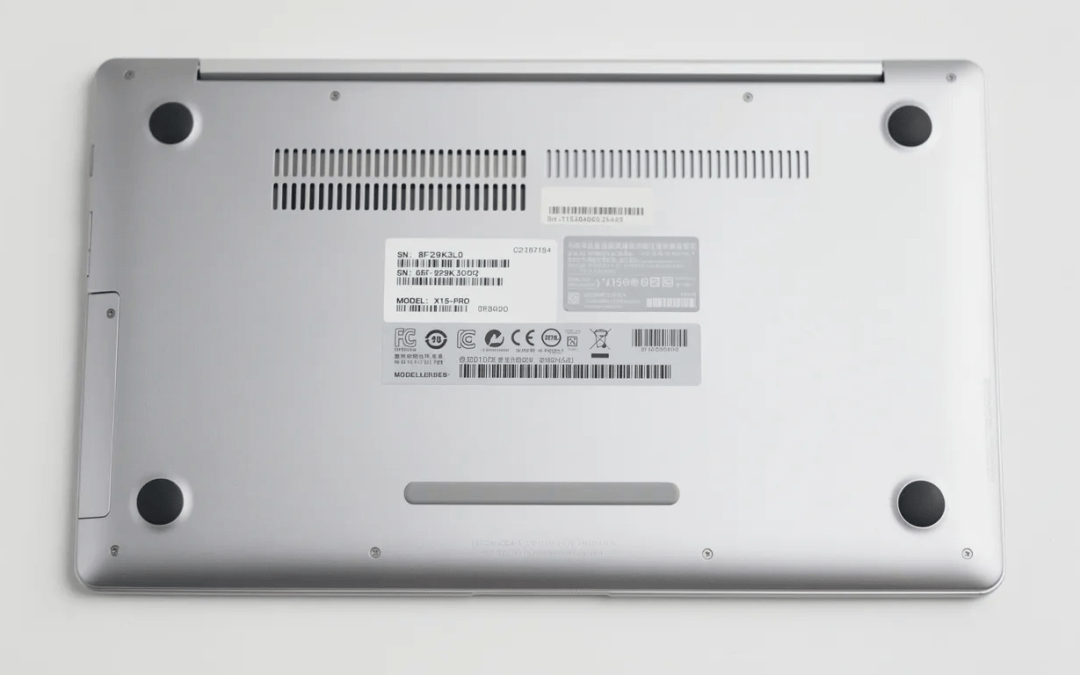
Every Dell device ships with a unique service tag—typically a 7-character alphanumeric code that acts as your computer’s fingerprint. Here’s where to find it:
|
Device Type |
Service Tag Location |
|---|---|
|
Dell Laptop |
Underside of chassis, under battery (older models), or inside battery compartment |
|
Dell Desktop |
Back panel or top cover |
|
Dell Inspiron |
Bottom label or BIOS/System Setup screen |
|
Dell Latitude |
Bottom chassis or accessible via DirectX diagnostic tools |
Once you have your service tag, everything else becomes significantly easier.
Using Dell’s Support Portal
Navigate to support.dell.com and enter your service tag in the search field. The system will automatically detect:
-
Your exact model and configuration
-
Original hardware specifications
-
Current warranty status
-
Available driver updates
After identification, click the “Parts & Accessories” or “Upgrades” tab to view Dell-verified compatible components. This includes batteries, adapters, storage modules, RAM, keyboards, and more—all confirmed to work with your specific system.
Handling Older or End-of-Life Models
For older systems—like the Dell XPS 13 9343/9350 or Latitude E7470 sold around 2015–2017—some OEM parts may be listed as “end of life” on Dell’s shop. When this happens, third-party suppliers become necessary.
Cross-check part numbers printed on your existing component (such as PW23Y, WDX0R, M5Y1K, or 6GTPY on batteries) with listings from Dell and reputable vendors. This number is your key to finding an exact replacement, even from non-Dell sources.
Buying Dell Devices, Parts, and Accessories Online
OEM Dell parts are best sourced directly from Dell’s regional website, while upgrades like SSDs and RAM can safely come from major third-party brands without compatibility concerns.
Navigating Dell’s Consumer Site
From the Dell homepage, follow this path to browse accessories:
- Click “Computers & Accessories”
- Select “Electronics & Accessories”
- Choose “View all Electronics & Accessories”
Here you’ll find monitors, docks, keyboards, adapters, and more. This section shows general-purpose products like USB-C docks and gaming mice that work across multiple Dell systems.
Parts & Accessories vs. General Shop
The “Parts & Accessories” link under the Support section is tailored specifically to your service tag. It filters products to show only items compatible with your exact model. The main shop, by contrast, displays Dell’s full catalog—useful for browsing, but requiring you to check compatibility manually.
Third-Party Parts: What Dell Does (and Doesn’t) Endorse
Dell does not officially endorse third-party internal hardware upgrades such as non-Dell batteries or generic chargers. When you choose to install these components:
-
You assume responsibility for verifying compatibility
-
Any issues must be directed to the third-party vendor, not Dell
-
Warranty coverage may be affected in some regions
That said, many upgrades are perfectly safe when sourced from reliable brands.
Recommended Third-Party Brands for Storage and RAM
For internal upgrades like NVMe SSDs and RAM, these brands consistently deliver:
|
Brand |
Known For |
Notes |
|---|---|---|
|
Crucial |
RAM and SSDs |
Excellent compatibility checker on their website |
|
Samsung |
NVMe SSDs |
Premium performance, widely trusted |
|
Kingston |
RAM modules |
Budget-friendly options |
|
Corsair |
High-performance RAM |
Popular in gaming builds |
When ordering, confirm:
-
Interface type (SATA vs NVMe)
-
Form factor (2.5”, M.2 2280, M.2 2230)
-
Maximum supported capacity for your specific Dell model
Common Dell Laptop Replacement Parts in 2024
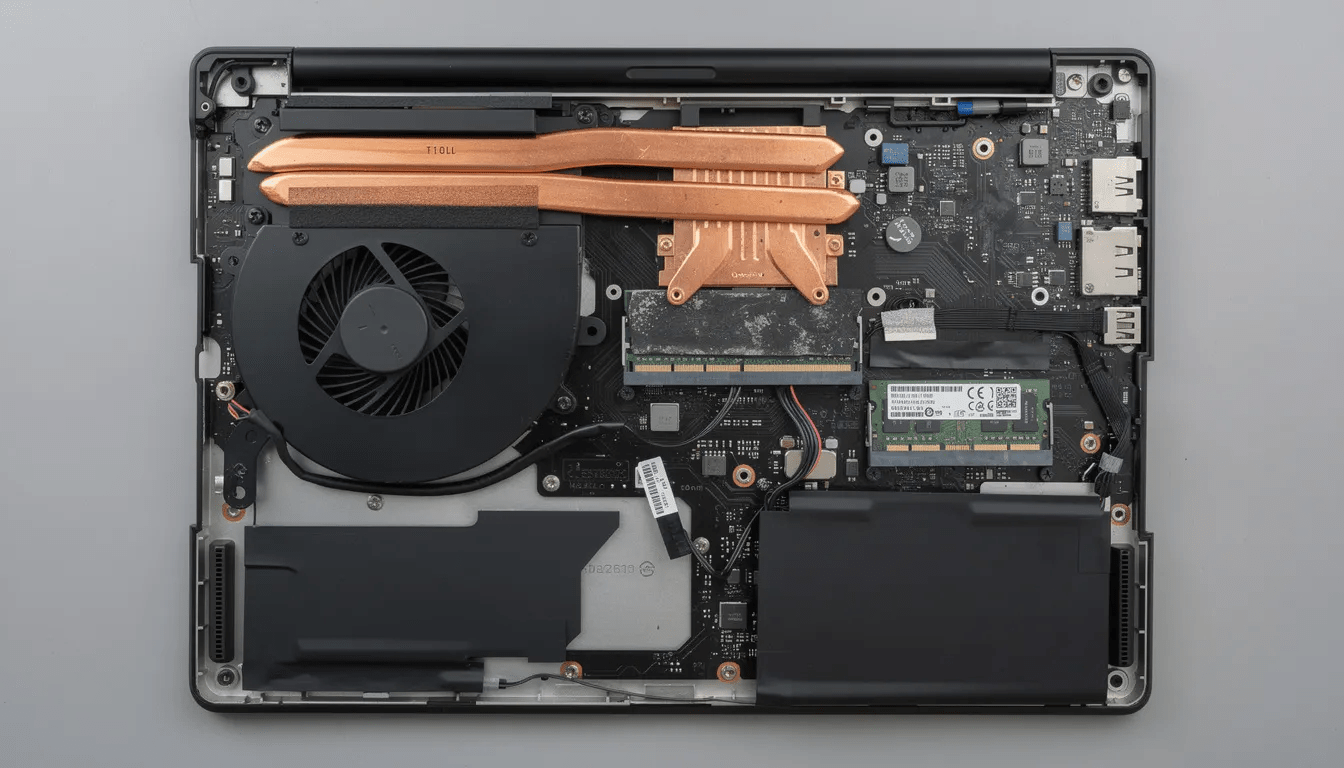
Batteries, keyboards, storage, RAM, and cooling components represent the most frequently replaced parts in Dell laptops manufactured between 2014 and 2024.
Batteries: The Top Replacement Item
Battery degradation is inevitable. After 2-3 years of regular use, most Dell laptop batteries lose significant capacity. Common replacements include:
-
Dell 6GTPY 91Wh – Used in XPS 15 systems, high-capacity option for power users
-
PW23Y / 0PW23Y – Standard battery for Dell XPS 13 9360
-
WDX0R – Found across many Inspiron and Latitude lines
-
Alienware 17 R2/R3 92Wh – Specialized high-capacity pack for gaming laptops
Keyboards
Keyboards in Dell laptops like the Inspiron and XPS series commonly fail due to liquid damage, worn keys, or failing ribbon cables. The Dell keyboard DKDXH, for example, fits Inspiron 15-7547/7548/3558 and some XPS 13 variants.
When sourcing a replacement, note that keyboard layouts vary by region—make sure you order the correct language version (English, French Canadian, etc.).
Storage Upgrades
Moving from a mechanical 1TB 2.5” HDD to a 500GB or 1TB NVMe SSD remains one of the most impactful upgrades you can make. On models like the Dell Latitude 7400, storage drives use standard M.2 NVMe form factors unless the system requires a proprietary caddy.
Dell offers M.2 2230 NVMe SSDs in 1TB or 2TB capacities with PCIe Gen 4×4 performance for newer systems, while older devices may use 2.5-inch SATA drives.
RAM Upgrades
RAM upgrades make the biggest difference on business models like the Latitude 5000 and 7000 series, as well as older Inspiron laptops with accessible SO-DIMM slots. Dell offers 8GB DDR5 UDIMM modules at 4800 MT/s for compatible desktop systems.
Note: Many modern XPS 13 units have soldered memory that cannot be upgraded. Check your service manual before ordering.
Cooling Components
Fans and heatsinks degrade over time, leading to thermal throttling and reduced performance. Consumables like thermal paste (iFixit thermal paste or Arctic Silver ArctiClean) help restore proper heat transfer during repairs.
Detailed Examples of Popular Dell Laptop Batteries and Components
Understanding specific battery specifications helps you avoid buying incompatible or underperforming replacements. Let’s walk through concrete examples with real capacities, voltages, and considerations.
Dell 6GTPY 91Wh Battery
This high-capacity battery powers the XPS 15 series and represents Dell’s premium option for users who need extended runtime:
|
Specification |
Value |
|---|---|
|
Capacity |
97Wh (marketed as 91Wh) |
|
Voltage |
11.4V |
|
mAh Rating |
~8500mAh |
|
Compatible Part Numbers |
6GTPY, 1P6KD |
Multiple part numbers often refer to the same class of battery, so don’t panic if your vendor lists a slightly different code—just verify the voltage and Wh match.
Dell XPS 13 9360/9343/9350 Batteries
These ultrabook batteries typically offer:
-
Part Numbers: PW23Y, 0PW23Y, 5K9CP, 90V7W
-
Capacity: 52–60Wh
-
Voltage: 7.4–7.6V
The Wh rating directly impacts runtime—a 60Wh battery will last roughly 15% longer than a 52Wh unit under identical conditions.
Mid-Capacity Batteries
For Inspiron and Latitude laptops, these batteries cover the middle ground:
|
Part Number |
Typical Capacity |
Common Models |
|---|---|---|
|
WDX0R |
42Wh |
Inspiron 13/14/15/17 series |
|
F3YGT |
60Wh |
Latitude 7280/7480 |
|
YRDD6 |
42Wh |
Inspiron 3000/5000 series |
|
H5H20 |
56Wh |
XPS 15 9560/9570 |
Stock levels for these batteries fluctuate—popular vendors often show “only a few left in stock” for high-demand items.
Specialized Batteries
For gaming systems like Alienware, the 17 R2/R3 92Wh pack requires exact matching of both model name and connector style. The 3HWPP and H5CKD models serve newer Latitude and Inspiron devices but use different mounting configurations.
Thermal Paste and Complementary Products
When replacing a battery or fan, consider reapplying thermal paste. A 30ml kit from iFixit or Arctic Silver costs little but can reduce CPU temperatures by 5-10°C when old, dried paste is replaced.
Trusted Sources for Dell Parts, Repair Guides, and Community Support
Beyond Dell’s official resources, several specialized vendors and community platforms can help you find parts, answer questions, and complete repairs successfully.
Parts-People
Parts-People operates as a long-running Dell-focused parts store carrying components for Inspiron, Latitude, XPS, and Alienware models. Beyond parts sales, they host:
-
A Q&A community with over a thousand answered questions
-
Step-by-step repair guides with photos
-
Video tutorials for common repairs
iFixit
iFixit provides Dell replacement parts alongside DIY “fix kits” that bundle tools with a lifetime guarantee. Their free repair manuals walk through disassembly of popular models like the XPS 13 9360 or Latitude 7490 with detailed photos at each step.
Their kits typically include:
-
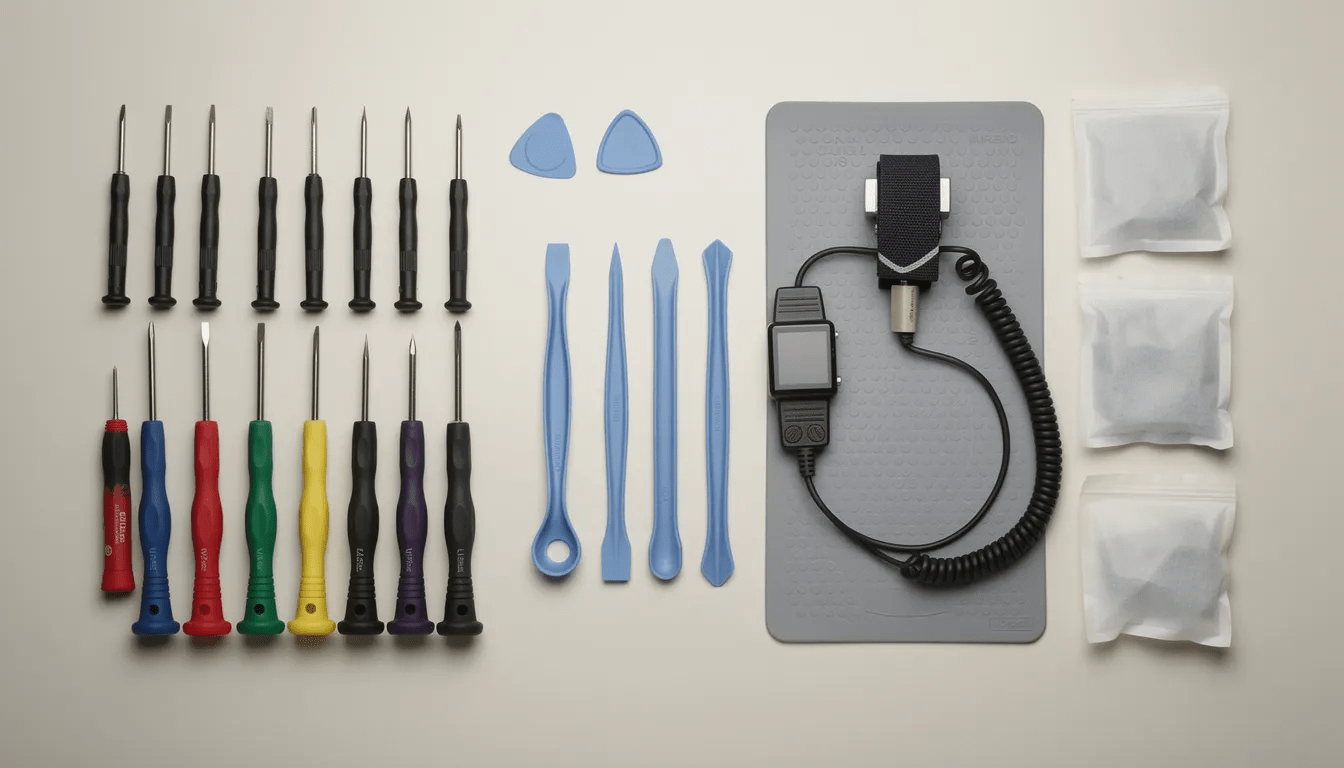
Precision screwdrivers (Torx, Phillips, Pentalobe)
-
Spudgers and pry tools
-
Anti-static wrist straps
-
Replacement components
Online Marketplaces
Generic laptop parts vendors and major marketplaces (Amazon, eBay, Newegg) carry Dell-compatible components, but exercise caution:
-
Check seller reputation and real customer reviews
-
Verify exact part numbers match your requirements
-
Be wary of prices that seem too good to be true
-
Ensure a clear return policy exists
Reddit’s r/Dell Community
The r/Dell subreddit serves as an independent, public forum where users share experiences with SSD, RAM, and battery upgrades. Community members regularly recommend sites like Crucial for storage and memory, and frequently link to Dell’s own service manuals for disassembly instructions.
Dell’s Official Documentation
For any given service tag, Dell provides downloadable PDF “Service Manuals” showing exactly how to:
-
Remove the bottom cover
-
Disconnect and replace the battery
-
Swap SSDs and RAM modules
-
Access the motherboard and cooling system
Access these by entering your service tag on support.dell.com and navigating to “Manuals and Documents.”
Basic DIY Repair Tips for Dell Laptops and Desktops
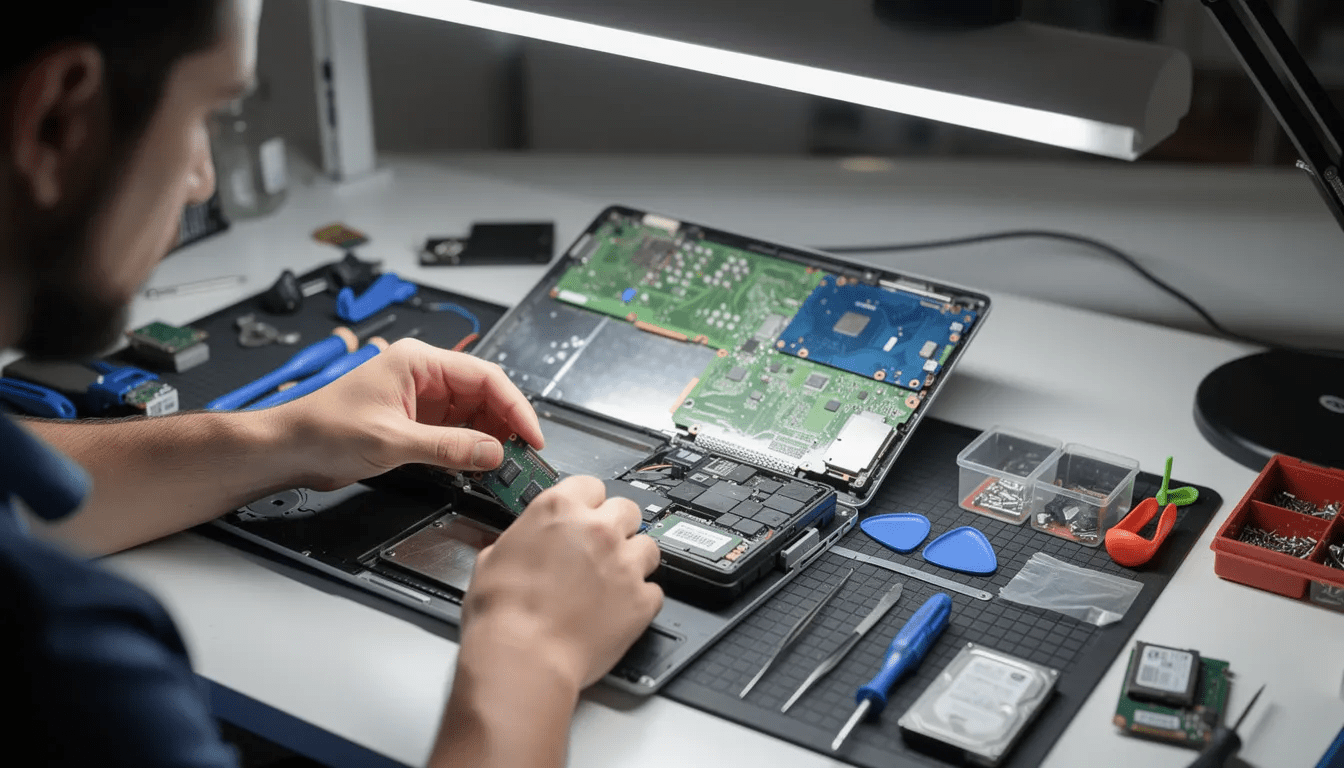
Many Dell repairs—especially battery swaps, SSD upgrades, and RAM installations—are realistic DIY tasks when you follow detailed guides and take proper precautions.
Typical Battery Replacement Walkthrough
For an XPS 13 or Inspiron battery replacement:
- Power off completely – Shut down the system (don’t just sleep/hibernate)
- Disconnect the charger – Remove all cables and peripherals
- Ground yourself – Touch a metal object or use an anti-static wrist strap
- Remove bottom screws – Use the appropriate Torx or Phillips driver
- Carefully pry the bottom cover – Use a plastic spudger, not metal tools
- Disconnect the battery cable – Locate the connector on the motherboard
- Remove mounting screws – Most batteries are secured with 2-4 screws
- Install the new battery – Avoid flexing or puncturing the cells
- Reconnect and reassemble – Reverse the disassembly steps
Handling Thermal Paste
When working near the heatsink (during fan replacements or deep cleaning):
-
Remove old paste with a cleaner like ArctiClean or isopropyl alcohol (90%+)
-
Apply new thermal compound in a thin, even layer
-
Use only a rice-grain-sized amount on the CPU/GPU die
-
Don’t spread it—the mounting pressure will distribute it evenly
Brand-Agnostic vs. Dell-Specific Parts
Some components are interchangeable across brands:
|
Part Type |
Typically Standard |
Dell-Specific Notes |
|---|---|---|
|
M.2 NVMe SSDs |
Yes |
Some use M.2 2230 vs 2280 |
|
2.5” SATA drives |
Yes |
May need Dell caddy |
|
SO-DIMM RAM |
Yes |
Verify DDR4 vs DDR5 |
|
Power adapters |
No |
Connector and voltage vary |
|
Batteries |
No |
Shape and connector unique |
Warranty Considerations
Opening your Dell chassis and installing non-Dell parts can affect warranty coverage in some regions. Before proceeding:
- Check your original purchase date
- Review Dell’s warranty terms for your region
- Understand that damage caused by third-party parts typically isn’t covered
- Note that simply adding standard RAM or storage usually doesn’t void the entire warranty
When to Seek Professional Help
If you’re not comfortable opening your device, seek help from a professional repair shop or authorized Dell service partner. This is particularly recommended for:
-
High-value systems like XPS and Alienware
-
Repairs involving the motherboard or processors
-
Situations where warranty preservation is required
-
Liquid damage or complex electrical issues
FAQ: Dell Computer Parts and Upgrades
How do I know if a third-party Dell battery is safe to use?
Verify the part number (PW23Y, M5Y1K, WDX0R, etc.) matches your original battery. Confirm the voltage and Wh rating are identical—mismatched voltage can damage your device or create safety hazards. Check that connector style and mounting holes align with photos of your existing battery. Only buy from reputable vendors with clear warranty and return policies. Avoid suspiciously cheap options that may use inferior cells.
Can I upgrade my Dell laptop’s RAM and SSD myself?
Many Latitude and Inspiron models from 2015–2021 support user-replaceable SO-DIMM RAM and M.2 or 2.5” SSDs. However, some ultrabooks (particularly newer XPS 13 generations) have soldered RAM that cannot be upgraded. Always consult the Dell service manual for your exact model before purchasing. Follow anti-static precautions during installation, and note that Dell desktops generally offer more flexibility than laptops for component swaps.
Are Dell desktop parts proprietary or can I use standard PC hardware?
Most Dell towers—including OptiPlex, XPS desktops, and some Inspiron desktops—accept standard components like GPUs, RAM, and SATA/NVMe drives. The motherboard serves as the central circuit board, connecting CPUs, memory, and storage using industry-standard interfaces. However, small-form-factor systems may use proprietary power supplies (often 500W or less), unique front-panel connectors, or specialized drive cages that must be sourced specifically for that chassis.
Where can I find step-by-step instructions for replacing Dell parts?
Download the official “Service Manual” from Dell’s Support site by entering your service tag. These PDFs include exploded diagrams and step-by-step procedures for every user-serviceable component. Supplement Dell’s documentation with photo and video guides from iFixit, Parts-People, and experienced users on YouTube or Reddit’s r/Dell community. The combination of official and community resources covers nearly every Dell model in production.
Does using non-Dell RAM, SSDs, or batteries void my warranty?
Policies vary by region and component type. Generally, adding standard RAM or storage does not automatically void your entire warranty—Dell’s design philosophy supports user-upgradeable parts like RAM, drives, and PSUs for DIY maintenance. However, damage caused by unsupported third-party components typically isn’t covered. If you’re within warranty and concerned about coverage, review the terms that applied on your original purchase date or contact Dell customer support for clarification before proceeding with any modifications.
Whether you’re extending the life of a trusted Dell Latitude, boosting the performance of an Inspiron with a faster SSD, or replacing a worn battery in your XPS, the right dell computer parts are more accessible than ever. Start with your service tag, check compatibility carefully, and follow the repair guides available from Dell and the enthusiast community.
Your next upgrade is just a few screws away.