
GTA 5 remains one of the most-played games on PC, but crashes can turn a smooth session in Los Santos into a frustrating desktop return. Whether your game freezes during a heist, crashes on the loading screen, or throws cryptic error codes like 0xc0000005, this guide walks you through every fix—from quick settings tweaks to deep system repairs.
Key Takeaways
GTA 5 crashes in 2024 typically stem from outdated drivers, aggressive graphics settings, mod conflicts, or system-level issues like insufficient virtual memory. The good news is that most crashes can be resolved without reinstalling Windows or contacting Rockstar support..
-
Most PC crashes can be fixed by updating GPU drivers, lowering graphics to Normal, enabling V-Sync, verifying game files, and extending the paging file to at least 5 GB.
-
Specific error codes like 0xc0000005 and ERR_D3D_INIT usually point to graphics driver or memory/permission issues, not problems with the game itself.
-
Players on both Windows 10 and Windows 11 can use the same troubleshooting steps—the fixes remain consistent across 2023–2024 builds of Windows.
-
If crashes started right after installing mods, reshades, or a new update, remove recent changes first and test the game in a clean, vanilla state.
-
Hardware factors like overheating, unstable overclocks, and failing storage can cause crashes that software fixes alone won’t resolve
Why GTA 5 Keeps Crashing on PC
Despite launching in 2013, Grand Theft Auto V still pushes modern PCs hard. The game can crash at launch, while loading story mode or GTA Online, or randomly during extended sessions—especially in crowded areas like downtown Los Santos.
Here are the most common root causes of GTA 5 crashing:
Outdated or corrupted graphics drivers are the number-one suspect. Whether you’re running NVIDIA, AMD, or Intel integrated graphics, driver problems cause the majority of DirectX initialization failures and memory access violations.
Overly aggressive graphics settings can push your GPU beyond its VRAM capacity. Running Very High textures on a 4 GB graphics card often leads to stutters and eventual crashes.
Small Windows paging file causes problems when RAM usage spikes. Players with 8 GB of system memory are especially vulnerable during busy GTA Online sessions.
Other frequent crash triggers include:
-
Corrupted game files from Steam, Epic Games Launcher, or Rockstar Games Launcher can trigger instant desktop crashes with or without an error message
-
Heavy mods, script hooks, outdated ENB/Reshade presets, or trainers that conflict with the latest Rockstar updates (particularly after summer 2023 and late-2024 patches)
-
CPU or GPU overheating during extended play sessions
-
Insufficient RAM for high-resolution textures
-
Unstable overclocks on CPU, GPU, or memory
-
Background software like overlays, recording tools, or old antivirus engines
When you see specific error messages like “Game exited with code 0xc0000005” or “ERR_D3D_INIT Failed Initialization,” you’re typically dealing with a memory access violation or DirectX/driver initialization failure—both of which have targeted solutions covered below.
Check System Requirements and Basic Setup First
Before diving into deep troubleshooting, confirm your PC can actually run GTA V. Hardware that was mid-range when the PC version launched in 2015 is now borderline for stable gameplay, especially in GTA Online.
Rockstar’s Official System Requirements
|
Requirement |
Minimum |
Recommended |
|---|---|---|
|
CPU |
Intel Core 2 Quad Q6600 / AMD Phenom 9850 |
Intel Core i5-3470 / AMD FX-8350 |
|
RAM |
4 GB |
8 GB |
|
GPU |
NVIDIA GTX 9800 / AMD HD 4870 |
NVIDIA GTX 660 2GB / AMD HD 7870 2GB |
|
Storage |
72 GB |
72 GB (SSD recommended) |
|
OS |
Windows 8.1 64-bit |
Windows 10/11 64-bit |
In 2024 context, running GTA 5 on 4 GB RAM or an Intel HD 4000 integrated GPU will almost certainly cause stutters and crashes at 1080p—especially in GTA Online sessions where player counts and asset streaming increase dramatically.
Quick Pre-Launch Checklist
Before starting the game, optimize your system for stable performance:
-
Close resource-heavy applications like Chrome with many tabs, Discord screen share, OBS, and Adobe software to free up RAM and CPU time
-
Disable non-essential overlays including Steam Overlay, Discord Overlay, GeForce Experience, and Xbox Game Bar—multiple overlays hooking into DirectX 11 significantly increase crash likelihood
-
For laptop users: plug into power, set the Windows power plan to “High performance,” and ensure your dedicated GPU handles GTA5.exe through NVIDIA Control Panel or AMD Software: Adrenalin Edition
Fix Graphics-Related GTA 5 Crashes
The majority of GTA 5 crash reports from 2022–2024 trace back to graphics-related issues: drivers, DirectX configuration, and settings that exceed your hardware’s capabilities. This section targets problems that produce 0xc0000005, ERR_GFX_D3D_INIT, ERR_D3D_INIT, and crashes in crowded areas or GTA Online lobbies.
Lower Graphics Settings to Normal
Running Very High or Ultra settings on borderline GPUs leads to stutters and eventual crashes, particularly at 1080p or 1440p resolutions. Reducing graphics load is often the fastest path to stability.
To adjust your graphics settings:
- Launch GTA 5 and press Pause
- Navigate to Settings > Graphics
- Set these options to “Normal” or “High” at most:
Texture Quality
-
-
Shader Quality
-
Shadow Quality
-
Grass Quality
-
Reflection Quality
-
Additional graphics adjustments that improve stability:
-
Disable or lower MSAA and TXAA anti-aliasing
-
Turn off Tessellation, High Resolution Shadows, and Extended Distance Scaling in the Advanced Graphics menu
-
Monitor the VRAM usage indicator at the top of the Graphics menu—keep usage under your GPU’s limit (for example, stay below ~3.5 GB on a 4 GB card like the GTX 1050 Ti)
After making major graphics changes, restart the game completely and test with a 15–20 minute free-roam session to see if random crashes still occur.
Enable or Tweak V-Sync
V-Sync stabilizes frame pacing and prevents extreme FPS spikes that sometimes trigger instability on older GPUs or monitors with limited refresh rate capabilities.
To enable V-Sync in GTA 5:
- Go to Settings > Graphics
- Find the VSync option and turn it ON
- Apply changes and fully restart the game client
If you’re already using in-game V-Sync and still experiencing the crashing issue, try the opposite approach: turn V-Sync OFF in the game and force it through your GPU control panel instead.
For 60 Hz monitors, capping your frame rate to 60 FPS via NVIDIA Control Panel, AMD Software, or RTSS (RivaTuner Statistics Server) can reduce GPU load and improve stability without the input lag some players experience with V-Sync.
Also test both fullscreen and borderless window modes—many players report fewer crashes in borderless mode on Windows 10/11.
Switch DirectX Version (DX11 vs DX10)
Some players get crashes specifically with DirectX 11 and can improve stability by switching to DirectX 10 or 10.1, at the cost of some visual features.
To change the DirectX version:
-
Open GTA 5 and go to Settings > Graphics
-
Look for the DirectX Version setting
-
Change from DirectX 11 to DirectX 10 or DirectX 10.1
-
Restart the game when prompted
This workaround has historically resolved ERR_GFX_D3D_INIT and ERR_D3D_INIT errors on older GPUs and early DirectX 11 implementations.
You can also try toggling “Hardware-accelerated GPU scheduling” in Windows Settings > System > Display > Graphics to see if it affects stability for your specific GPU model.
Note: Very old GPUs (pre-2012) may not fully support all DirectX 11 features, making DX10/10.1 the only stable choice for these cards.
Update or Reinstall Graphics Drivers
Corrupted or outdated GPU drivers on Windows 10/11 are the number-one suspect when GTA 5 shows 0xc0000005 or DirectX initialization errors. The game relies heavily on your graphics card driver to communicate with DirectX, and any corruption in this chain causes crashes.
NVIDIA Users
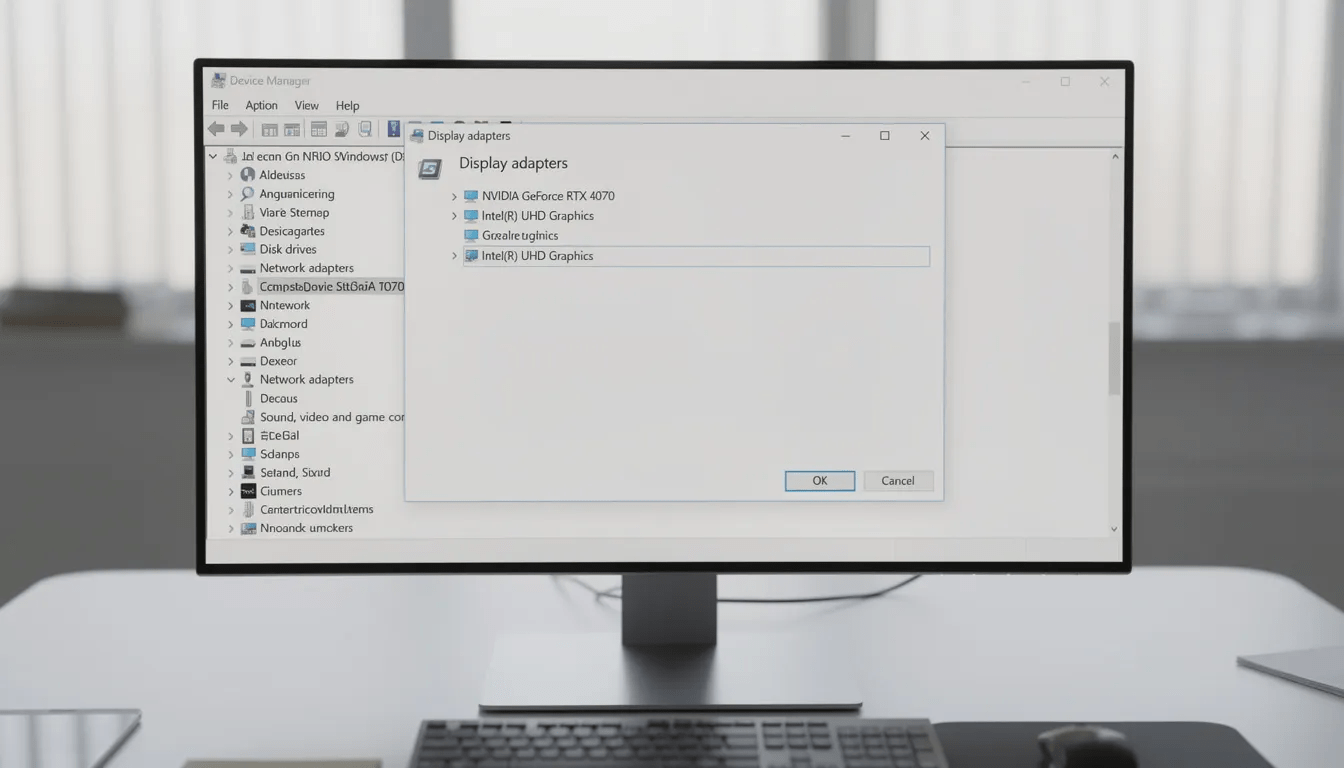
- Open Device Manager (right click Start > Device Manager)
- Expand “Display adapters” to see your current GPU
- Download the latest driver from NVIDIA’s official driver page
- Look for Game Ready Driver releases like 552.xx from mid-2024 or newer
- During installation, check the “Perform a clean install” option
AMD Users
- Download the latest driver from AMD’s driver support page
- Use AMD Adrenalin 24.7.x or newer for best 2024 compatibility
- Select “Factory Reset” during installation to remove old driver remnants
Intel Integrated Graphics Users
Players using Intel UHD 620/630 or Iris Xe graphics need to download the latest version directly from Intel’s Download Center—don’t rely solely on Windows Update, as it often lags months behind the latest game-ready releases.
Clean Install with DDU
For stubborn driver problems where updating doesn’t help, use Display Driver Uninstaller (DDU) in Windows Safe Mode:
- Download DDU from the official Guru3D website
- Boot into Safe Mode
- Run DDU to completely remove all GPU driver traces
- Restart normally and install a fresh driver
This clean install approach resolves deep driver corruption that standard updates miss.
Fix GTA 5 Crashes Caused by Virtual Memory and Paging File
A too-small Windows paging file (also called a swap file) can cause GTA 5 to crash when RAM usage spikes. This is especially common on 8 GB systems playing GTA Online, where asset streaming and player counts create heavy memory demands.
How to Increase Virtual Memory on Windows 10/11
- Right click “This PC” on your desktop and select Properties
- Click on Advanced system settings on the left side
- Under the Advanced tab, click Settings in the Performance section
- Switch to the Advanced tab in the Performance Options window
- Click Change under Virtual memory
- Uncheck “Automatically manage paging file size for all drives”
- Select your system drive (C:)
- Choose “Custom size”
- Set Initial size to 5000 MB and Maximum size to 8000 MB (5–8 GB)
- Click Set, then OK
Restart Windows after changing virtual memory settings, then test GTA 5 for at least 30 minutes in free roam or a busy GTA Online lobby.
Even users with 16 GB or more of RAM benefit from a reasonable paging file size. Completely disabling the paging file is not recommended and can cause 0xc0000005-type crashes.
Verify and Repair GTA 5 Game Files
Corrupted or missing game files are a frequent reason GTA 5 crashes on startup or when loading Story Mode and GTA Online. Each launcher platform has its own verification tool.
Steam
- Open your Steam Library
- Right click on Grand Theft Auto V
- Select Properties
- Go to Installed Files
- Click “Verify integrity of game files”
Epic Games Launcher
- Open your Library
- Click the three dots on GTA 5
- Select “Manage”
- Click “Verify”
Rockstar Games Launcher
- Open Settings
- Go to “My installed games”
- Select GTA V
- Click “Verify integrity”
Verification may take several minutes and can re-download tens of gigabytes if many files are damaged. Allow it to complete without interruptions.
If verification fails repeatedly or keeps re-patching the same files, perform a clean reinstall of GTA 5 onto a different drive (SSD preferred) and test without any mods.
Important: Back up your single player save files and important config files (like settings.xml in Documents\Rockstar Games\GTA V) before uninstalling.
Mods, Overclocks, and Overheating: Hidden Crash Triggers
Even when the base game runs fine initially, mods, system overclocks, and heat buildup over long sessions can cause GTA 5 to crash unexpectedly. When troubleshooting, always revert to a fully vanilla state—no script hook, no ENB, no Reshade, no trainers—before deciding the game itself is broken.
Large mod packs, graphics overhauls like NaturalVision-style mods, and extensive car packs significantly increase memory usage and can cause crashes in 2024 game builds. Thermal issues become more common in dusty desktops and older gaming laptops, especially during long GTA Online sessions in summer months.
Remove or Disable GTA 5 Mods
Mods and script hooks regularly break after Rockstar updates. Major GTA Online updates from 2022–2024 have repeatedly caused crashes at launch or when loading saves for players running outdated mod files.
To test in a vanilla state:
- Temporarily remove ScriptHookV.dll from your GTA V folder
- Remove dinput8.dll if present
- Delete or rename ENB/Reshade DLLs (d3d11.dll, dxgi.dll, reshade-shaders folder)
- Remove any modded .rpf archives from the update folder
For a thorough test, rename your entire GTA 5 installation folder and let the Rockstar launcher create a fresh one. Add mods back one at a time to identify which one is causing the game freezes.
Warning: Using mods in GTA Online is not allowed and can result in bans. Troubleshooting should be done in Story Mode with a clean game.
Outdated trainers or menu mods often conflict with anti-cheat updates and cause the game to immediately exit to desktop without a clear error.
Revert Unstable Overclocks
GPU and CPU overclocks that appear stable in some titles may still cause GTA 5 to crash because its workload pattern differs from newer games. GTA 5’s mixture of CPU-heavy AI/physics and GPU-heavy rendering can expose instabilities that synthetic benchmarks miss.
To test at stock settings:
- Reset GPU clocks to default in MSI Afterburner, EVGA Precision X1, or AMD Software
- Remove any CPU overclocks in BIOS/UEFI
- Return XMP/EXPO RAM profiles to default if you recently changed memory timings
Test GTA 5 for at least an hour at stock clocks. If crashes disappear, gradually re-apply overclocks while stress-testing with tools like 3DMark or OCCT.
Unstable power supplies on older systems can compound overclock issues and lead to black-screen crashes while gaming. If you suspect PSU problems, have the unit tested or temporarily try a known-good replacement.
Check for Overheating and Clean Your PC
Prolonged GTA 5 sessions push GPUs and CPUs to 90–100% load, which can cause thermal throttling or shutdowns if cooling is inadequate or fans are clogged with dust.
Monitor temps during gameplay with free tools:
-
HWMonitor
-
MSI Afterburner
-
HWiNFO
Target temperature guidelines:
-
GPUs: Under 80–85°C
-
CPUs: Under 90°C
Practical cooling improvements:
-
Clean dust from fans and heatsinks using compressed air
-
Improve case airflow by managing cables and ensuring proper fan direction
-
Use a laptop cooling pad for notebooks
-
Ensure vents are not blocked by surfaces or objects
If temps quickly spike to extreme levels and crashes follow, you may need to reapply thermal paste on older systems or have a technician inspect the cooling system.
When temperatures remain borderline despite cleaning, reduce in-game FPS limits or lower graphics settings further—especially during hot summer months when ambient temperatures are higher.
Specific GTA 5 Crash Errors (0xc0000005, ERR_D3D_INIT & More)
Some crash messages point to specific problem areas and can speed up diagnosis. Paying attention to error codes helps you apply the right fix faster instead of working through every possible solution.
Screenshot error dialogs or copy the text so you can search Rockstar Support articles or community threads if basic fixes fail. Persistent, reproducible crashes in the same mission or activity after all local fixes may require contacting Rockstar support with detailed logs and DxDiag reports.
Error Code 0xc0000005 (STATUS_ACCESS_VIOLATION)
The 0xc0000005 error means the game tried to access memory it wasn’t allowed to. This typically results from driver issues, faulty RAM, or aggressive antivirus/overlay tools interfering with the game process.
Priority fixes for 0xc0000005:
- Update your GPU drivers using the steps above
- Extend the paging file to at least 5 GB
- Verify game files through your launcher
- Temporarily disable third-party antivirus or add Rockstar/Steam/Epic folders to exclusions
- Disable overlays from Discord, NVIDIA, and Xbox Game Bar
Check Windows Event Viewer (Windows Logs > Application) for corresponding error entries that might mention the faulty module—commonly ntdll.dll or a specific game DLL.
If 0xc0000005 appears across multiple games and apps, you may have a broader RAM or operating system instability issue rather than a problem with GTA 5 alone.
ERR_D3D_INIT / ERR_GFX_D3D_INIT and “Failed Initialization”
ERR_D3D_INIT and ERR_GFX_D3D_INIT indicate DirectX or graphics driver initialization failures at startup or shortly after loading.
Fixes for DirectX initialization errors:
- Switch DirectX 11 to DirectX 10/10.1 in GTA settings
- Update GPU drivers from NVIDIA, AMD, or Intel official sites
- Ensure the latest DirectX runtime is installed via Windows Update
- Run GTA 5 as Administrator
- Remove any compatibility modes manually set on GTA5.exe or the launcher
For Intel integrated graphics users specifically:
- Fully uninstall current Intel HD/UHD drivers via Device Manager (check “Delete the driver software”)
- Reboot while disconnected from the internet
- Install the latest driver directly from Intel’s Download Center
For stubborn ERR_GFX_D3D_INIT problems, Rockstar support sometimes recommends renaming or deleting the “settings.xml” file in Documents\Rockstar Games\GTA V to regenerate clean graphics settings. The game will recreate this file with default values on next launch.
When to Reinstall Windows or Contact Rockstar Support
If GTA 5 keeps crashing even after all the steps above, the underlying cause might be a deeper Windows or hardware problem that game-specific fixes can’t address.
Try a New Windows User Profile
Create a new Windows user account and try running GTA 5 from there. This rules out profile-specific corruption or permissions issues that can happen over time.
Run System Integrity Checks
Open Command Prompt or PowerShell as Administrator and run these commands:
sfc /scannowThis scans Windows system files for corruption and repairs them automatically.
DISM /Online /Cleanup-Image /RestoreHealthThis repairs the Windows component store, which can resolve deeper system corruption.
Hardware Diagnostics
If multiple games—not just GTA 5—crash with similar symptoms, focus on hardware:
|
Issue |
Diagnostic Tool |
|---|---|
|
RAM problems |
MemTest86 (boot from USB overnight) |
|
Drive health |
CrystalDiskInfo (check SMART status) |
|
GPU stability |
3DMark stress tests |
|
PSU issues |
Professional testing or temporary replacement |
As a last resort, a clean reinstall of Windows 10/11 (after backing up data) on a new SSD can resolve long-standing corruption that verification and driver updates can’t fix.
Before taking drastic measures, contact Rockstar support with detailed information: PC specs, OS version, game version from the Rockstar launcher, screenshots of errors, and all the steps you’ve already tried. Current 2024 support pages often have updated solutions for the latest patch problems.
FAQ
Q: Why does GTA 5 only crash in GTA Online but runs fine in Story Mode?
GTA Online sessions are significantly heavier on RAM, CPU, and network resources than single player mode. Busy lobbies with many players expose borderline hardware, unstable overclocks, and undersized paging files. Lower your graphics settings further for Online, increase virtual memory to at least 5–8 GB, disable background downloads and streaming apps, and test with a wired Ethernet connection rather than Wi Fi when possible.
Q: Can a hard drive or SSD cause GTA 5 to crash?
It depends on when the restarts occur. If the system reboots before the Windows logo appears (during BIOS/UEFI), the cause is likely hardware: unstable power, failing RAM, or motherboard damage. If restarts begin only when the operating system starts loading, the outage may have corrupted system files. Try Windows Startup Repair, System Restore, or a clean reinstall after backing up your data.
Q: Is it safe to use third-party “driver updater” tools to fix GTA 5 crashes?
While some driver updater tools work, the safest method is to manually update your graphics card driver from NVIDIA, AMD, or Intel’s official websites. Untrusted driver updaters can install wrong or outdated drivers and sometimes bundle unwanted software that creates new problems.
Q: Does running GTA 5 on Windows 11 cause more crashes than on Windows 10?
GTA 5 is fully compatible with Windows 11, and most players report similar stability once drivers are properly updated. Crashes usually stem from drivers, overlays, or settings—not the operating system itself. Keep Windows 11 fully updated through Windows Update and use the latest GPU drivers certified for Windows 11 to avoid compatibility issues.
Q: How can I tell if my RAM is causing GTA 5 to crash?
Players who see random crashes across multiple games and applications, blue screens, or 0xc0000005 errors in various programs should suspect RAM problems. Run MemTest86 from a bootable USB overnight or use Windows Memory Diagnostic to check for errors. If errors appear, try reseating your RAM modules or testing one stick at a time to identify the faulty component. Defective RAM affects the entire computer, so you’ll typically notice the same problem happening in other games and applications too.