
Key Takeaways
-
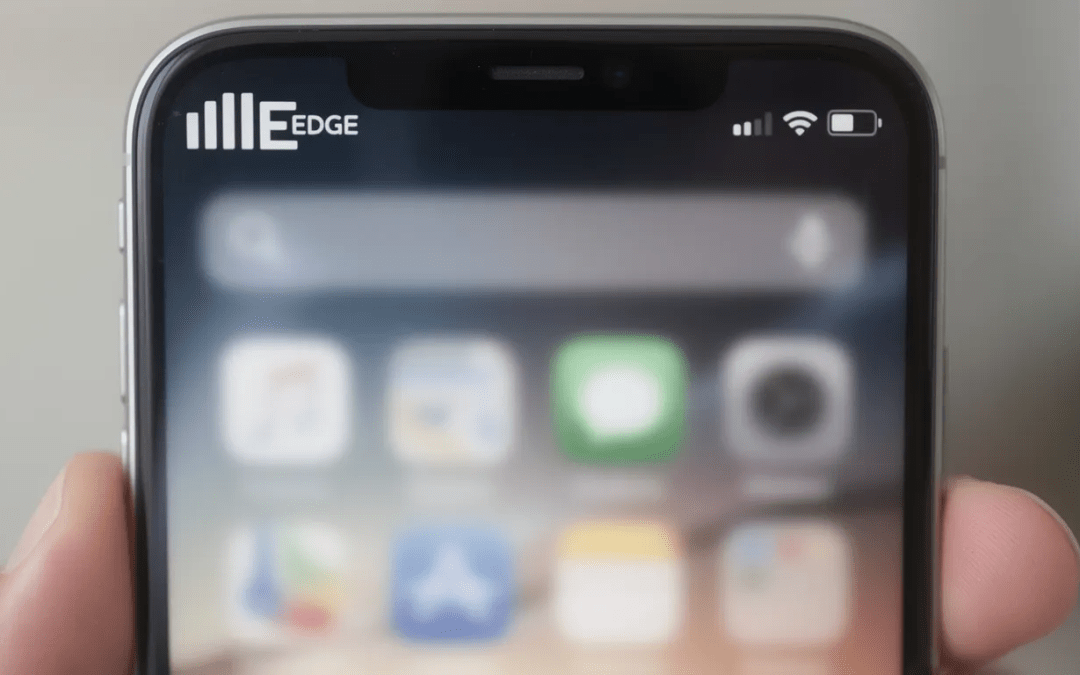
The E symbol on your phone means you’re connected to EDGE (Enhanced Data Rates for GSM Evolution), a very slow 2G data network that delivers speeds around 100–200 kbps—roughly 50 to 100 times slower than 4G LTE.
-
You typically see the E symbol when 4G, LTE, or 5G coverage is weak or unavailable, such as in rural areas, basements, older buildings, or on moving trains.
-
Traditional phone calls and SMS still work fine on EDGE, but browsing, streaming, and most apps will feel nearly unusable.
-
Quick fixes include moving to a better coverage area, toggling airplane mode on and off, checking your preferred network type settings, or connecting to Wi-Fi.
-
If you permanently see E where others get 4G or 5G, you may have a SIM card issue, an older phone without modern network support, or a carrier problem worth investigating.
What Does “E” Mean on My Phone Signal Bar?
So you’ve spotted a small “E” next to your signal bars and you’re wondering: what does the e mean on my phone? The short answer is that your cell phone has dropped to a very old, very slow data connection.
The E stands for EDGE, which is short for Enhanced Data Rates for GSM Evolution. You might also see it called Enhanced GPRS or EGPRS in technical documentation. This is a second generation mobile data technology that first appeared in commercial networks around 2003 as an upgrade to the even slower GPRS (General Packet Radio Service).
EDGE offers maximum download speeds of around 384 kbps on paper, but real-world performance typically falls between 100–200 kbps. In 2024–2026, that translates to an experience that feels almost like having no internet at all.
On a modern smartphone connected to the edge network, you can realistically expect to:
-
Send and receive basic text emails without large attachments
-
Use simple messaging apps for text-only conversations
-
Receive background notifications (when they don’t time out)
What you cannot reasonably do on EDGE includes loading image-heavy websites, scrolling social media feeds, video streaming, or using navigation apps with live map data. If you see E instead of 3G, 4G, LTE, or 5G in your signal strength indicator, prepare for very slow web pages, delayed messages, and broken streaming.
Both iPhone and Android display the same e symbol (or a nearly identical icon) in the status bar next to your signal bars when connected to EDGE.
Why Is My Phone Showing E Instead of 4G, LTE, or 5G?
Modern phones always prefer the fastest available network connection. Your device will only fall back to EDGE when it genuinely has no better option.
Here are the main reasons you might see E instead of faster networks:
Weak or missing 4G/5G coverage. You’re in an area where modern mobile networks simply don’t reach well—rural roads, small villages, forests, mountains, basements, or older buildings with thick concrete walls.
Temporary network congestion. During major events, concerts, or emergencies, local cell towers can become overloaded. When this happens, your phone may get pushed down to older network layers like 3G or even 2G EDGE.
Your carrier has shut down 3G. Many carriers have refarmed or completely turned off their third generation networks. This means the only fallback below 4G LTE is now 2G EDGE in some areas.
Incorrect phone settings. Your device or SIM might be set to a limited network mode (like “2G only” or “2G/3G only”) in your phone settings, preventing connection to faster networks.
To put this in context: US carriers have been shutting down legacy 2G and 3G networks between roughly 2017 and 2025. T Mobile was widely reported as one of the last major US carriers keeping 2G/EDGE alive, with their network remaining active until April 2024. AT&T and Verizon completed their 2G GSM shutdowns years earlier.
The good news is that when your coverage improves—moving outdoors, getting closer to town, or when network congestion eases—your phone should automatically switch from E up to 3G, H/H+, 4G LTE, or 5G.

How Slow Is E Compared to 3G, 4G, LTE, and 5G?
The letter icons on your phone (G, E, 3G, H/H+, 4G/LTE, 5G) indicate the type and rough speed capability of your current network connection. Understanding the difference between these symbols helps explain why EDGE feels so painfully slow.
Here’s how the technologies compare:
|
Symbol |
Technology |
Typical Speeds |
|---|---|---|
|
G |
GPRS (2G) |
56–114 kbps |
|
E |
EDGE (2.5G) |
100–200 kbps (up to 384 kbps theoretical) |
|
3G |
UMTS |
384 kbps – 2 Mbps |
|
H / H+ |
HSPA / HSPA+ (High Speed Packet Access) |
3–10 Mbps |
|
4G / LTE |
Long Term Evolution |
10–100 Mbps |
|
5G |
Fifth Generation |
50–500+ Mbps |
What does this mean for actual activities?
-
Browsing: Web pages load extremely slowly on E, especially image-heavy sites. A page that takes 2 seconds on 4G might take 2 minutes on EDGE.
-
Social media: Feeds, stories, and videos may fail completely or take several minutes to load a single post.
-
Streaming: Video streaming apps will buffer endlessly or refuse to play. You cannot stream music reliably either.
-
Navigation: Map tiles load very slowly, though basic GPS positioning (without downloading new maps) still works.
EDGE is often described as “2.5G” because it sits between classic 2G (GPRS) and early 3G in the mobile technology evolution. But for most people in 2024–2026, it feels closer to “no internet” than to anything usable for data intensive applications.
Why Do I Still See E if 2G Networks Are Being Switched Off?
Even though many mobile operators are shutting down their 2G networks, some regions still rely on them for basic voice calls, SMS, and low-bandwidth IoT devices.
Here’s how the situation varies by region:
-
United States: AT&T and Verizon shut down their legacy 2G GSM networks years ago. T Mobile US was one of the last major carriers to keep 2G/EDGE active, with shutdown targeting dates around mid-2024.
-
Europe, Asia, and Africa: Many countries still maintain active 2G networks. In parts of Europe, 2G supports legacy devices and provides emergency coverage in remote areas. Some Asian and African nations rely heavily on 2G for voice service across large rural populations.
Interestingly, some countries are turning off 3G before 2G. This means EDGE becomes the fallback below 4G LTE for emergency coverage and devices that don’t support modern mobile broadband standards.
Your phone may display the e symbol even when the underlying network is in a “sunset” phase, because the technology remains technically operational in small slices of spectrum until final shutdown.
As more 2G shutdowns occur globally, users will increasingly jump straight from 4G/5G to “No service” rather than seeing E. The specific timeline depends on your carrier’s infrastructure plans and your location in the world.
How to Get Rid of the E Symbol and Improve Your Data Connection
You cannot simply “turn off” the E symbol—it reflects your current data connection reality. However, you can often force your phone to reconnect to faster networks or use alternative connectivity options.
Here are general troubleshooting steps that work for both Android and iPhone:
- Move to an area with better coverage. Step near windows, go upstairs, move outdoors, or get closer to a town center. Thick concrete walls and basements often block modern network signals.
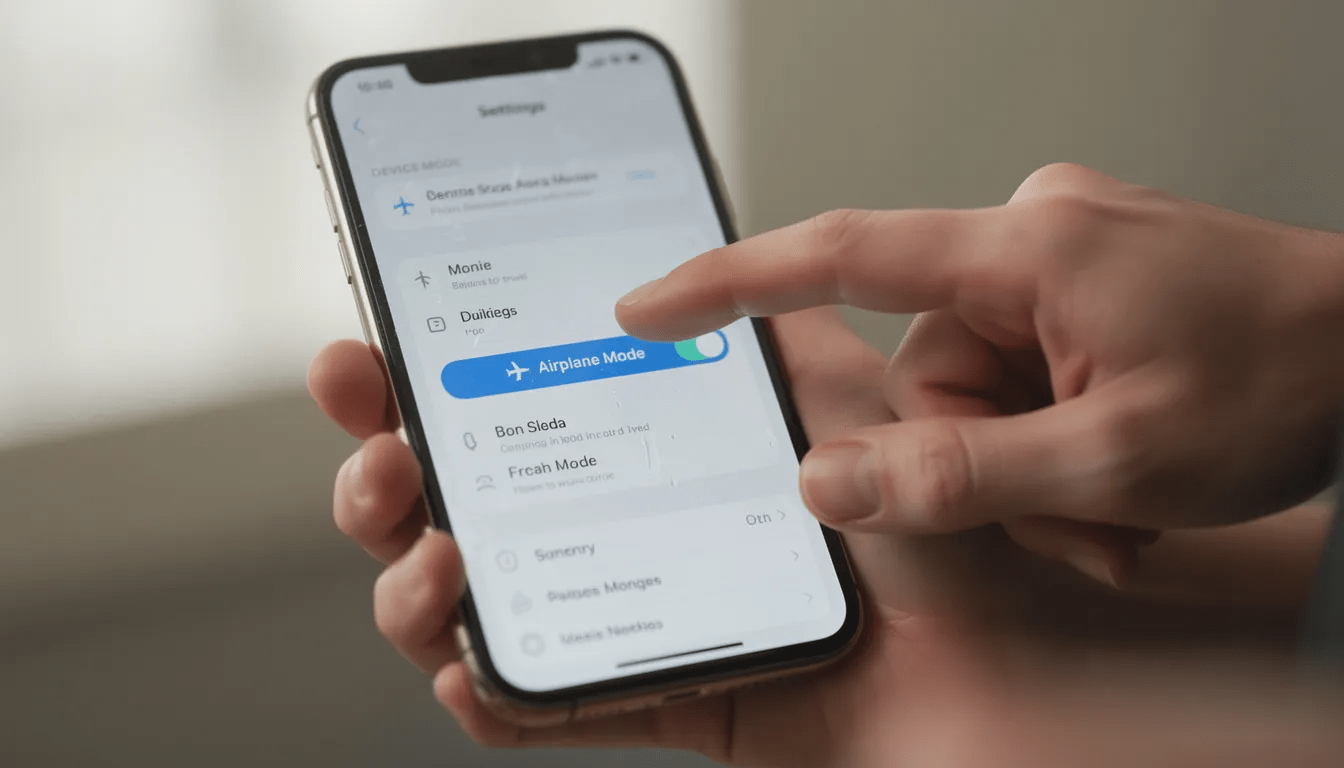
- Toggle airplane mode. Turn airplane mode on for 10–20 seconds, then turn it off. This forces your phone to reconnect to the network from scratch and often helps it find a faster connection.
- Restart your phone. If the symbol seems stuck on E in an area where you normally get 4G or 5G, a full restart can clear temporary connection issues.
- Verify mobile data is enabled. Check that mobile data is actually turned on and that your data plan with your carrier is active.
- Check roaming restrictions. Some plans limit data speeds or network technologies when roaming internationally.
The most reliable solution when stuck on EDGE is often connecting to a trusted Wi Fi network at home, work, or a café instead of relying on mobile data.
If you permanently see E in places where others on the same carrier get 4G or 5G, consider these possibilities:
- A damaged or outdated SIM card that needs replacement
- A very old handset that doesn’t support 4G LTE or 5G bands
- An account issue that your carrier’s customer service needs to investigate
How to Change Preferred Network Type on Android
Android phones let you choose your preferred network type, which tells the device what connection technologies to prioritize. If your phone is set to a restricted mode, changing this setting can help you access faster networks.
Here’s how to adjust network settings on most Android devices:
- Open Settings and navigate to Mobile network, Network & Internet, or Connections (depending on your device)
- Tap on SIMs or Mobile network
- Select your active SIM card if you have multiple
- Look for Preferred network type, Network mode, or similar wording
- Select the highest available option, such as 5G/4G/3G/2G (auto) or LTE/3G/2G (auto)
Avoid selecting “2G only” or “GSM only” unless you have a specific reason. This will lock you to the edge network and general packet radio service speeds, making modern mobile internet essentially unusable.
Even with 5G or LTE selected, your phone will still automatically fall back to 4G, then 3G, then 2G EDGE if that’s the only network available at your current location. The setting simply tells your device what to prefer when multiple options exist.
Note that menu names and exact paths vary by manufacturer. Samsung, Google Pixel, Xiaomi, OnePlus, and other brands may use slightly different terminology.
Example: Adjusting Network Mode on Google Pixel
Google Pixel phones running recent Android versions follow a consistent menu layout, making them a useful reference example.
To adjust your network mode on a Pixel:
- Go to Settings > Network & Internet > SIMs
- Tap the SIM you use for mobile data
- Tap Preferred network type
- Choose an option that includes 5G or LTE, such as “5G preferred” or “LTE preferred”
- Avoid options labeled “2G only” or “GSM only”
Pixel users can also temporarily disable 5G by choosing “LTE only” to potentially save battery or improve connection stability in areas with weak 5G coverage—while still avoiding EDGE wherever 4G exists.
How to Prioritize 5G or 4G on iPhone
iPhones give you control over whether your device favors 5G, balances 5G with battery life, or sticks to 4G LTE. Adjusting these settings can help ensure you’re using the best network available.
Here’s how to check and change these settings on iOS 16, iOS 17, and newer:
- Open Settings
- Tap Mobile Data (or Cellular in some regions)
- Tap Mobile Data Options (or Cellular Data Options)
- Tap Voice & Data
- Select your preferred option:
-
- 5G On: Always use 5G when available (uses more battery)
- 5G Auto: Smart mode that balances 5G use with battery life
- LTE: Stay on 4G even when 5G is available
If your iPhone is set to a restricted mode like “2G only” or “3G” (visible in older iOS versions or specific carrier profiles), it may be forced to use EDGE instead of faster networks.
On many modern carriers and iOS versions, 2G and 3G options are hidden entirely if those gsm networks are no longer supported by your carrier. This prevents accidental selection of legacy modes.
Other Network Symbols You Might See on Your Phone
The E is just one of several icons that indicate your mobile data connection type. Understanding each symbol helps you gauge what kind of mobile internet experience to expect.
Here’s a quick reference:
-
G (g symbol): GPRS, the original 2G packet data service. Extremely slow—barely usable for modern apps.
-
E (e symbol): EDGE, enhanced 2G data. Still very slow by today’s standards, as covered throughout this article.
-
3G / UMTS: Third generation mobile broadband. Acceptable for basic web browsing and music streaming.
-
H / H+ (h symbol): HSPA / HSPA+, sometimes called “3.5G.” These high speed packet access technologies deliver faster speeds suitable for video streaming and heavier data use.
-
4G / LTE / LTE+: Fourth generation networks providing the mainstream mobile experience. 4G LTE offers maximum download speeds ranging from 10–100+ Mbps. LTE+ or 4G+ indicates LTE-Advanced with carrier aggregation for even faster performance.
-
5G: The latest generation of mobile communications with the highest potential speeds and capacity. Coverage can still be patchy depending on your location and carrier.
The icon reflects only the radio technology your phone is currently using—not your actual speed at any given moment. Real-world performance depends on signal strength, network congestion, and any data plan limits your carrier enforces.
FAQ
Does the E symbol affect phone calls and SMS, or just the internet?
The e symbol primarily indicates your mobile data speed, not your ability to make basic voice calls or send text messages. Traditional calls and SMS were designed for 2G networks, so they typically work fine even when you see E.
Can being stuck on E drain my battery faster?
Yes, poor signal conditions can increase battery consumption. When your phone constantly hunts between 4G, 3G, and E—repeatedly trying to find a stronger connection—it uses more power than maintaining a stable strong signal.
Staying connected to a strong 4G LTE or wi fi network is typically more battery-efficient than constantly switching down to weak 2G EDGE. If you’re in a low-signal area, consider connecting to Wi-Fi where possible or temporarily disabling mobile data when you don’t need it.
Why do some apps work on E while others don’t load at all?
Apps that send small amounts of data—like basic text messages, email headers, or simple notifications—may still function over EDGE. The low data rates can handle lightweight text-based communication.
Apps requiring significant bandwidth simply cannot cope with EDGE speeds. Social media feeds, HD photos, maps with satellite imagery, and music or video streaming services often time out completely or display error messages. Some apps are optimized to pause heavy downloads on very slow connections, making them appear frozen when you’re on the edge network.
Will buying a new phone stop me from seeing E?
A newer phone can give you access to more network bands, better antennas, and the latest technologies like 5G—all of which help in areas with good coverage. Modern devices are optimized to grab faster signals more efficiently.
However, if your area only has 2G coverage or very weak 4G/5G signals, even the newest phone will still fall back to E or show “No service.” Before assuming your device is at fault, check coverage maps for your carrier or ask neighbors on the same network what speeds they experience.
Is it worth switching carriers if I see E at home all the time?
If you consistently see E or very weak data at home while others on different carriers enjoy strong 4G or 5G, switching carriers could significantly improve your experience.
Before making the switch, consider these steps:
-
Check coverage maps for each carrier in your country
-
Ask neighbors what network they use and what data speeds they typically get
-
Test with a prepaid SIM card before fully committing to a new carrier
In some very remote areas, all carriers may rely on older technologies or sparse coverage. Improvements could still be limited by geography rather than carrier choice—but in many cases, one carrier’s network performs notably better than others at a specific location.